You have a flyer to print by Friday, a menu to refresh, and a budget that does not stretch to a design agency. So you open a layout tool and wonder whether the old reliable one or the popular browser-based one will get you there faster. This article puts Publisher vs Canva side by side on the things small business owners actually care about: what you pay, what templates you get, how well each tool handles print, and what happens after the design is finished. We will also show how to turn any finished PDF into an interactive page-turning document with Flipbooks AI, because a design that sits in a folder helps nobody.
The short version: Canva is the better pick for most small businesses today. Microsoft Publisher still has loyal fans for precise print layouts, but Microsoft set October 2026 as its retirement date, which means it no longer receives updates. Check Microsoft's current notice for your version before you build a workflow around it.
Before comparing features, it helps to be clear about what you are comparing. These two tools come from very different eras and were built for different habits.
Microsoft Publisher in Brief
Publisher is a desktop layout application that shipped as part of Microsoft Office for decades. You install it on a Windows PC, work on files stored locally, and export to PDF or send to a printer. It behaves like Word with a free-form canvas: text boxes, picture frames, master pages and a ruler-driven grid.
Its strengths are familiarity and control. If your team grew up on Office, the interface feels natural. Its weaknesses are age, a Windows-only footprint, and a retirement schedule that makes it a risky foundation for new work.
Canva in Brief
Canva runs in the browser and in mobile apps. You pick a template, swap the text and photos, and download or order a print. Stock photos, icons, fonts and an enormous template library sit inside the same editor. Brand kits, shared folders and comments make it feel closer to a collaboration space than a traditional layout program.
Its strengths are speed, polish and sharing. Its weaknesses are less granular typographic control and a subscription model, so you pay as long as you want the premium assets.
💡 Pro tip: Ask yourself one question first: do you design alone on one Windows computer, or do several people (or a freelancer) touch the same files? Your answer settles half of this comparison.
Pricing is where small businesses feel the difference most, and it is also where comparisons go stale fastest. The figures below are approximate and based on typical published pricing at the time of writing, so confirm current rates on each vendor's site before you buy.
Publisher Pricing Breakdown
Publisher was never sold on its own for most customers. You got it through one of two routes:
- Microsoft 365 business plans that included desktop apps, billed per user each month.
- A one-time purchase of an Office edition that bundled Publisher, usually the pricier professional tier.
The one-time route sounds attractive because you pay once. The catch is that a perpetual copy stops receiving feature updates, and with the retirement date passed, there is nothing new coming for Publisher at all. You also cannot move that license freely between devices as your team grows.
Canva Pricing Breakdown
Canva uses a freemium model. The free plan gives you the editor, a decent set of templates and basic exports. The paid tiers add premium templates, a brand kit, background removal, resizing across formats and larger cloud storage. Team plans bill per person and add shared brand controls and approval flows.
Side by Side Cost Table
| Factor | Microsoft Publisher | Canva |
|---|
| Entry cost | Bundled with an Office edition or Microsoft 365 plan | Free plan available |
| Typical paid cost | Per-user monthly plan or a higher one-time Office price | Roughly a monthly or yearly subscription per person |
| Platform | Windows desktop only | Browser, iOS, Android, desktop app |
| Updates | Retired, no new features | Constant updates |
| Stock assets | Limited clip art | Photos, icons, video, fonts (premium tier unlocks more) |
| Best budget fit | Owner who already pays for Office | Owner who wants a low-cost start |
⚠️ Watch out: "Free" in Canva does not mean every template is free. Elements marked with a crown need a paid plan or a one-off purchase, so check before you build a whole campaign around one.
Templates Side by Side
Templates decide whether you finish a design in twenty minutes or two hours. This is where the two tools feel most different.

Publisher Template Library
Publisher ships with a modest set of built-in layouts: brochures, newsletters, flyers, business cards and calendars. Many look dated by modern standards, and Microsoft's online template gallery has changed over the years. You can build clean results, but you will usually do more manual styling to make them feel current.
What Publisher does well is repeatable structure. Master pages, linked text boxes and consistent margins make a ten-page newsletter easy to keep tidy.
Canva Template Library
Canva offers thousands of templates across print and digital formats, from business cards and menus to social posts and slide decks. Designs follow current trends, and the Magic Resize style tools let you turn one flyer into an Instagram post and a poster in a few clicks.
A bakery, for example, can open a poster template, drop in a product photo, apply its brand colors and have a seasonal promotion ready before the ovens cool.
Template Comparison Table
| Template Need | Publisher | Canva |
|---|
| Flyers and posters | Basic layouts, manual styling | Huge modern selection |
| Menus | A few options | Many categories and styles |
| Newsletters | Strong, master pages help | Good, less rigid structure |
| Business cards | Standard sizes, simple | Many styles, print ordering built in |
| Social media graphics | Not designed for it | Core strength |
| Brand consistency | Manual setup | Brand kit on paid plans |
Print Features That Matter
Both tools can produce a printable PDF. The question is how much help you get along the way, and how much knowledge you need to avoid an expensive reprint.
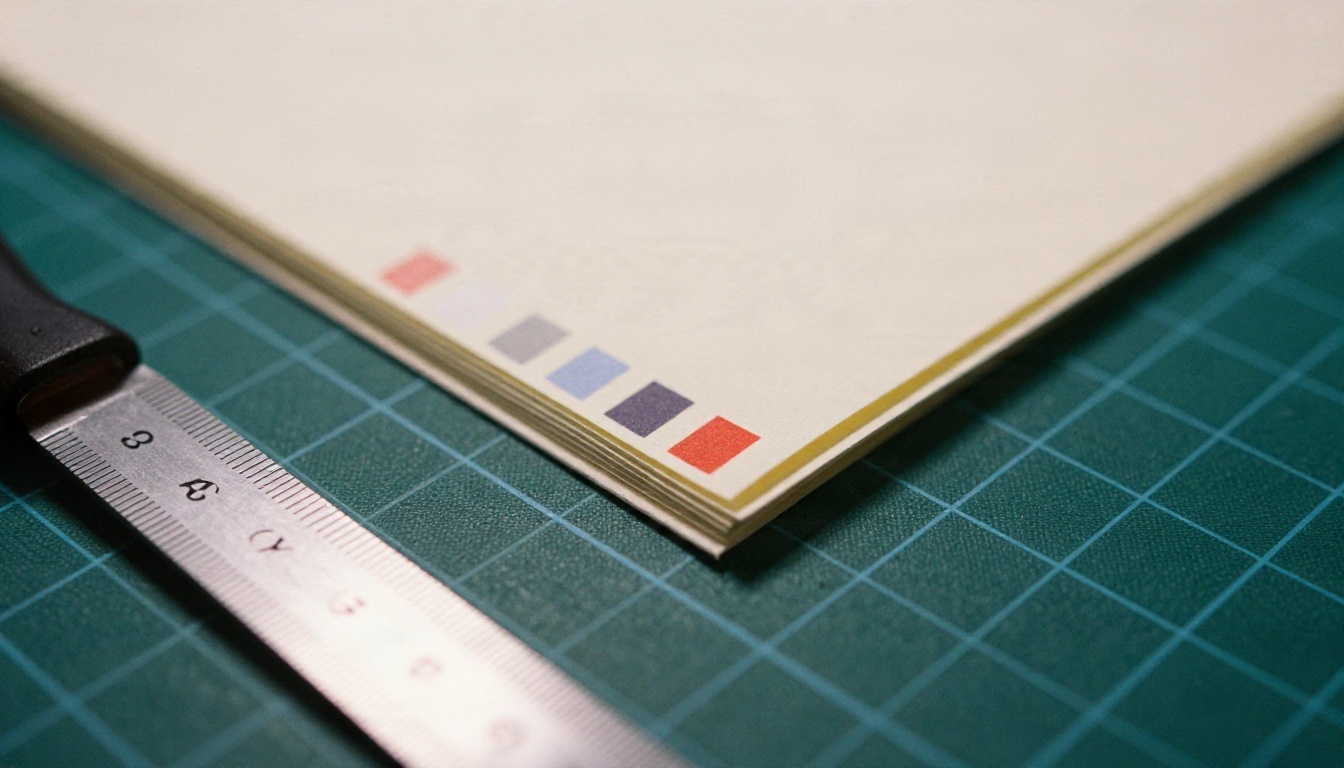
Bleed, Margins and Crop Marks
Bleed is the extra artwork that extends past the trim line so no white sliver appears after cutting. Publisher gives you hands-on control: you can set guides, define bleed in the document setup and export with printer's marks. That precision is why some print-savvy owners still prefer it.
Canva lets you add bleed and crop marks when you download a print PDF. The option is easy to miss, so tick it every time you send a file to a commercial printer.
Color Handling: RGB vs CMYK
Screens use RGB. Printers use CMYK. Colors that look vivid on a monitor can print duller if the conversion is not handled well.
- Publisher supports CMYK workflows in its PDF export settings, which suits print shops.
- Canva offers a CMYK PDF option on paid plans, and some bright shades will still shift slightly on paper.
💡 Pro tip: Always order a single proof copy before a large run. Ten dollars on one proof can save a few hundred on a misprinted batch.
Ordering Prints Directly
Canva can print and ship products straight from the editor: cards, flyers, posters and more. It is convenient for short runs and for owners who do not want to manage a vendor. A local print shop often wins on price for large quantities and on paper choice, so compare quotes.
Print Feature Table
| Print Feature | Publisher | Canva |
|---|
| Bleed and crop marks | Detailed control | Checkbox on download |
| CMYK export | Supported | Paid plans |
| Precise typography | Strong (kerning, tracking, linked boxes) | Good, less granular |
| Multi-page documents | Master pages, page numbering | Supported, simpler tools |
| Direct print ordering | No | Yes |
| Print-ready preflight | Basic checks | Basic warnings |
Teamwork and Sharing
Designing is only half the job. The other half is getting feedback, approvals and the final file into the right hands.

Working With Others
Publisher files live on a computer. Collaboration means emailing files back and forth, naming versions "final_v3_REAL" and hoping nobody edits the wrong copy. It works for a solo owner. It becomes painful with a partner, a freelancer or a remote assistant.
Canva handles this natively. Anyone with a link can comment, and teammates can edit the same design together. Brand templates lock logos and colors so staff cannot accidentally drift off-brand.
Sharing Finished Work Online
Here both tools hit the same wall: a PDF is a flat file. Customers have to download it, scroll it, and often pinch and zoom on a phone. That is where a flipbook helps. Turning a catalog, menu or brochure into a page-turning web document makes it easier to read, easier to send and trackable.

Which Suits Your Business
There is no universal winner, but there are clear patterns. Match your situation to the table below.
| Your Situation | Better Fit | Why |
|---|
| Solo owner, tight budget, social media heavy | Canva | Free start, fast templates |
| Print-focused shop with a trained designer | Publisher (existing install) or a pro layout tool | Fine typographic control |
| Team of two to ten sharing brand assets | Canva | Brand kit, comments, shared folders |
| Long newsletters or booklets | Either, then convert to PDF | Master pages vs simpler workflow |
| Mac, Chromebook or mobile user | Canva | Publisher is Windows only |
| New business starting fresh | Canva | No retired software risk |
Real-World Examples
- A café owner needs a seasonal menu in both print and digital form. Canva makes the layout fast, and a flipbook version lives on the website and a QR code on the table.
- A property agent produces a brochure per listing. Canva's templates speed up the design, and the PDF becomes an interactive flipbook that clients can open on any device.
- A small manufacturer with an existing Publisher license keeps editing old catalogs there, then exports to PDF. It works, but planning a migration is wise.

Three Common Mistakes
- Choosing on price alone. The cheapest tool costs more if it slows every project.
- Skipping the proof. Colors and margins always look different on paper.
- Leaving PDFs as flat files. A static attachment is the least engaging way to share a catalog.
How to Create a Flipbook from Your Design
Whichever tool you pick, the output is usually a PDF. The next step is turning that PDF into something customers enjoy opening. Here is the process with Flipbooks AI.
Step by Step
- Sign up. Create an account on Flipbooks AI. You can start without a credit card.
- Export your design as PDF. From Canva, choose Download, then PDF Print. From Publisher, use Export, then Create PDF.
- Upload the PDF. Drag the file into the dashboard. The PDF to Flipbook Converter turns each page into a turning page within seconds.
- Customize the look. Add your logo, pick background colors, choose page-turn effects and embed videos or audio where they add value.
- Set privacy. Share a public link, or add password protection for private price lists and client proposals.
- Publish and share. Copy the direct link, or follow the steps to embed the flipbook on your website.
- Track results. On the Professional plan, use analytics and lead generation to see who opens your document and capture contact details.
✅ Best practice: Keep a print-ready PDF and a screen-optimized PDF. Print files are heavy and slow to load on phones, so the lighter version is better for flipbooks.
Tools That Fit Common Business Needs
Different documents benefit from different starting points. These tools match the examples above:
What You Get Without Extra Cost
- No watermarks, ever, so your brand stays front and center.
- Unlimited flipbooks on the Standard plan and above.
- Offline downloads for customers with poor reception.
- Mobile-responsive reading on any screen.
- Custom branding with your logo and colors.
You can see what each tier includes on the pricing page.
Pick Your Next Step
If you are starting fresh, choose Canva for the design stage. It is faster, runs anywhere and does not carry the retirement risk that now surrounds Publisher. If you already own Publisher and your files work, keep using them for now, export to PDF, and plan a gradual move.
Either way, the finished design should not stay a flat attachment. Ready to try it? Get started for free on Flipbooks AI, browse all flipbook tools to find the format that suits your business, or compare pricing plans when you are ready to publish without limits.



