You spent an hour building a brochure, added a dozen links to your shop, your booking page and your social profiles, exported it, and then watched every single link turn into dead text. It happens constantly, and it is almost never the reader's fault. The good news: when you know how to save a PDF with hyperlinks the right way, the problem disappears. And once the file is clickable, you can go one step further and publish it as an interactive flipbook with Flipbooks AI, so people read it like a real publication instead of downloading a static attachment.
This article walks through why links break, which desktop apps and online tools preserve them, how to repair a PDF that has already lost its links, and how to share the final result in a format that looks great on phones, tablets and desktops.
Why Hyperlinks Break in PDFs
Before picking a tool, it helps to know what actually goes wrong. A PDF stores a link as an invisible rectangle on the page that points to a web address or another page. If your export process throws that rectangle away, the text stays but the click is gone.

"Print to PDF" Strips Links
The most common culprit is the Print to PDF option. It treats your document like paper, so it redraws everything as flat shapes and text. The result looks identical but has no link data at all. Use Save as PDF or Export as PDF instead, because those commands keep the link annotations.
Flattened and Scanned Files
Some files are flattened on purpose, for example to shrink size or to lock the layout. Scanned documents are even worse: each page is just a photograph of text. No app can click a photograph. If your source is a scan, you will need to add links again after the fact.
Quick Test Before You Send
Open the exported file in a different program than the one that created it. Hover over each link and watch the cursor change. Then open it on your phone. Two minutes of testing saves you from sending a broken file to a client.
💡 Pro tip: Write the full address in visible text for important links, such as a booking page. Even if a link breaks, readers can still copy it.
Save PDF With Hyperlinks in Desktop Apps
Most people already own software that handles links well. The trick is choosing the correct export command and a few settings.
Word and Google Docs
In Microsoft Word, choose File, then Save As, and pick PDF. Before you confirm, open the Options button and make sure Create bookmarks using headings and the document structure tags are ticked. Links you inserted with Ctrl+K stay active.
In Google Docs, go to File, Download, then PDF Document. Links come across cleanly as long as they were inserted as real hyperlinks rather than pasted as plain text styled in blue and underlined.
Canva and InDesign
Canva lets you add a link to any text, image or shape. When you download, choose PDF Standard and keep the link option enabled. Flattened downloads lose links, so do not pick the print-focused versions if clicking matters.
Adobe InDesign is more precise. Create the link in the Hyperlinks panel, then export with Adobe PDF (Interactive) rather than the print preset. The print preset drops interactive elements.
Preview and Acrobat Fixes
Acrobat can add or edit links in an existing file through its Edit PDF tools. On a Mac, Preview keeps existing links but gives you limited ability to create new ones, so it is better for checking than for building.
| App | Keeps links on export | Best export option | Weak spot |
|---|
| Microsoft Word | Yes | Save As PDF | Print to PDF loses links |
| Google Docs | Yes | Download as PDF | Pasted plain text is not a link |
| Canva | Yes | PDF Standard | Print versions flatten the file |
| Adobe InDesign | Yes | Adobe PDF (Interactive) | Print preset drops interactivity |
| Apple Pages | Yes | Export To PDF | Image quality setting affects size |
| Mac Preview | Keeps existing only | Save | Limited link creation |
⚠️ Warning: If you open a PDF and re-save it with a generic "PDF printer" driver, every link is lost. Always use the original app's export command.
No software to install? Browser-based tools can create, convert and repair PDFs. They are handy when you work on a borrowed computer or only need to fix a single file.

Converting Documents Online
Popular converters such as Smallpdf, iLovePDF, PDF24 and Sejda turn Word, PowerPoint and image files into PDFs. Most of them preserve hyperlinks when the source is a real Office file. They tend to lose them when you feed them a file that was already printed to PDF. Free plans usually limit file size, number of tasks per day, or both, and these limits change often, so check each site before you commit.
Adding Links to an Existing PDF
If the links are already gone, an online PDF editor is the fastest repair. The workflow is nearly identical everywhere:
- Upload the PDF to the editor.
- Select the Link or Add hyperlink tool.
- Draw a rectangle around the text or image you want to make clickable.
- Paste the destination address.
- Download the new file and test it in another viewer.
Privacy Checks for Uploads
Anything you upload leaves your computer. For contracts, price lists with confidential terms or personal data, read the tool's retention policy and look for automatic file deletion. When in doubt, use an offline app for private documents.
| Online tool type | Good for | Typical limit | Privacy note |
|---|
| Office to PDF converter | Word, Excel, PowerPoint exports | Daily task caps | Files deleted after a set time |
| PDF editor in browser | Adding or fixing links | Page or size caps | Check retention policy |
| Image to PDF tool | Photo based documents | Low link support | No links in the source |
| Flipbook converter | Publishing a clickable PDF | Depends on the plan | Password options available |
Why a Flipbook Beats a Raw PDF
A PDF with working links is already a big improvement. Yet it still has real limits. It must be downloaded, it opens in whatever viewer the reader has, and tiny tap targets on a phone make links frustrating to hit. A flipbook solves most of this.
Links in a Page-Turn Viewer
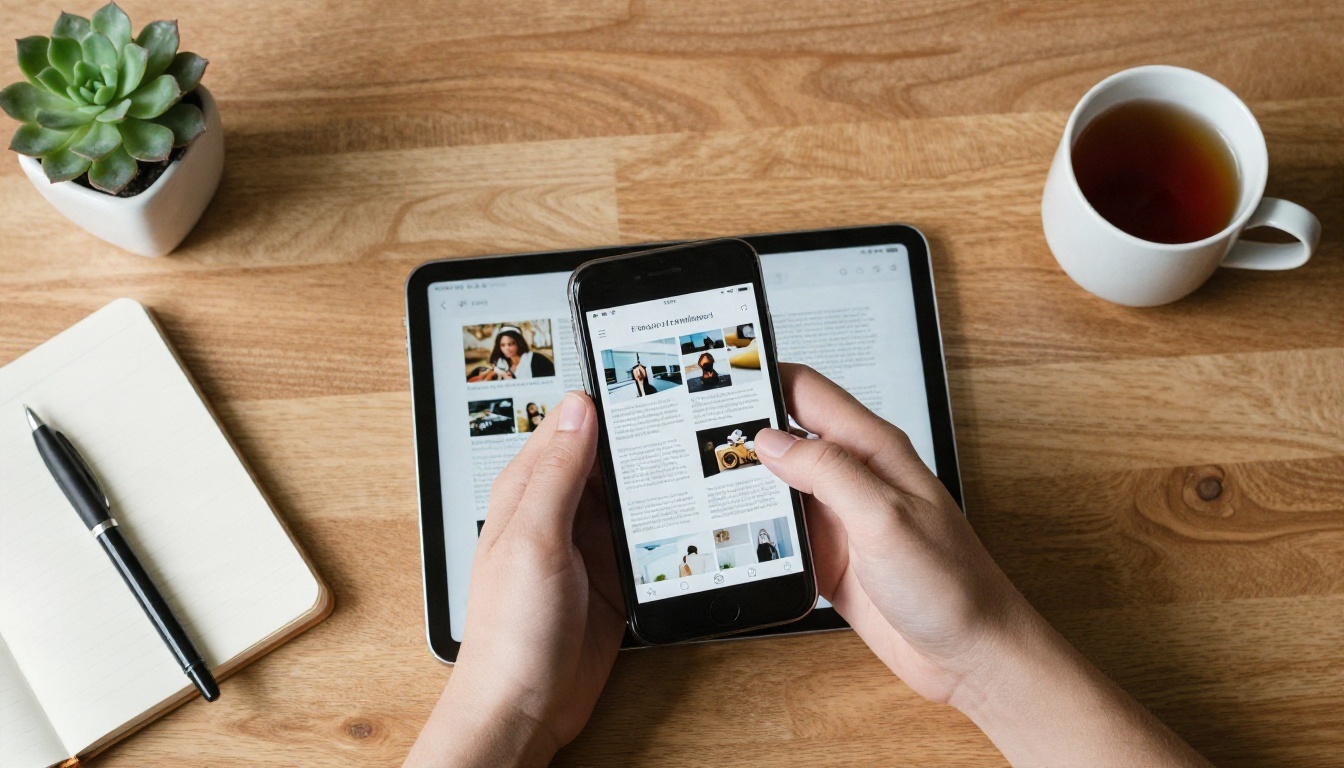
A flipbook displays your document in a browser with realistic page-turn motion. Readers click your links directly inside the viewer, with no download and no plugin. Because the flipbook lives at a single web address, you can update the file and keep the same link in circulation.
Reading on Mobile
More than half of document views now happen on phones. A mobile-responsive flipbook adapts to the screen, so pages are readable without pinching and zooming, and links are easier to tap.
Features a PDF Cannot Offer
- Embedded video and audio playing right on the page
- Password protection for private content
- Custom branding with your colors and logo
- Offline downloads for readers who want a copy
- Analytics and lead generation on the Professional plan
| Feature | Plain PDF | Flipbook |
|---|
| Clickable links | Yes, if exported correctly | Yes, inside the viewer |
| Page-turn effect | No | Yes |
| Works well on phones | Often awkward | Mobile-responsive |
| Video and audio on the page | Limited | Yes |
| Password protection | Depends on the app | Yes |
| Reading analytics | No | Yes, Professional plan |
| Update without resending | No | Yes, share one link |
How to Create a Clickable Flipbook with Flipbooks AI
Once your PDF has working links, publishing it as a flipbook takes only a few minutes. Here is the exact flow.
- Open the platform. Go to Flipbooks AI and create an account. You can start with a free account and compare plans later.
- Upload your PDF. Open the PDF to Flipbook Converter, drag your file into the upload area, and wait while the pages are converted. Large files with many images take a little longer.
- Test your links. Use the preview and click every link, including ones in footers and buttons. If one fails, fix it in your source file and upload again.
- Customize the look. Add your logo, pick background colors, choose the page-turn effect, and add video or audio where it helps.
- Choose how to share. Copy the direct link, grab the embed code, or switch on password protection.
- Publish and measure. Send the link, then check reading statistics if your plan includes them.
Upload and Convert
Imagine the upload screen as a simple drop zone with a progress bar. As soon as conversion finishes, you see a preview of your first spread with the page-turn animation. Nothing is stamped on your pages: no watermarks, ever.
Customization Options
The editor panel on the side lets you set a brand color, swap the background for a solid tone or an image, and place your logo. If you run a store, add a short clip beside a product page. If you teach, add an audio note beside a diagram.
Sharing Options
You get three practical routes:
- Direct link for email, chat and social posts
- Embed code to place the flipbook inside any page, covered in the embed flipbook on your website tool
- Password protection for client proposals, internal manuals and paid material
Analytics and Lead Capture
On the Professional plan, you can see how people read your document and collect contact details before they open it. Compare options on the pricing page. The Standard plan and above also includes unlimited flipbooks, which is useful if you publish a new catalog or newsletter every month.
✅ Best practice: Keep the original source file. If you need to change a link later, edit the source, export again, and replace the flipbook content instead of starting from zero.
Real-World Use Cases
Clickable files are useful anywhere a reader should take a next step. Each of these scenarios has a matching tool in the Flipbooks AI directory.

- A restaurant can link each dish photo to an online order page using the Restaurant Menu Creator.
- A real estate agent can attach virtual tour and map links to every listing page with the Real Estate Brochure Creator.
- A retailer can link every product to its shop page through the Digital Catalog Maker.
- A consultant can send a proposal with links to case studies, a calendar and a payment page.
- A teacher can give students a handbook with links to videos and reading lists.
| Scenario | What to link | Suggested sharing method |
|---|
| Restaurant menu | Online ordering, reservations | QR code and direct link |
| Property brochure | Virtual tour, map, agent contact | Direct link by email |
| Product catalog | Product pages, checkout | Embed on website |
| Client proposal | Case studies, calendar | Password protected link |
| Course handbook | Videos, reading lists | Embed in learning portal |
Common Mistakes to Avoid
Even with the right tools, small errors can make a clickable file frustrating. Watch for these:
- Printing instead of exporting. Covered earlier, but it is the number one cause of lost links.
- Links on very small text. Fingers are bigger than cursors. Make buttons and link areas generous.
- Relative addresses. Always start with https:// so the link works outside your computer.
- Skipping the phone test. A link that works on desktop may sit under a page margin on mobile.
- Heavy image files. Huge files load slowly. Compress images before export, but keep text sharp.
- Forgetting to retest after edits. Every new export can change link positions.
⚠️ Warning: Do not place important links only inside images that have no visible call to action. Readers do not know where to click, so add a short line such as "View the full collection" next to it.
Ready to Share Your Clickable PDF?
Saving a PDF with hyperlinks comes down to three habits: export instead of printing, test in a second program, and publish in a format that respects the reader's device. If your links already work, the fastest next step is to turn your PDF into a flipbook and share a single link everywhere.
Your links took time to write. Make sure your readers can actually click them.



