You have a receipt, a signed form or a photo of a printed page sitting in your gallery, and someone wants it as a PDF. Good news: your Android phone can do this in under a minute, and you probably do not need to install anything. This article shows how to scan a photo to PDF on Android with the camera, Google Drive and free apps, plus the quality settings that decide whether your file looks professional or like a blurry mess. Once your pages are clean PDFs, you can even turn them into a page-turning publication with Flipbooks AI.
Three Ways to Scan on Android
Android gives you more than one route from a paper page (or an existing photo) to a PDF. Each route has a different tradeoff between speed, control and cost.
- Google Drive scanner: built into the Drive app, free, and saves straight to the cloud.
- Camera plus print to PDF: works with photos you already took, using the system's Save as PDF option.
- Dedicated scanner apps: more control over filters, OCR and batch scanning, often with limits on the free tier.
Which Method Fits You
| Method | Best for | Speed | Edge detection | Cost |
|---|
| Google Drive | Receipts, forms, quick uploads | Very fast | Automatic | Free |
| Camera + Save as PDF | Photos already in your gallery | Fast | None (manual crop) | Free |
| Scanner app | Batches, OCR, contracts | Medium | Automatic | Free tier, paid extras |
| Samsung or Pixel built-in tools | Casual one-off pages | Very fast | Automatic | Free |
💡 Rule of thumb: if the page is on paper, use Drive or a scanner app. If the picture already exists as a photo, use the print route. Do not retake a photo just to convert it.
Scan With Google Drive
For most people this is the best answer. Drive is installed on nearly every Android phone, the scanner is quick, and the PDF lands in your account where you can open it on a laptop later.
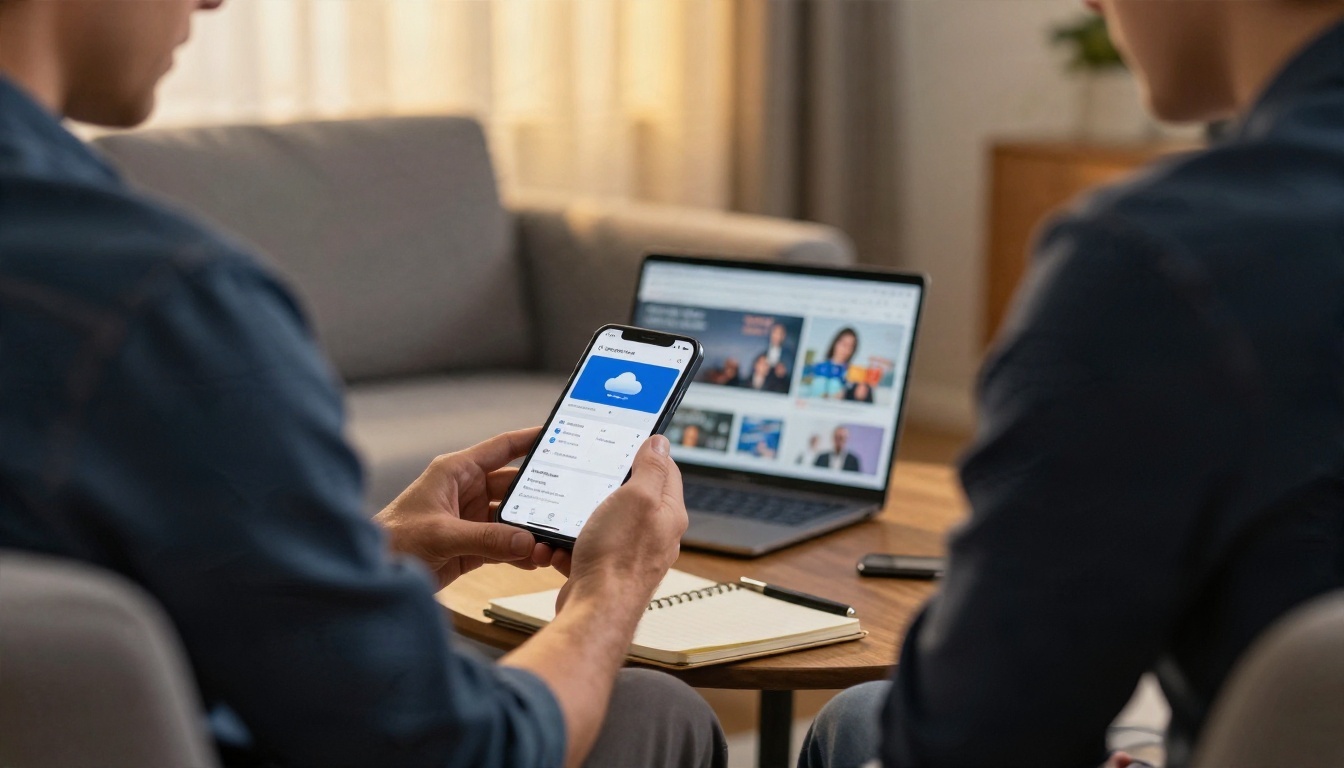
Step by Step
- Open the Google Drive app and tap the + button at the bottom right.
- Choose Scan (the camera icon). If asked, allow camera access.
- Place the page on a flat, plain surface and hold the phone parallel above it.
- Wait for the outline to snap onto the page edges, then tap the shutter button.
- Check the preview. Use Crop if an edge is off, or Retake if the text looks soft.
- Tap + to add more pages, or tap Save when you are done.
- Rename the file, pick the account and folder, then confirm.
That is the whole process. Drive stores the result as a regular PDF, so it opens everywhere.
Where the PDF Lands
By default your scan is saved to My Drive unless you pick another folder in step 7. A few habits make life easier:
- Create a folder called Scans and always save there.
- Start file names with the date, such as
2026-11-19 lease signed.
- Turn on offline access for files you need without signal.
⚠️ Heads up: the Drive scanner can apply a color filter automatically. If your document contains a colored stamp or a highlighted line, switch the filter to Original before saving.
Use the Phone Camera Instead
Sometimes the picture already exists. Maybe a relative sent a photo of an old letter, or you shot a whiteboard last week. In that case you do not need a scanner at all.
Convert a Photo You Already Have
- Open the photo in Google Photos or your gallery app.
- Crop it first so only the page is visible. Rotate it if needed.
- Tap the three-dot menu and choose Print.
- In the printer selector at the top, pick Save as PDF.
- Tap the round PDF button, choose a folder and save.
This works because Android's print system can output a PDF instead of paper. The method keeps the photo's resolution, so the PDF is as sharp as the original picture.
Samsung and Pixel Shortcuts
Samsung phones often detect a document in the stock camera and show a small Tap to scan document prompt. Tap it, adjust the corners, and save as PDF or image. Pixel phones lean on Google tools: the Drive scanner and Google Lens both handle documents well. Menus shift between Android versions and phone brands, so if you cannot find an option, search the phone's settings for "scan" or "document".
Free Apps Worth Installing
If you scan every week, a dedicated app saves time. Free tiers change often, so check each app's current limits before relying on it for client work.
How the Popular Options Compare
| App | Auto edge detection | OCR (searchable text) | Batch scan | Watch out for |
|---|
| Google Drive | Yes | Yes, in Drive search | Yes | Limited editing tools |
| Adobe Scan | Yes | Yes | Yes | Account sign-in, some paid extras |
| Genius Scan | Yes | Paid tier | Yes | Free tier is basic |
| CamScanner | Yes | Yes | Yes | Watermarks or ads on some free plans |
| OneDrive scanner | Yes | Yes | Yes | Needs a Microsoft account |
Watermarks and Hidden Limits
Free does not always mean clean. Before you trust an app with an important document, check these four things:
- Watermark: export one test page and look at the corners and footer.
- Page limit: some free tiers cap pages per document.
- Export quality: a few apps compress heavily unless you pay.
- Cloud lock-in: make sure you can export a normal PDF, not only a link inside the app.
✅ Best practice: scan a single test page with text in a small font. If you can still read it after export, the app is good enough.
Quality Tips That Matter
Most bad scans come from the shot, not the software. Spend ten seconds on setup and the result improves more than any filter could manage.
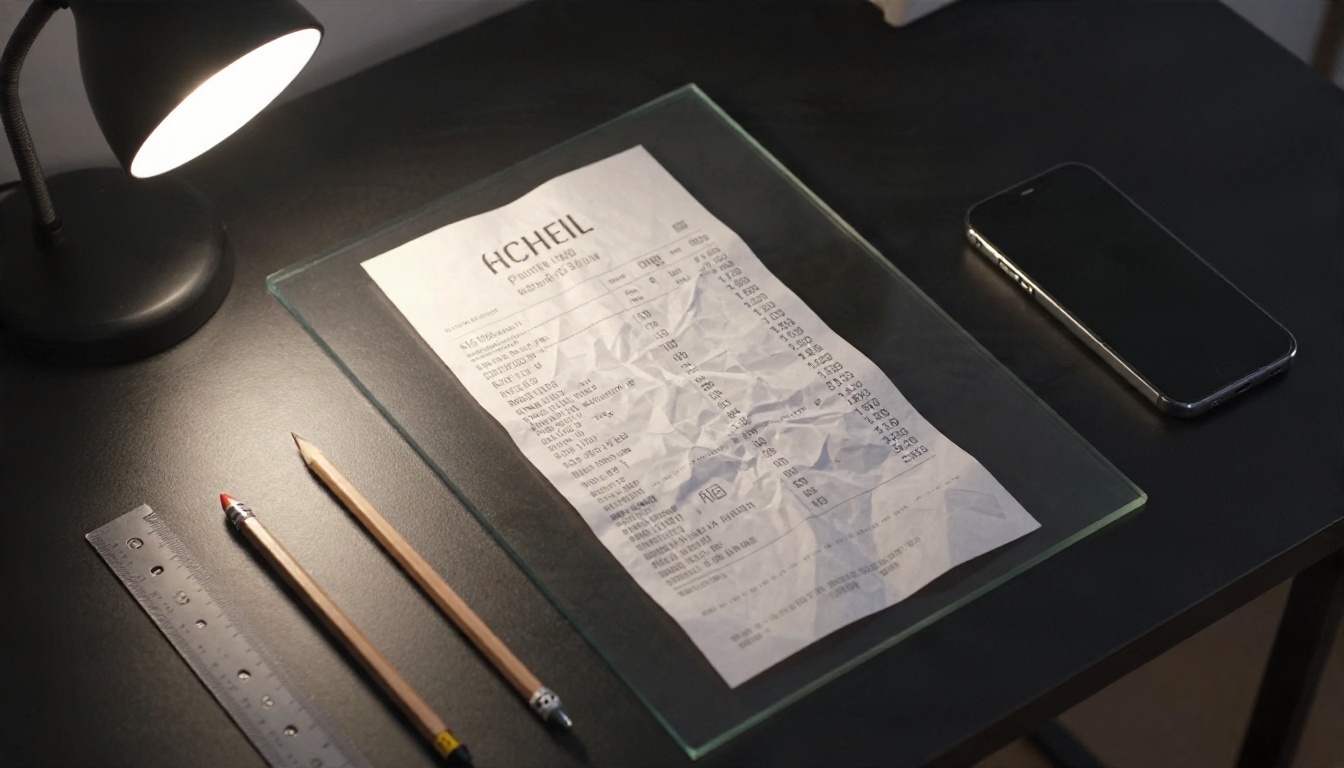
Light and Angle
- Use soft, even light. Daylight from a window beats a ceiling bulb. Avoid a flash, which creates a glare patch.
- Keep the phone parallel to the page. A tilted phone makes the top of the page smaller than the bottom and stretches the text.
- Pick a contrasting background. A dark desk under a white page helps edge detection lock on fast.
- Block your own shadow. Hold the phone slightly to the side of the lamp, not directly under it.
Resolution and File Size
A sharp PDF is not always a big PDF. These are practical targets:
| Use case | Suggested quality | Typical file size per page |
|---|
| Email attachment, simple forms | Medium (about 150 DPI) | 100 to 300 KB |
| Contracts, official uploads | High (about 200 to 300 DPI) | 300 KB to 1 MB |
| Photos, artwork, print use | Original resolution | 1 to 5 MB |
| Text-only pages, black and white filter | Medium | Under 150 KB |
If a portal rejects your file for being too large, re-save it at a lower quality or switch the filter to black and white for text pages. Do not shrink photographs aggressively, because they lose detail first.
Fix Blur and Shadows
- Tap to focus on the text before pressing the shutter.
- Hold your breath for a second, or rest your elbows on the table.
- Wipe the camera lens with a soft cloth. A fingerprint smear softens everything.
- Retake instead of repairing. Sharpening filters rarely rescue real blur.
- For curled pages, press them flat under a sheet of glass or a heavy book.
Combine Many Photos Into One PDF
A single page is easy. A ten-page contract is where mistakes pile up, so keep the pages in one document from the start.
Order, Rotate, Crop
- In Drive, tap + after each page so everything saves as one multi-page PDF.
- In a scanner app, use the page grid to drag pages into order before export.
- For existing photos, select several images in Google Photos and use a scanner app's import from gallery option, then arrange them.
- Rotate sideways pages now. A PDF with mixed orientations is annoying to read on a phone.
💡 Pro tip: scan every page in the same orientation and same lighting. The final PDF then looks like one document instead of a collage.
Real-World Examples
- A freelancer photographs signed invoices after each job and drops them into a dated Drive folder. At tax time, the folder is already sorted.
- A student scans handwritten lecture notes, merges them into one file per week and shares the link with classmates.
- A landlord scans an ID, lease and deposit receipt into a single PDF, then adds a password before sending it by email.
Turn Scanned PDFs Into Flipbooks
A scanned PDF is useful, but a plain file is not much fun to read on a phone. If your scans are a menu, a portfolio, a handmade catalog or a family cookbook, you can turn them into a digital publication that readers flip through like a real book.

How to Create a Flipbook With Flipbooks AI
- Open Flipbooks AI and create an account.
- Upload your scanned PDF with the PDF to Flipbook Converter. The conversion keeps your pages in order.
- Customize the look: add your logo, choose background colors and pick a page-turn effect.
- Add extras such as links, videos or audio on specific pages.
- Publish, then share a direct link or use the Embed Flipbook on Website tool to place it on your own site.
Flipbooks are mobile-responsive and carry no watermarks, so your scanned pages stay clean. If you scanned a menu, try the Restaurant Menu Creator. For a stack of old photographs, the Digital Portfolio Creator is a better fit. A scanned family cookbook works nicely in the Recipe Book Flipbook tool.
Share and Protect
| Option | What it does | When to use it |
|---|
| Direct link | Opens the flipbook in any browser | Quick sharing by message or email |
| Embed code | Places the flipbook inside your website | Menus, catalogs, portfolios |
| Password protection | Limits access to people with the password | Contracts, private family albums |
| Offline download | Lets readers keep a copy | Trade shows, travel documents |
| Analytics and lead capture | Shows reader activity and collects contacts | Business catalogs (Professional plan) |
Analytics and lead generation belong to the Professional plan, so check the pricing page to see which tier matches your needs. You can also browse every available flipbook tool to find a layout for your content.
Common Mistakes to Avoid
- Scanning in a dim room. The phone raises its sensitivity, and the PDF fills with grain.
- Saving everything as a photo format. JPG and PNG files are harder to merge, sign and archive than a PDF.
- Ignoring the preview. Always check the corners and the last line of text before saving.
- Using vague file names.
scan_0042.pdf tells you nothing in six months.
- Forgetting privacy. IDs and bank statements deserve a private folder, not a shared link anyone can open.
Scan Your First Page Today
Pick the route that matches your situation. Use Google Drive when the page is on paper. Use Print, then Save as PDF when the photo already exists. Choose a scanner app when you scan in volume and need extras like OCR. Keep the light even, the phone flat and the file names clear, and your PDFs will look sharp every time.
When you want those scans to look like a real publication, get started for free on Flipbooks AI, compare the pricing plans, or browse the full list of tools and templates to find the right layout.



