You scanned a contract, a school report or a stack of old receipts, and now you need to change one line. Simple, right? Not quite. A scan is just a photograph of a page, so a normal editor treats it like a picture and refuses to let you touch the words. That is why so many people search for a scanned document editor free of charge, and why so many of them hit a wall of page caps, blurry output and surprise paywalls. This article shows what these tools actually do, where the free limits sit, how to edit a scan step by step, and how to publish the result as a polished flipbook with Flipbooks AI.
What a Scanned Document Editor Really Does
Before comparing tools, it helps to know what is happening under the hood. Most "editors" for scans are really two tools glued together: an OCR engine (optical character recognition) that reads the pixels and guesses the letters, and a PDF or word processor that lets you change the recognized text.
Scan vs. Searchable PDF
A raw scan saved as PDF contains one flat image per page. You can zoom, print and share it, but you cannot select a word, search for a phrase or copy a paragraph. A searchable PDF keeps the same image but adds an invisible text layer on top. That layer is what OCR produces.
| File Type | Can You Select Text? | Can You Edit Text? | Typical Use |
|---|
| Raw scan (image-only PDF) | No | No | Archiving, printing |
| Searchable PDF (OCR layer) | Yes | Limited | Search, copy, citation |
| Editable DOCX or text | Yes | Yes | Rewriting, reformatting |
| Flipbook from PDF | Depends on source PDF | No (read-only) | Sharing, publishing |
Why Edits Fail on Images
When you open an image-only PDF in a regular editor and click a word, nothing happens. The software sees a rectangle of pixels, not letters. To change the text you must either run OCR and edit the recognized output, or paint over the old words with a new text box. The second route is quick but looks patchy on dense pages.
💡 Pro tip: If you only need to fix a date or a name on a clean page, a text box with a matching font is often faster than a full OCR run. For anything longer than a paragraph, convert with OCR first.
Dozens of services promise free scan editing. They fall into three families, and each has a different catch. Limits change often, so treat the figures below as typical ranges and check each site's current terms before you commit a big batch.
Browser PDF Editors
Sites such as Sejda, Smallpdf, iLovePDF and PDF24 let you upload a file, run OCR and edit text blocks without installing anything. They are the fastest route for one or two files. The trade-off is usually a daily task cap, a file size ceiling and, on some services, a page limit per file on the free tier.
Office Suites With Built-in OCR
Google Drive can convert an uploaded image or PDF into a Google Doc using OCR, and Microsoft's apps offer text extraction from pictures. These are a good fit if you already live in those ecosystems. The output is editable right away, but complex layouts, tables and columns tend to come out messy.
Open Source Options
Tesseract and OCRmyPDF are free with no artificial caps, but they run on your own machine and need a little command-line comfort. If you process hundreds of pages or care about privacy, they are the strongest choice. If you want a simple drag-and-drop, they are overkill.
| Tool Type | Cost | Typical Free Limits | Best For | Main Drawback |
|---|
| Browser PDF editor | Free tier | Task per hour or day, file size cap | Quick fixes on 1 to 3 files | Caps and upsell prompts |
| Cloud office suite | Free with account | File size and image size limits | Turning a scan into a Word-style doc | Layout errors on tables |
| Open source (Tesseract, OCRmyPDF) | Free | None imposed | Large batches, private files | Setup effort |
| Mobile scanner apps | Free tier | Watermarks or export limits | Scanning on the go | Premium OCR often paid |
OCR Limits You Will Hit
"Free" rarely means "unlimited". Knowing the usual ceilings saves you from a half-processed file at midnight before a deadline.
Page and Size Caps
Free OCR usually restricts one or more of the following:
- Pages per file: often somewhere between 10 and 200 depending on the service.
- File size: commonly from a couple of megabytes up to around 50 MB.
- Tasks per period: a handful of conversions per hour or per day.
- Languages: some free tiers recognize only a few major languages.
- Output format: some give you a searchable PDF for free but charge for DOCX export.
⚠️ Warning: A 300 dpi color scan of a 40-page report can easily exceed free size caps. Scan in grayscale or black and white at 200 to 300 dpi to cut the file size by more than half with little visible loss.
Accuracy Problems
OCR is only as good as the scan. These are the usual troublemakers:
- Low resolution. Below roughly 200 dpi, letters like "e", "c" and "o" blur together.
- Skewed pages. A page rotated by even a few degrees confuses line detection.
- Shadows and creases. Phone photos near a book spine often lose characters in the gutter.
- Handwriting. Most free engines handle print far better than cursive.
- Tables and columns. Text may be read in the wrong order or merged across columns.
Privacy Trade-Offs
Uploading a scan means sending it to someone else's server. For passports, medical records, contracts or tax paperwork, read the retention policy first. Many services delete files after a few hours, but some do not say. When a document is sensitive, run an offline engine or use a service that clearly states how long files are stored.
| Risk | What It Looks Like | How to Reduce It |
|---|
| Data retention | File stays on a server after processing | Check deletion policy, delete manually |
| Unencrypted upload | Site without HTTPS | Only use HTTPS sites |
| Third-party sharing | Vague terms about "improving services" | Choose services with clear terms |
| Local copy exposure | Scans left in the Downloads folder | Delete after export |
How to Edit a Scan for Free
Here is a workflow that works with almost any free tool. It takes about ten minutes for a short document.
Prepare the Scan First
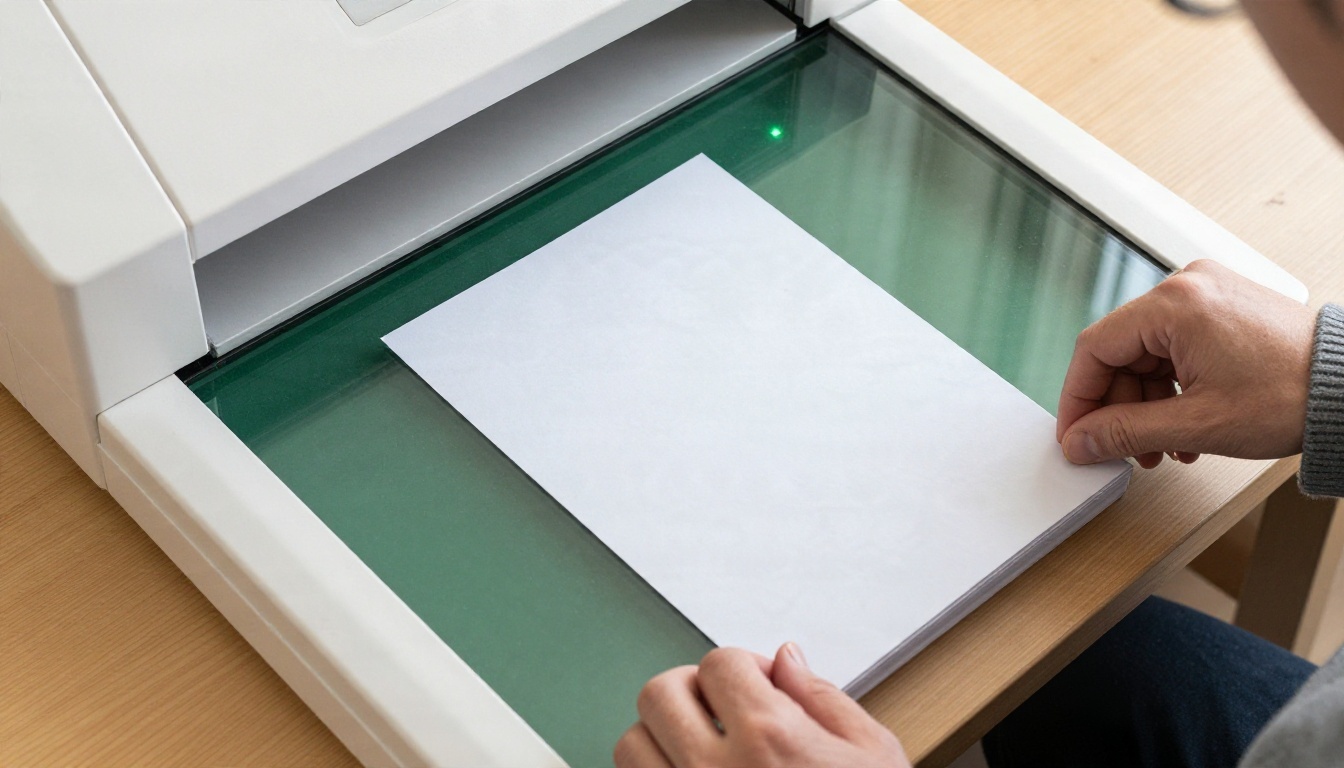
Good input beats clever software. Place the page flat, keep your fingers off the glass, and scan at 300 dpi for small text or 200 dpi for large, clean print. If you are using a phone, shoot in even light from directly above and crop the edges.
Run OCR and Export
- Open your chosen editor and upload the PDF or image.
- Select the document language. This single setting improves accuracy more than most people expect.
- Run OCR and wait for the text layer to be created.
- Download the result as a searchable PDF or as an editable document.
Proofread Like It Matters
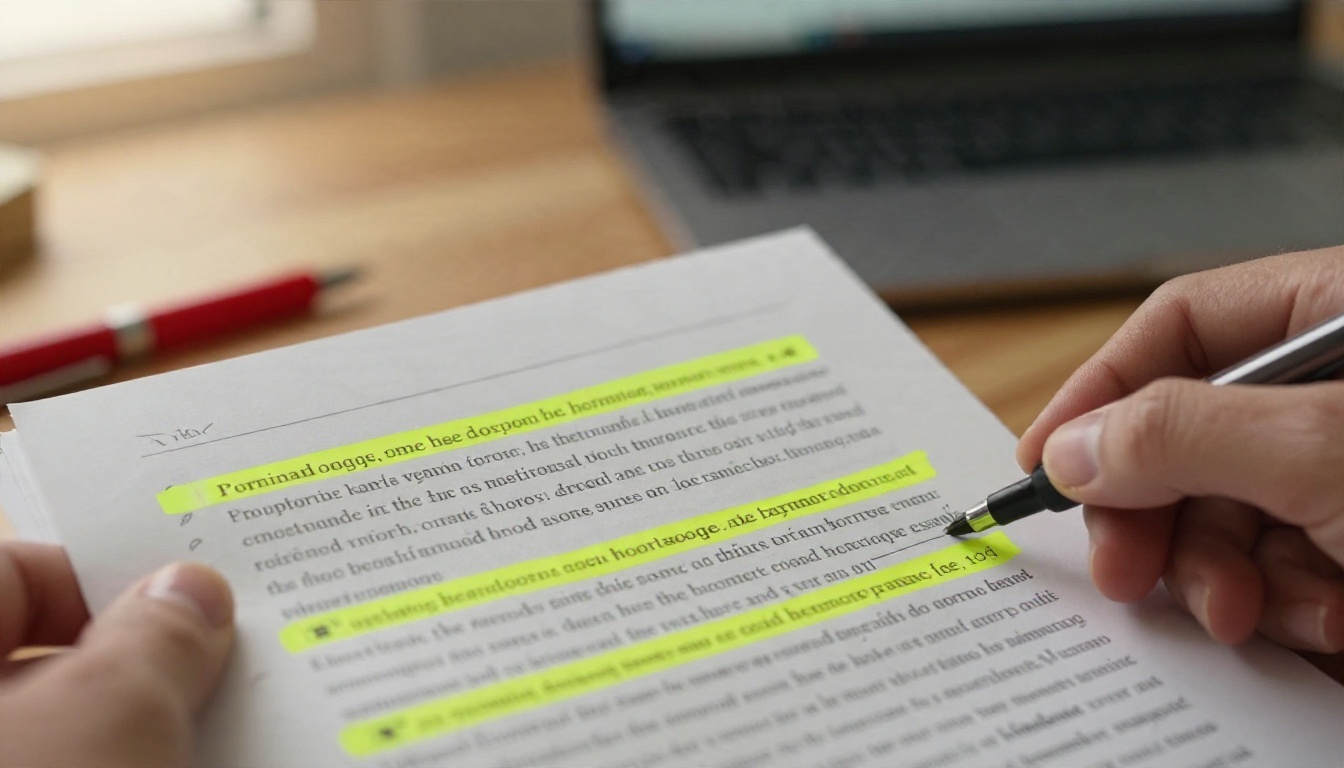
OCR makes small mistakes that spell-check will not catch, such as "rn" read as "m" or the number 0 read as the letter O. Print the page or place the original next to your edited version and compare numbers, names and dates line by line.
Save in the Right Format
| Goal | Best Export Format | Why |
|---|
| Keep original look, add search | Searchable PDF | Preserves layout exactly |
| Rewrite content | DOCX or Google Doc | Fully editable text |
| Extract data only | TXT or CSV | Lightweight, easy to paste |
| Share as a polished reader | PDF, then flipbook | Page-turn experience on any device |
Turn Edited Scans Into a Flipbook
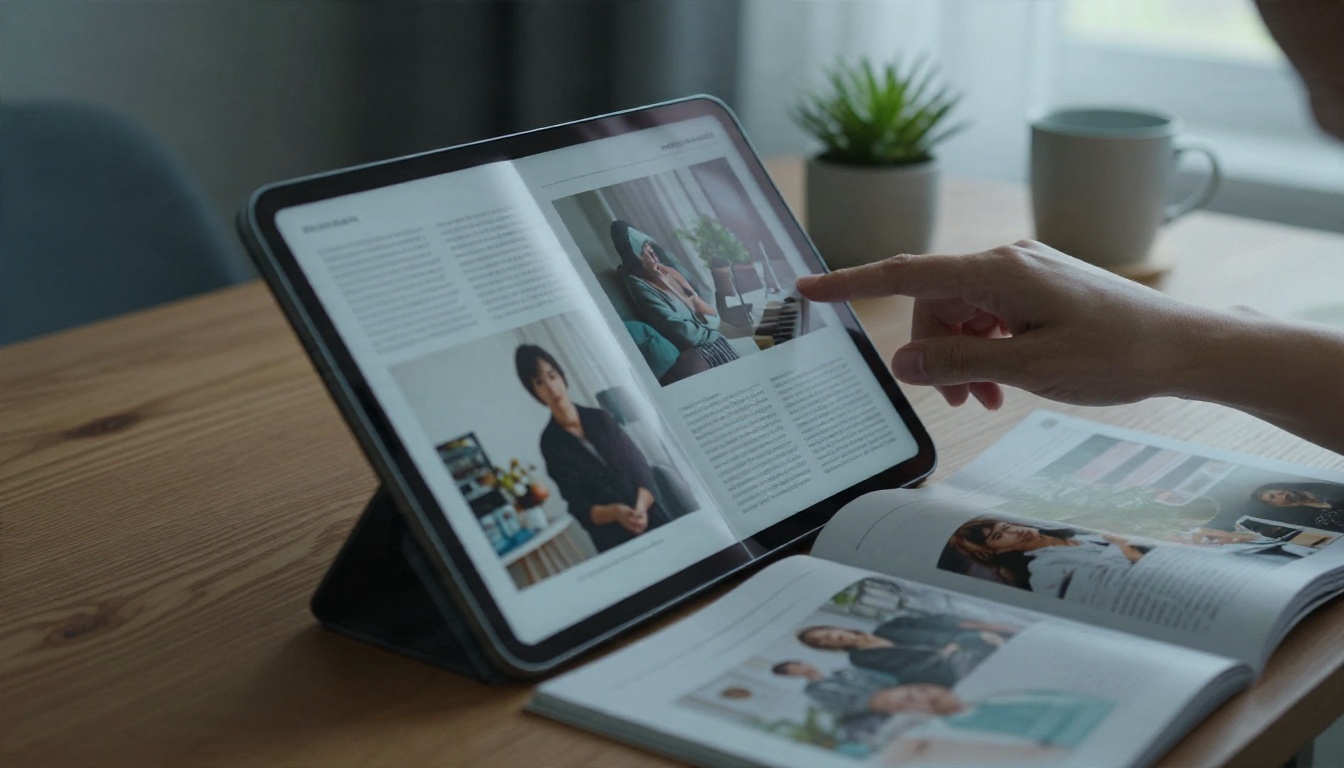
Once your scan is clean, you probably want to share it. Emailing a 60 MB PDF is a poor experience, and not everyone wants to download a file just to read it. A flipbook gives readers a page-turning view in the browser that works on phones, tablets and desktops.

Create a Flipbook with Flipbooks AI
Flipbooks AI converts a PDF into an interactive flipbook. Because a flipbook is built from your PDF, run OCR first if you want the text layer included in the file you upload. Here is the process:
- Open the platform. Go to Flipbooks AI and create an account.
- Upload your PDF. Drag in the edited or OCR-processed file. The PDF to Flipbook Converter turns each page into a flipbook page automatically.
- Customize the look. Add your logo, pick brand colors and choose the page-turn effect. You can also embed videos and audio where they help the reader.
- Preview on mobile. The layout is mobile-responsive, but it is worth swiping through the pages on a phone before you publish.
- Publish and share. Copy the direct link, or use the Embed Flipbook on Website tool to place it on your own page with an embed code.
✅ Best practice: Compress and straighten the scan before converting. Lighter pages load faster for readers, especially on mobile data.
Customize, Share, and Protect
Scanned paperwork is often private, so sharing controls matter. With Flipbooks AI you can password protect a flipbook so only people with the code can open it. Flipbooks are published without watermarks, which keeps a client-facing document looking professional. You can also offer an offline download for readers who want a local copy.
| Sharing Option | Best For | Notes |
|---|
| Direct link | Email, chat, social posts | Fastest to distribute |
| Embed code | Websites and intranets | Keeps readers on your page |
| Password protection | Contracts, internal records | Restricts access to invited readers |
| Offline download | Field teams, travel | Readable without a connection |
Pro Features Worth Knowing
If you publish to a wider audience, the Professional plan adds analytics and lead generation, so you can see how many people opened a flipbook and capture contact details before they read. Standard plans and above allow unlimited flipbooks. See the current pricing plans to compare what is included.
Real-World Examples
Abstract advice only goes so far. Here are three situations where the scan, edit and flipbook workflow pays off.
A School Archiving Old Newsletters
A school office finds a box of printed newsletters from the 1990s. They scan each issue, run OCR so the text can be searched, fix obvious errors, and upload the PDFs. With the School Newsletter Creator, the archive becomes a browsable online library that parents and alumni can open on any device.
A Small Shop Digitizing a Paper Catalog
A family hardware store has a printed price list that has not changed in years. They scan it, correct the prices that OCR misread, and publish it with the Digital Catalog Maker. Customers open one link instead of asking for a photocopy, and the owner updates the file by uploading a new version.
A Real Estate Agent Sharing Scanned Floor Plans
An agent receives floor plans only on paper. After scanning and cleaning them, the agent combines the plans with photos in a PDF and builds a flipbook using the Real Estate Brochure Creator. The brochure is sent to buyers as a single link, protected with a password for early viewers.
| Use Case | Scan Quality Needed | Recommended Flow | Output |
|---|
| Newsletter archive | 200 dpi grayscale | OCR, proofread, PDF, flipbook | Public searchable library |
| Price list | 300 dpi black and white | OCR, fix numbers, PDF, flipbook | Customer-facing catalog |
| Floor plans | 300 dpi color | Clean up, merge with photos, flipbook | Password-protected brochure |
| Training manual | 200 to 300 dpi | OCR, edit, PDF, flipbook | Staff reference, see Training Manual Flipbook |
Common Mistakes to Avoid
Most failed scan edits come down to the same few errors.
Skipping the Proofread
Never trust OCR on numbers. A price of 1,800 that becomes 7,800 will cost you more than the time you saved. Always compare totals, dates and names against the original.
Ignoring File Size
Uploading a huge scan to a free tool and getting an error is the most common frustration. Reduce resolution, switch to grayscale, or split the document into chapters before you start.
Choosing the Wrong Tool for the Job
A browser editor is perfect for a two-page form. It is a poor choice for a 400-page archive. Match the tool to the volume:
- 1 to 5 pages: any free browser editor.
- 5 to 50 pages: an office suite OCR or a browser tool you split into parts.
- 50+ pages or sensitive files: an offline engine such as OCRmyPDF.
Forgetting the Reader
Editing is only half of the job. A fixed document that nobody can open comfortably still fails its purpose. Think about how readers will view it, and publish in a format that works on a phone.
💡 Quick checklist: Straighten pages, set the language, proofread numbers, export a searchable PDF, then publish it as a flipbook.
Ready to Publish Your Scans?
A free scanned document editor can get you from a flat image to clean, correct text in minutes, as long as you respect the limits on pages, file size and accuracy. Prepare a good scan, pick a tool that matches the volume, proofread every number, and then give the result a home that readers enjoy using.
When your PDF is ready, get started for free on Flipbooks AI and turn it into a flipbook with no watermarks. Browse all available flipbook tools to find a template that matches your document, or compare pricing plans to see which features suit your project.



