You have a supplier price list that arrived as a scanned PDF. Three hundred rows, tiny print, a slightly crooked scan. You need it in Excel by lunch, and retyping it by hand sounds like a punishment. Good news: you can turn a scanned PDF into an editable Excel file for free, and you can do it online without installing anything. Bad news: the first pass is never perfect, and the difference between a clean sheet and a mess of broken columns comes down to a few habits.
This article shows which free methods work, where each one fails, and how to check the output before it reaches your accounting file. At the end, we also look at what to do with the clean data: publishing it as a polished, shareable price list with Flipbooks AI, so your team and customers stop passing around outdated attachments.
Why Scanned PDFs Resist Excel
A scanned PDF is not a document in the way most people think. It is a photograph of a document wrapped in a PDF container. There is no text inside, no table, no cells. Excel cannot read a picture of the number 4.99 any more than you can copy a number from a printed page.
Text PDFs vs image PDFs
Open the file and try to select a word with your cursor. If the text highlights, it is a native PDF and conversion is usually easy. If you drag and get a blue rectangle over the whole page, it is an image PDF, and you need optical character recognition (OCR).
| Feature | Native (text) PDF | Scanned (image) PDF |
|---|
| Text selectable | Yes | No |
| Needs OCR | No | Yes |
| Table structure preserved | Often | Never, must be rebuilt |
| Typical accuracy | 95% to 100% | 85% to 99%, depends on scan |
| Common source | Exported from software | Scanner, phone camera, fax |
| Best free method | Direct PDF to Excel import | OCR first, then table detection |
What OCR actually does
OCR software looks at the image, finds shapes that resemble letters and digits, and outputs text. Better tools go one step further and detect lines, gaps and alignment to guess where the cells are. That second step is where price lists and invoices go wrong, because a missing gridline can merge two columns into one.
💡 Pro tip: Scan quality decides about 80% of your result. A sharp 300 DPI scan in black and white beats a blurry phone photo every time, no matter which converter you use.
Free Ways to Convert Scanned PDF to Excel
No single free tool wins in every case. Here are the four methods that are realistic for a small business, with honest notes on their limits.
Excel's Data from Picture
Microsoft 365 includes a feature that reads a table from an image and loads it straight into a worksheet. You take a screenshot or a picture of one page, import it, and review the recognized cells before accepting them. It handles clean, single-page tables well. The drawback is that it works one page at a time, so a 40-page catalog becomes a long afternoon.
Google Drive OCR plus Sheets
Upload the scanned PDF to Google Drive, right-click, and open it with Google Docs. Google runs OCR and puts the recognized text in a document. From there you copy the table into Google Sheets and download it as an Excel file. It costs nothing and handles multi-page files, but layout is the weak point: tables often arrive as loose lines of text that you must split into columns manually.
Free online converters
Many websites accept a scanned PDF and return an .xlsx file. They are the fastest option for a one-off job. Free tiers usually limit page counts, file sizes or daily conversions, and the exact limits change often, so check them before you plan a large batch.
⚠️ Privacy warning: Invoices contain bank details, tax numbers and customer names. Before uploading to any website, read its data retention policy, and never use an unknown converter for sensitive documents.
An open source desktop option
If you convert files weekly, a free desktop OCR engine can run locally with nothing leaving your computer. Setup takes more effort, but there is no page cap and no upload. This is the right pick for confidential invoices.
| Method | Cost | Multi-page | Table detection | Privacy | Best for |
|---|
| Excel Data from Picture | Included with Microsoft 365 | One page at a time | Good | Stays in your account | Short clean tables |
| Google Drive OCR + Sheets | Free | Yes | Weak | Stays in your account | Text-heavy pages |
| Free online converter | Free with limits | Varies | Good to very good | Depends on the site | One-off price lists |
| Local open source OCR | Free | Yes | Needs setup | Fully local | Confidential invoices |
Step-by-Step Conversion Workflow
Whichever tool you choose, this order of operations saves the most time.
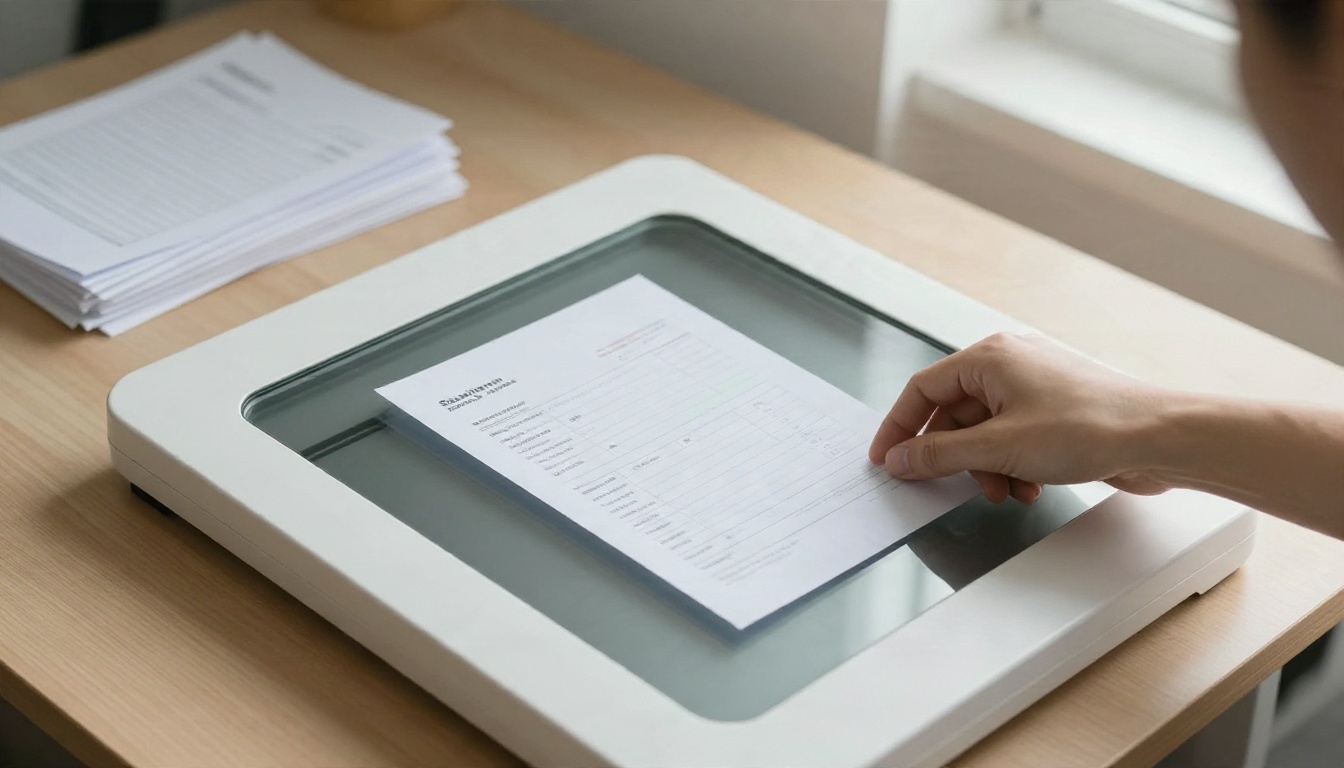
- Rescan if you can. Use 300 DPI, black and white or greyscale, with the page flat on the glass. Skew and shadows cost you accuracy.
- Split large files. Break a 100-page PDF into chunks of 10 to 20 pages. Converters fail less often on smaller files.
- Run OCR and table detection. Use one of the methods above and download the .xlsx result.
- Open the file and scan visually. Look for merged columns, shifted rows and empty cells before you touch any formulas.
- Clean the data. Fix decimals, currency symbols, and product codes (more on this below).
- Validate totals. Compare a sum from Excel with the printed total on the original page.
- Save a master copy. Keep the original scan next to the cleaned workbook so anyone can audit it later.
✅ Best practice: Name your files with the source and date, such as supplier-pricelist-2026-11-scan.pdf and supplier-pricelist-2026-11-clean.xlsx. Six months from now you will thank yourself.
Price Lists: Fixing Messy Columns
Price lists look simple, which is why their errors are so dangerous. A wrong digit in a unit price flows into quotes, orders and margins.
The five errors that appear most
OCR engines repeat the same mistakes. Once you know them, you can search for them on purpose.
| Error | What it looks like | Quick fix |
|---|
| Letter O for zero | 1O.50 | Find and replace inside price columns |
| Lowercase l for one | l2.00 | Filter for values that are not numeric |
| Comma and period swapped | 1.250,00 read as text | Change the regional setting or use text to columns |
| Merged columns | AB-102 Steel hinge in one cell | Split by delimiter or by fixed width |
| Dropped decimal | 550 instead of 5.50 | Sort by price and check outliers |

Fast cleanup that works
You do not need advanced formulas. A short routine handles most files:
- Format the price column as Number and watch which cells refuse the change. Those are your OCR errors.
- Sort ascending and descending. Absurdly high or low values rise to the top.
- Use a filter for blank cells in the product code column to find rows that slipped out of alignment.
- Add a temporary check column with a formula that flags prices above a limit you choose, for example three times the average.
A furniture wholesaler, for example, might receive a scanned 60-page catalog every season. Instead of retyping, they run the pages through OCR, spend an hour on cleanup, and keep one reusable workbook. Next season, they only update changed rows.
Invoices add a twist. They mix a table (line items) with loose fields (date, supplier, tax number, total). A tool that handles tables well may still miss the header block.
Treat the header and table separately
Copy the invoice number, date and totals by hand, or at least verify them. Let OCR handle the line items, where retyping is truly painful. Many bookkeepers split the work this way and cut errors in half.

Check the math before you trust it
Every converted invoice should pass three tests:
- Line total test: quantity multiplied by unit price equals the line amount.
- Subtotal test: the sum of line amounts equals the printed subtotal.
- Tax test: the tax rate applied to the subtotal equals the printed tax.
If any test fails, you have found an OCR error, and you know exactly where to look. This takes two minutes and prevents bad data from entering your books.
| Document type | Main risk | Check to run |
|---|
| Supplier price list | Wrong unit price | Sort and compare outliers |
| Purchase invoice | Wrong tax or total | Three math tests above |
| Bank statement | Shifted debit and credit columns | Running balance matches |
| Delivery note | Missing quantities | Compare with purchase order |
⚠️ Heads up: Never delete the scanned original after conversion. For tax and audit purposes, the image is often the document that counts, and the Excel file is a working copy.
Publish the Clean Price List as a Flipbook
Once your data is clean, you probably want to share it. Emailing an Excel file creates version chaos: someone edits a cell, someone else keeps last month's copy, and customers see the wrong price. A better route is to export the finished list as a PDF and turn it into an interactive flipbook that always shows the current version.
To be clear about what each tool does: Flipbooks AI does not convert scans into spreadsheets. It handles the next step, turning your finished PDF into a page-turning online publication. The Digital Price List Generator is built for exactly this job.

How to create a price list flipbook
- Export your cleaned Excel sheet to PDF, one table per page with readable font sizes.
- Create a free profile at Flipbooks AI.
- Open the PDF to Flipbook Converter and upload your PDF.
- Wait a few seconds while the pages convert into a flipbook.
- Preview it on desktop and phone, since the design is mobile-responsive.
Customize the look
Add your logo, pick brand colors, and choose page effects so the list feels like your company, not a generic file. Flipbooks never carry a watermark, so customers only see your branding. If you sell products with photos, consider the Product Catalog Generator to combine pictures with the price table.
Share it the right way
| Sharing option | When to use it |
|---|
| Direct link | Quick message to a buyer |
| Embed code | Place the list on your own site with the Embed Flipbook on Website tool |
| Password protection | Wholesale prices meant for approved customers only |
| Offline download | Sales reps visiting clients without internet |
💡 Pro tip: Wholesale and trade prices should never sit on an open link. Turn on password protection and send the password separately.
Professional plan extras
On the Professional plan, you get analytics and lead generation. You can see which pages customers read longest, and which price sections get skipped. If you want to compare tiers before committing, check the pricing plans. Standard and above include unlimited flipbooks, which suits businesses that update price lists every month.
Mistakes That Cost You Hours
Most conversion pain is avoidable. These are the repeat offenders:
- Converting a poor scan. Rescanning for two minutes is cheaper than cleaning for two hours.
- Skipping the math checks. One wrong digit can sit unnoticed for months.
- Uploading sensitive invoices to unknown sites. Convenience is not worth a data leak.
- Overwriting the original. Always keep the untouched scan.
- Sending raw Excel to customers. Formulas, hidden columns and internal notes can leak by accident.
- Forgetting version control. When prices change, publish a new version and retire the old link.
| Mistake | Cost | Prevention |
|---|
| Blurry source image | Hours of manual fixing | Rescan at 300 DPI |
| No validation step | Wrong quotes and invoices | Run totals and outlier checks |
| Unsafe upload | Exposed financial data | Use local or trusted tools |
| Outdated attachments | Customers see old prices | Share one live flipbook link |
Pick Your Next Step
Converting a scanned PDF to editable Excel for free is entirely realistic. Start with the cleanest scan you can get, choose the method that fits your privacy needs, and spend ten minutes on validation. That small routine turns an unusable image into data you can sort, filter and trust.
When the data is ready, do not let it die in an inbox. Create a free account on Flipbooks AI, turn your price list or invoice summary into an interactive publication, and browse all flipbook tools to find a template that fits. Ready to publish at scale? Compare pricing plans and choose what works for your team.



