You scanned a contract, a textbook chapter or a decade of invoices, and now you cannot select a single word. That is the problem every scanned PDF to editable PDF converter is built to solve. The file looks like a document, but underneath it is only a stack of photographs. Optical character recognition (OCR) reads those photographs and rebuilds the text, so you can search, copy, edit and republish it. Once the text is clean, you can even turn the whole thing into an interactive page-turning publication with Flipbooks AI.
This article breaks down how OCR works, how accurate it really is, which converters are worth your time, and what to do with the result.
What Makes a Scanned PDF Uneditable
Image Layers vs Real Text
A normal PDF exported from Word stores characters, fonts and positions. A scanned PDF stores a raster image of each page, usually a JPEG or TIFF wrapped inside a PDF container. Your computer sees pixels, not letters. That is why Ctrl+F finds nothing and why copying text pastes an empty line.
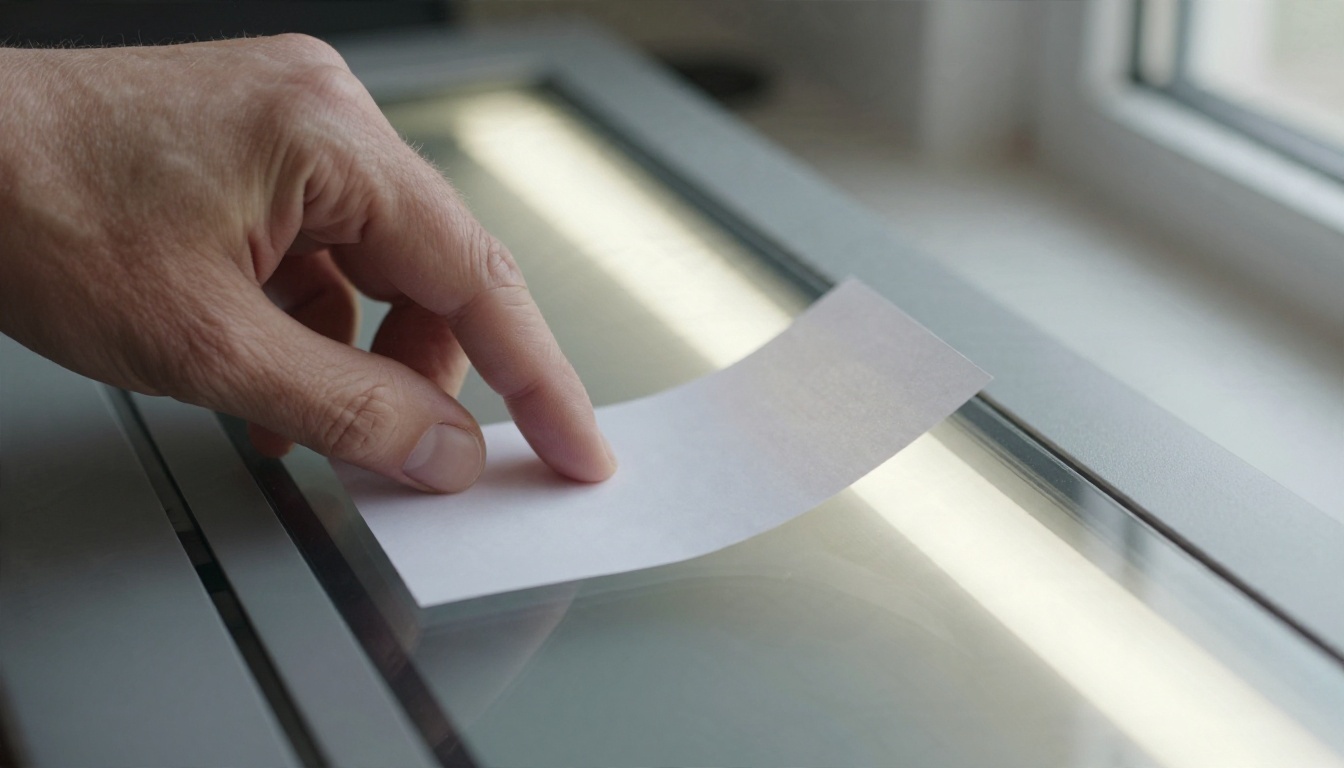
Some files are halfway there. A "searchable PDF" keeps the original image on top and hides an invisible text layer underneath. It is searchable, but the text is not truly editable until you convert it.
Quick Test to Check Your File
Before you pay for software, run this thirty-second check:
- Open the PDF in any viewer and press Ctrl+F.
- Search for a common word like "the" or "invoice".
- Try to highlight a single sentence with your cursor.
- Open document properties and look at the producer field. Names like "Scanner", "Canon" or "Epson" are a giveaway.
💡 Pro tip: If highlighting selects the whole page as one block, you have an image-only scan. If it selects lines but the text looks scrambled when pasted, you have a bad OCR layer that needs to be redone.
How OCR Actually Works
From Pixels to Characters
OCR software goes through a predictable pipeline. First it cleans the page: straightening skewed lines (deskew), removing speckles (despeckle) and converting to black and white (binarization). Next it detects the layout, separating columns, tables, headers and images. Then it segments lines into words and characters and matches each shape against a trained model. Modern engines use neural networks, which cope with odd fonts far better than the older template matching approach.
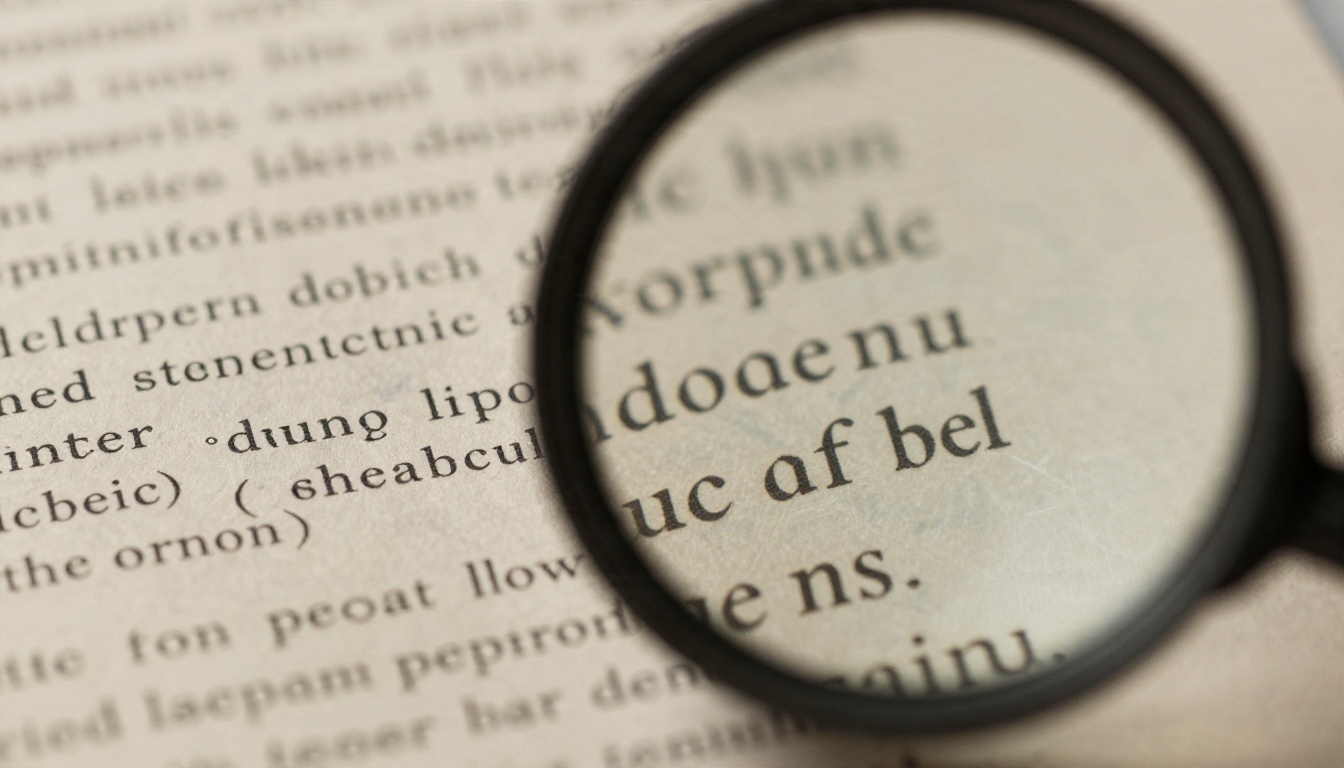
The last step is output. The engine either places an invisible text layer behind the image or rebuilds the page with live fonts and paragraphs. The second option is what people mean by "editable PDF".
What Accuracy Really Means
Vendors love to advertise "99% accuracy". That number is almost always measured on clean, modern, 300 DPI print in a common language. Your files are rarely that kind. Accuracy is usually counted per character, and a page with 3,000 characters at 99% still holds about 30 mistakes. That is a lot of typos in a legal contract.
Here is what to expect in practice. These ranges are rough, drawn from typical results with current engines, and your own results will vary:
| Source Condition | Typical Character Accuracy | Main Risk |
|---|
| Clean laser print, 300 DPI | 98% to 99.5% | Rare punctuation errors |
| Photocopy of a photocopy | 90% to 96% | Broken letters, noise |
| Phone photo with shadows | 85% to 95% | Curved lines, uneven light |
| Small print under 8 pt | 88% to 95% | Merged characters |
| Tables and forms | 85% to 95% | Misaligned cells |
| Old typewriter or serif fonts | 80% to 93% | Faded ink, odd glyphs |
| Handwriting | 40% to 80% | Highly writer dependent |
⚠️ Warning: OCR confuses lookalike characters. Expect 0 vs O, 1 vs l vs I and rn vs m to slip through, especially inside numbers. Never trust OCR output on financial figures without a second check.
Scan Settings That Improve Accuracy
The cheapest accuracy upgrade happens before conversion. Fix the input and every converter performs better.
- Resolution: scan at 300 DPI for normal text, 400 to 600 DPI for small print.
- Color mode: grayscale usually beats pure black and white, because the engine can decide its own threshold.
- Flatness: press the page flat. Curved book gutters bend text lines and cause skipped words.
- Contrast: avoid heavy backlight or bleed-through from thin paper.
- File format: scan to TIFF or high quality PDF, not to heavily compressed JPEG.
- Language: tell the software which language to expect. A French contract read as English drops accents.
Scanned PDF Converter Alternatives Compared
No single tool wins on every job. Your choice depends on volume, budget and how sensitive the documents are.
Desktop Software
Adobe Acrobat Pro offers a one-click "Recognize Text" and "Edit PDF" workflow. It handles layout well and is the default choice for office teams already on Adobe. ABBYY FineReader is the specialist. It tends to do better on tables, multi-column layouts and over 190 languages, and it lets you review low-confidence words with a verification window. Both run locally, which matters when you process contracts or medical records.
Free and Online Options
Google Drive will OCR an uploaded PDF or image when you open it with Google Docs. It is free and surprisingly good on clean text, though it can scramble layout and only handles limited page counts. Web tools such as Smallpdf or iLovePDF are convenient for one-off jobs, but you are uploading your file to a third-party server. Check their retention policy before sending anything private.
✅ Best practice: For anything confidential, use an offline tool or a service with a clear deletion policy and encryption in transit.
Open Source Route
OCRmyPDF wraps the Tesseract engine and adds a text layer to your PDF from the command line. It is free, scriptable and excellent for batch jobs of thousands of pages. The tradeoff is setup effort and weaker layout reconstruction, so you often get a searchable PDF rather than a perfectly editable one.
Here is how the main options stack up:
| Tool | Best For | Layout Handling | Cost Model | Offline |
|---|
| Adobe Acrobat Pro | Office teams, mixed documents | Strong | Subscription | Yes |
| ABBYY FineReader | Tables, forms, many languages | Very strong | Subscription or license | Yes |
| Google Drive / Docs | Quick free jobs | Basic | Free | No |
| Smallpdf, iLovePDF | One-off online conversions | Moderate | Freemium | No |
| OCRmyPDF + Tesseract | Bulk archives, developers | Basic | Free | Yes |
| Microsoft Word (PDF reflow) | Text-only PDFs | Moderate | Included in Microsoft 365 | Yes |
Step-by-Step Conversion Workflow
This process works with almost any tool on the list above.
- Prepare the scan. Rotate pages upright, crop dark borders and delete blank pages.
- Set the language. Pick every language present in the document.
- Run OCR. Choose "editable text and layout" if you want to change content, or "searchable PDF" if you only need search.
- Check low-confidence words. FineReader and Acrobat both highlight uncertain characters.
- Fix tables and headings. Layout is where engines slip most often.
- Proofread numbers and names. Compare against the original page, not from memory.
- Export. Save as a tagged PDF, DOCX or plain text depending on your next step.
Proofreading Checklist
Even a 99% result needs a human pass. Build a short routine:
- Run a spell check and treat every red underline as a possible OCR error.
- Search for "rn", "vv" and "l1" patterns that signal misread letters.
- Verify every phone number, date, amount and legal reference.
- Check that headers, footers and page numbers did not merge into body text.
- Confirm that hyphenated line breaks were rejoined into whole words.
Turn the Result Into a Flipbook
Editable text is useful, but a long PDF is still a clunky reading experience. If you want people to actually read your recovered catalog, manual or report, publish it as an interactive flipbook. Flipbooks AI is a good fit here, because it takes a PDF and produces a page-turning online version that works on phones, tablets and desktops.
One honest note: Flipbooks AI converts PDFs into flipbooks, so run OCR first in one of the tools above. Once your PDF has a clean text layer, the flipbook is far more useful for search and accessibility.
Upload and Convert
- Go to Flipbooks AI and create an account.
- Open the PDF to Flipbook Converter.
- Drag your OCR-processed PDF into the upload area.
- Wait while pages are converted. A 50-page document is typically ready in moments.
- Preview the flipbook and check that the page order and orientation are right.
Branding and Page Effects
Make the result look like it belongs to you:
- Add your logo, brand colors and a custom background.
- Choose a page-turn effect and sound, or keep it quiet for formal documents.
- Insert videos, audio and links on top of specific pages.
- Check the mobile-responsive view, since most readers will open it on a phone.
Different documents suit different starting points. A scanned menu fits the Restaurant Menu Creator, an old product sheet fits the Product Catalog tool, and an archived study pack works well with the Course Material Publisher.
Share, Protect, Track

Once your flipbook looks right, choose how to deliver it:
- Direct link for email and messaging.
- Embed code to place it on your site, as described in the Embed Flipbook on Website tool page.
- Password protection for private contracts and internal manuals.
- Offline download for readers with weak connections.
- No watermarks, so your document stays clean.
On the Professional plan you also get analytics and lead generation, which show which pages people read and let you capture contact details. See the pricing plans for what each tier includes.
| Feature | Why It Matters for Scanned Archives |
|---|
| Password protection | Keeps old contracts and records private |
| Mobile-responsive reading | Readers can open archives anywhere |
| Embed on website | Publishes documents without file attachments |
| Analytics (Professional) | Shows which pages readers actually use |
| Unlimited flipbooks (Standard and up) | Lets you convert a whole archive |
Real-World Use Cases
Scanned PDF conversion shows up in more places than most people expect.
| Scenario | Starting Point | Result After OCR and Publishing |
|---|
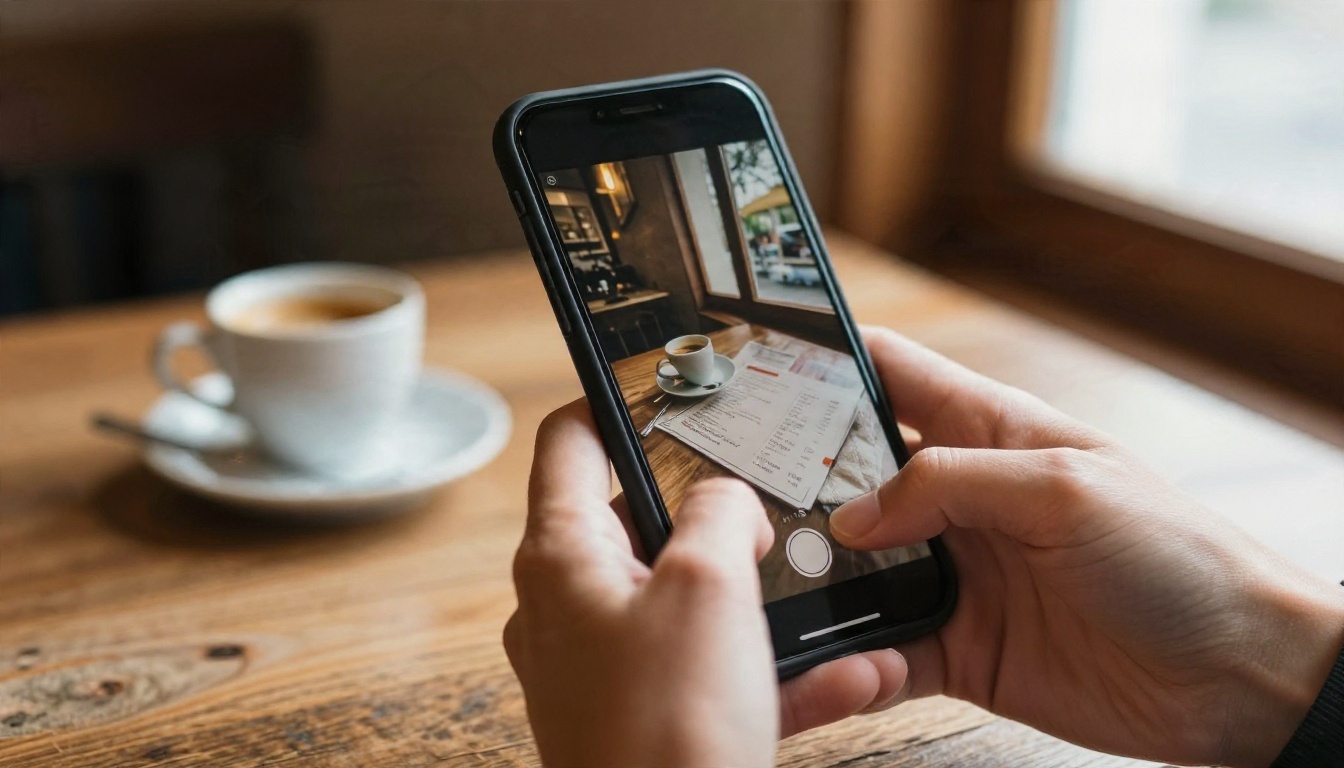
| A restaurant owner | Photo of a printed menu | Editable prices, shareable online menu |
| An accountant | Boxes of paper invoices | Searchable records by supplier and date |
| A teacher | Photocopied textbook chapters | Editable worksheets and a digital course pack |
| A real estate agent | Scanned property brochures | Updated listings with a browsable flipbook |
| A small publisher | Out-of-print book scans | Reissued e-book with selectable text |
| A law office | Signed paper contracts | Searchable case files with clause lookup |
A restaurant owner who lost the original menu file can photograph the card, run OCR, fix the prices and republish it in minutes. A school secretary can convert a 20-year-old newsletter archive into a searchable library that parents can browse. A small publisher can scan a rare title, correct the text and relaunch it with the Interactive E-Book Publisher.
Three Mistakes That Ruin OCR Results
1. Scanning at low resolution to save space. A 150 DPI scan can cut accuracy sharply. Storage is cheap, and re-scanning is not.
2. Trusting the output without review. The worst errors look plausible. A wrong digit in a price or account number will not trigger a spell check.
3. Choosing the wrong output mode. If you pick "searchable PDF" you will not be able to edit paragraphs. If you pick "editable" for a design-heavy brochure, you may lose the original look. Decide your goal first.
💡 Pro tip: Keep the original scan next to the corrected file. If a clause or figure is ever disputed, the image is your proof.
Pick Your Next Step
If you only need to search a few documents, Google Drive or a quick online tool is enough. If you handle contracts or forms every week, a desktop engine like FineReader or Acrobat pays for itself. If you manage thousands of pages, OCRmyPDF in a script is hard to beat on cost.
Whatever route you pick, the finished file deserves better than a dusty folder. Ready to publish it? Get started for free on Flipbooks AI, browse all flipbook tools to find the right template, or compare pricing plans to choose what works for you.



