You scanned a contract, a bank statement or a stack of old class notes, and the PDF refuses to let you select a single word. That is not a bug. A scanned PDF is a photograph of a page sitting inside a PDF container, and to edit it you need optical character recognition, usually shortened to OCR. The good news is that several free tools can do the job in minutes. The less good news is that each one hides limits on file size, page count, languages or daily use, and one wrong setting can turn clean text into gibberish. This article compares the free online converters, shows the OCR settings that actually change the result, and ends with a way to publish the cleaned document as a page-turning web experience with Flipbooks AI.
Why Scanned PDFs Resist Editing
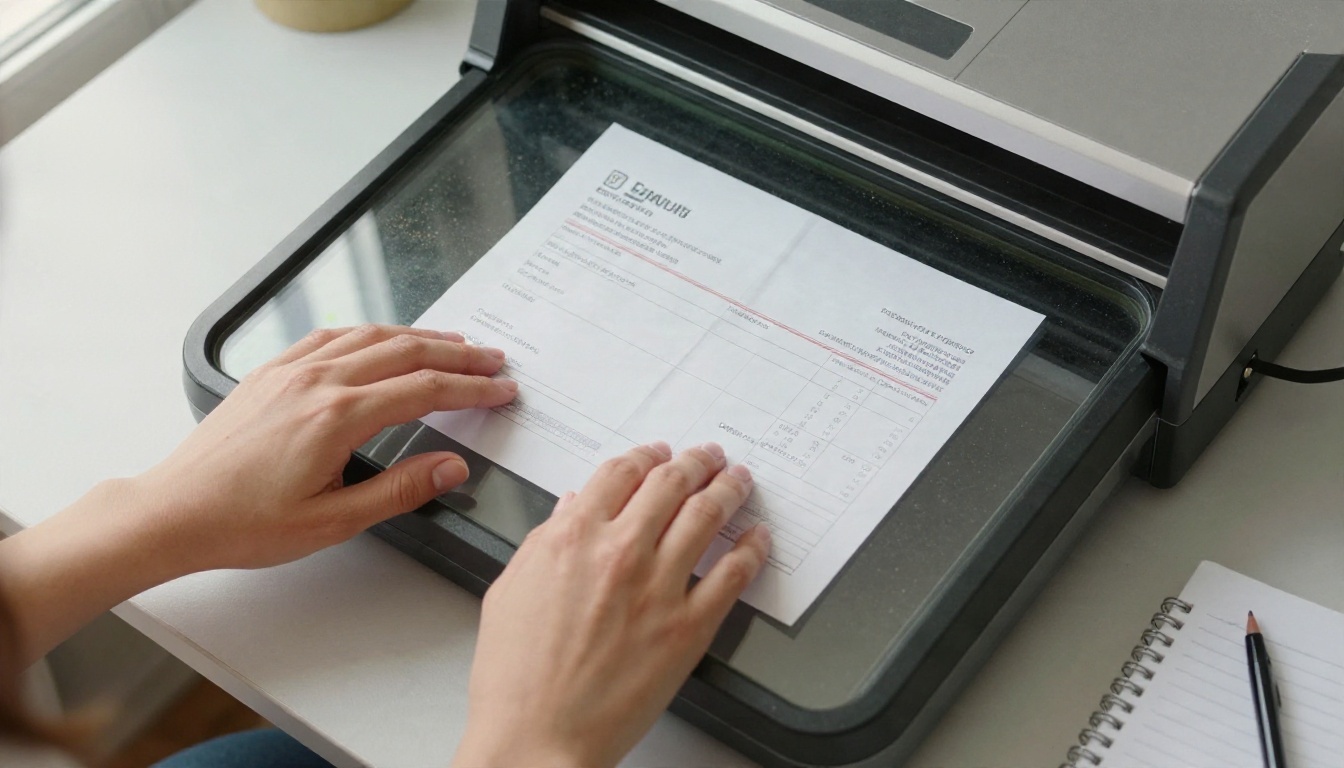
Image Layer vs Text Layer
A normal PDF stores letters as text objects with fonts and positions. A scanned PDF stores each page as one flat picture. Your eyes see words, but the file only contains pixels. When you press Ctrl+F and nothing is found, you are looking at an image-only PDF.
OCR software studies those pixels, guesses which shapes are letters, and writes an invisible text layer on top of the picture. That is called a searchable PDF. A second route rebuilds the page from scratch as a Word file or a text-based PDF, which is what most people mean by editable.
The 10 Second Test
Open the file and try these three checks before you pick a tool:
- Drag your cursor across a line of text. If it highlights a whole block or nothing at all, the page is an image.
- Search for a word you can clearly see. No hits means no text layer.
- Open the document properties and look at the file size. Ten pages at 30 MB almost always means high resolution images.
💡 Pro tip: Some PDFs are mixed. Page one has real text, pages two to nine are scans. Good tools skip pages that already have text, and weak tools OCR everything twice and double your file size.
Searchable vs Editable
These two terms get mixed up constantly, so here is the difference in plain terms.
| Output | What you get | Can you change the wording? | Best use |
|---|
| Searchable PDF | Original image plus hidden text | Not easily | Archives, search, copy and paste |
| Word (DOCX) | Rebuilt page with text boxes | Yes | Contracts, letters, reports |
| Plain text (TXT) | Only characters, no layout | Yes | Data extraction, reuse in other apps |
| Excel (XLSX) | Detected tables in cells | Yes | Invoices, statements, price lists |
Free Online Converters Compared
Browser Tools That Need No Install
Most people start here. You upload a file, wait, and download a Word or PDF result. The convenience is real, but so are the caps. Free tiers are built to let you try the service, not to process your whole archive.
- Google Drive and Docs: Upload the PDF, right click, choose Open with Google Docs. Google runs OCR and puts the text at the bottom of a new document. It is free and surprisingly good with clean print, but layout is often lost and large files are refused.
- Microsoft Word: Word can open PDFs and convert them, yet scanned pages usually arrive as pictures. It works well only on PDFs that already contain text.
- PDF24 and similar free suites: Offer OCR as one of many tools with generous or no hard daily caps, though speed depends on the queue.
- Sejda, iLovePDF, Smallpdf: Polished interfaces and decent accuracy, with free limits on pages, size or tasks per hour.
Desktop and Open Source Options
When privacy or volume matters, install software. OCRmyPDF with the Tesseract engine is free, runs on your own computer, handles hundreds of pages, and adds a text layer without recompressing the image when you choose the right flags. It needs a command line, which puts some people off. Desktop apps built on Tesseract give you a window and buttons instead.
Side by Side Comparison
Limits change often, so treat the figures below as typical ranges and read each site's current terms before you upload anything important.
| Tool | Runs where | Editable output | Typical free limit | Weak spot |
|---|
| Google Docs | Browser | Google Doc, DOCX | File size cap in the low megabytes | Flattens layout |
| PDF24 | Browser or desktop | Searchable PDF, Word | Few hard caps | Slower at peak times |
| Sejda | Browser | Searchable PDF, Word | Page and size caps per task | Hourly task limit |
| iLovePDF | Browser | Searchable PDF, Word | Small daily allowance | Pushes paid plans |
| Smallpdf | Browser | Word, Excel | Few conversions per day | Strict daily quota |
| OCRmyPDF | Your computer | Searchable PDF | None except your hardware | Command line only |
⚠️ Warning: Anything you upload leaves your device. For passports, medical records or signed contracts, prefer an offline tool or check the provider's deletion policy first.
OCR Settings That Change Everything
Accuracy is decided before the converter even starts. The three biggest factors are the quality of the scan, the language you pick and the output format you ask for.
Scan Resolution
Set your scanner or phone app to 300 DPI for normal print. Use 400 to 600 DPI for small type, footnotes or faded photocopies. Below 200 DPI, letters like e, c and o blur together and OCR starts guessing. Above 600 DPI, files grow huge with no gain in accuracy.
Language Selection
Auto-detect is convenient, but it fails on short pages and mixed documents. If the page is in Spanish, choose Spanish so the engine uses the right dictionary and accents. If a page mixes two languages, pick both when the tool allows it. A wrong language is the single most common reason for text full of odd symbols.
Layout and Output Choices
The best converters ask whether you want to keep columns, tables and images. Choose carefully:
- Keep layout for forms, brochures and anything with columns.
- Flowing text for novels, letters and notes you will rewrite.
- Tables to Excel only when the page really is a grid of numbers.
| Setting | Recommended value | What goes wrong otherwise |
|---|
| Resolution | 300 DPI, 400 to 600 for small print | Missed letters, merged words |
| Colour mode | Grayscale or black and white | Large files, background noise |
| Language | Match the document exactly | Wrong accents, random symbols |
| Deskew | On | Crooked lines read as broken words |
| Despeckle or clean up | On for photocopies | Dust read as punctuation |
| Output | DOCX for editing, PDF for archive | Lost formatting or no edit access |
✅ Best practice: Straighten and crop the page first. A skewed photo taken at an angle costs more accuracy than any converter choice.
Free Limits You Will Hit
File Size and Page Caps
Free services protect their servers, so most set a ceiling per file. It can be a handful of megabytes, a page count in the dozens, or a number of tasks per hour. If your 200 page scan is rejected, split it into chunks of 20 to 50 pages, convert each piece, and merge the results afterwards. Compressing the scan to 200 to 300 DPI grayscale before upload often fixes size problems.
Watermarks, Accounts and Time Limits
Watch for these before you spend ten minutes uploading:
- Output with a visible watermark on every page.
- A requirement to create an account for the second file.
- Files deleted after one to two hours, so slow downloads fail.
- Limits that reset by IP address, which shared networks hit faster.
Privacy and Retention
Read the retention line on the page. Reputable services state that files are removed after a set time. If a site says nothing at all, treat it as public. For sensitive pages, use OCRmyPDF locally or redact names and numbers before you upload.
⚠️ Warning: Handwriting is a different problem. Standard OCR handles print well and handwriting poorly. Expect heavy manual correction on any handwritten page.
Step by Step: Scan to Editable File
Here is a reliable routine that works with almost any free converter.
- Capture cleanly. Scan at 300 DPI in grayscale, or photograph the page flat under even light with no shadows across the text.
- Check the orientation. Rotate every page so text reads upright. Mixed orientations confuse engines.
- Trim the edges. Crop black borders and fingers. Dark margins get read as lines of characters.
- Pick the converter. Use a browser tool for short, harmless files and a local tool for private or long ones.
- Choose language and output. Match the language, then pick Word for editing or searchable PDF for archiving.
- Convert and download. Keep the original scan until you have checked the result.
- Proofread. Read the numbers, names and dates twice. Those are where OCR errors do real damage.
Fixing Common Errors
Most mistakes follow patterns. Search the result for them rather than reading blindly.
| Mistake you see | Likely cause | Fast fix |
|---|
| 0 and O swapped | Low resolution | Rescan at 400 DPI |
| rn read as m | Tight letter spacing, blur | Sharpen, rescan |
| Broken columns | Layout mode off | Convert again with layout kept |
| Strange symbols | Wrong language | Reselect the language |
| Missing lines | Faint print | Raise contrast before OCR |
Handling Tables and Numbers
Tables are the hardest content for free OCR. Cell borders get read as letters, and merged cells collapse. If the table matters, convert to Excel, then compare the column totals with the totals printed on the page. A mismatch tells you exactly where a digit was misread.
Turn the Result Into a Flipbook
Editing is only half of the work. Once your text is accurate, you usually want people to read it. A heavy PDF attachment is a poor reading experience on a phone. That is where a flipbook helps: your pages become a responsive, page-turning document you can share with a link. The workflow below uses the PDF to Flipbook Converter from Flipbooks AI.
How to Create a Flipbook with Flipbooks AI
- Start an account. Go to Flipbooks AI or create an account. You only need an email address.
- Upload your cleaned PDF. Drag the searchable PDF from your OCR step into the upload area. Pages are rendered one by one, and the text layer you added keeps the document searchable.
- Pick a layout. Choose single page or double page spread, a page-turn effect and the background that suits your document.
- Customize the look. Add your logo, set brand colors, and add a cover page title. Insert video or audio on any page if it helps the reader.
- Share it. Copy a direct link, or use the embed code to place it inside your site. The Embed Flipbook on Website tool shows how. Turn on password protection for private files.
- Review the activity. The Professional plan adds analytics, lead capture and offline downloads. Compare options on the pricing page.
💡 Pro tip: Always upload the searchable PDF, not the raw scan. Readers can then use the search box inside the flipbook to jump straight to a word.
What the Platform Offers
| Feature | Why it helps a scanned document | Plan |
|---|
| No watermarks | Your archive looks professional | All plans |
| Mobile-responsive reader | Old scans become readable on phones | All plans |
| Password protection | Keeps contracts and records private | All plans |
| Embedded video and audio | Adds context to a historical document | Standard and above |
| Unlimited flipbooks | Publish a whole archive, not one file | Standard and above |
| Analytics and lead generation | See who opened each page | Professional |
Real-World Uses for Scanned Files

Business and Retail
A small boutique owner has a printed product range from ten years ago and no source file. She scans it, runs OCR, fixes the prices, and publishes it with the Digital Catalog Maker. A restaurant can do the same with an old paper menu through the Restaurant Menu Creator.
Study and Research
Students scan library pages, convert them to text, and highlight or quote them in notes. A teacher can turn scanned handouts into a shared reader using the Course Material Publisher. Always check copyright before you republish a book.
Records and Family Archives
Letters, recipes and certificates fade. Scanning and OCR keep them searchable. A family cookbook becomes shareable through the Recipe Book Flipbook tool.
| Scenario | Best OCR output | Best sharing format |
|---|
| Old product catalog | Word, then export PDF | Flipbook with embed code |
| Legal contract | Searchable PDF | Password protected link |
| Class handouts | Plain text and PDF | Flipbook reader |
| Family recipes | Word | Recipe flipbook |
| Financial statements | Excel | Private, local only |
Ready to Publish Your Document?
You now have a clear route: scan at 300 DPI, match the language, pick a converter whose free limits fit the file, proofread the numbers, and keep an untouched copy of the original. Start with a short test page to see how a tool treats your type of document before you commit a long file.
When the text is clean, give it a proper home. Get started for free on Flipbooks AI, browse all flipbook tools to find the right template, and compare pricing plans when you are ready for analytics, unlimited flipbooks and lead capture. Your scanned PDF can finally be read, searched and shared the way it should have been from the start.



