You scanned a contract, a lecture handout or a stack of invoices, and now you cannot select a single word. That is the problem with a scanned PDF: it looks like a document, but it is really a photo of one. iLovePDF is one of the first places people go to fix it, and it can work well, but the free plan has strings attached. This article shows what those limits are, the exact steps to follow, what to do when the output comes back as gibberish, and which alternatives are worth your time. Once your file is clean, you can also turn it into a page-turning publication with Flipbooks AI.
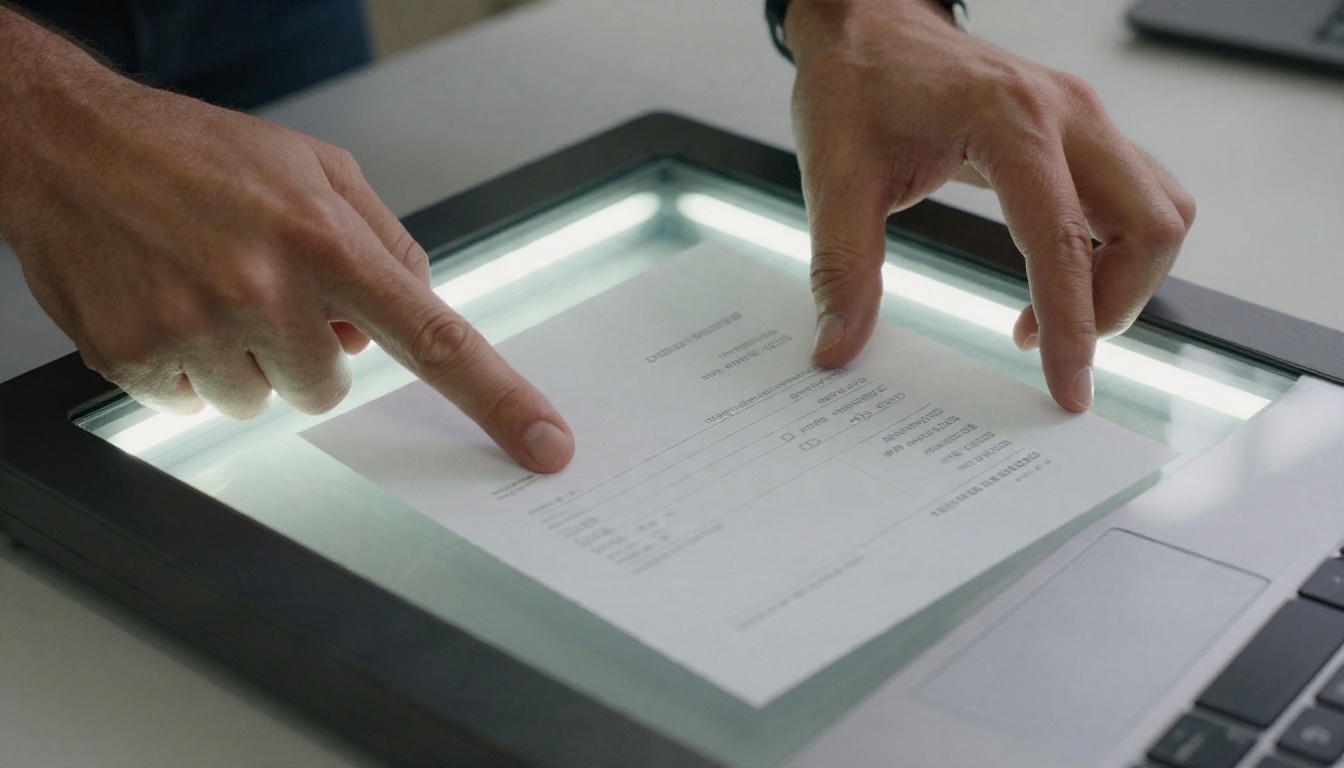
What a Scanned PDF Really Is
Before choosing a tool, it helps to know what you are dealing with. Two PDFs can look identical on screen and behave in completely different ways.
Image Pages vs Text Pages
A normal PDF made from Word or Google Docs stores letters as text. You can click, copy, search and edit. A scanned PDF stores each page as a flat picture. Your computer sees pixels, not words.
A quick test: open the file and press Ctrl+F to search for a word you can plainly see. If nothing is found, or you cannot highlight a line with your cursor, the file is image only.
What OCR Actually Does
OCR stands for optical character recognition. The software looks at the picture, detects shapes that resemble letters, and writes a hidden text layer on top of the page. Two outcomes are possible:
- Searchable PDF: the original picture stays visible, and an invisible text layer sits behind it. You can search and copy, but changing the visible wording is awkward.
- Editable document: the text is rebuilt as real, changeable content, often as a Word file, which you can then save back to PDF.
💡 When people say "editable PDF" after scanning, they usually mean one of these two outcomes. Decide which you need before you start, because it changes which tool and which output format you pick.
iLovePDF Free Limits
iLovePDF is a browser based toolbox with dozens of PDF utilities, and OCR is one of them. Plans, quotas and which tools are locked behind payment change from time to time, so treat the table below as a general picture and confirm the current details on their pricing page before you build a workflow around it.
What the Free Plan Allows
| Area | Free use (typical) | Paid plan (typical) |
|---|
| Basic tools (merge, split, compress) | Available with daily or hourly task caps | Higher or no caps |
| OCR on scanned files | Often restricted or limited, check the tool page | Included with larger files |
| File size per upload | Smaller ceiling | Much larger ceiling |
| Batch processing | One or few files at a time | Many files at once |
| Ads | Shown | Removed |
| Account needed | Not for basic tasks | Yes |
The pattern is consistent: simple tasks are free, heavy ones (OCR, large files, batches) push you toward a subscription.
Where Free Users Get Stuck
Most frustration comes from the same handful of situations:
- A big scan hits the size limit. A 200 page scan at high resolution is easily larger than the free ceiling.
- OCR is locked or capped. You upload, wait, and find the feature needs an upgrade.
- Several files at once. Free usage generally means doing one file, then the next.
- Privacy concerns. Your file travels to a remote server. For tax forms or signed contracts, read the retention policy first.
⚠️ Never upload passports, medical records or confidential contracts to any online converter unless you have read how long files are stored and who can access them. For sensitive material, use an offline tool.
Scanned PDF to Editable PDF Steps
Here is the usual route on iLovePDF. Menu names can shift slightly, but the flow stays the same.
Run OCR on the File
- Open iLovePDF in your browser and choose the OCR PDF tool.
- Click Select PDF file or drag your scan into the drop area. You can also pull a file from Google Drive or Dropbox.
- Pick the language of the document. This matters more than people expect, because a wrong language setting is a top cause of strange characters.
- Start the process and wait for it to finish.
- Download the result. You get a PDF where text can be searched and copied.
Convert to Word for Editing
If you want to change the actual wording, a searchable PDF is not always enough. A second pass helps:
- Take the OCR output and open the PDF to Word tool.
- Upload the searchable file and convert it.
- Open the .docx in Word or Google Docs, fix what needs fixing, then export back to PDF.
This two step route gives you real editable paragraphs instead of text pinned to a picture.
Check the Result
Do not trust the first output blindly. Spend two minutes on this checklist:
- Search for three words you know exist in the document.
- Compare numbers, dates and names against the original. OCR confuses 0 and O, 1 and l, 5 and S.
- Look at tables. Columns often merge into a single line of text.
- Check page order and rotation.
✅ Best practice: keep the original scan untouched in a separate folder. If OCR makes a mess, you can always rerun it with better settings.
Free Alternatives Worth Trying
If the free plan blocks you, you have plenty of other routes. Some are fully free, some are limited, and a few run entirely on your own machine.
| Tool | Type | Price | Best for | Watch out for |
|---|
| Google Drive + Docs | Online | Free | Quick text extraction from a clean scan | Layout and images get lost |
| Microsoft Word | Desktop | Included with Office | Opening PDFs and editing in place | Image only PDFs may not convert well |
| OneNote | Desktop | Free with a Microsoft account | Copying text from a printout image | Manual, page by page |
| PDF24 Tools | Online or desktop | Free | OCR without an account | Output quality varies |
| Sejda | Online | Free tier with caps | Small files and quick edits | Page and size caps |
| OCRmyPDF / Tesseract | Command line | Free, open source | Large batches, privacy, automation | Needs some technical comfort |
| NAPS2 | Desktop | Free, open source | Scanning and OCR in one app | Windows focused |
| Adobe Acrobat | Desktop | Paid | Best layout retention | Subscription cost |
Google Docs Trick
This one is surprisingly effective for a single document:
- Upload the scanned PDF to Google Drive.
- Right click the file and choose Open with, then Google Docs.
- Google runs OCR and shows the image on top with the recognized text below it.
It works best on clear, single column pages. It struggles with tables, forms and anything handwritten.
Desktop Options
When privacy or file size is the problem, go offline. OCRmyPDF can process a whole folder of scans in one command and keeps the original picture while adding a text layer. NAPS2 gives a friendlier window with buttons if you would rather not touch a terminal. Both are free and never send your file anywhere.

Fix Bad OCR Results
Garbled output is rarely the tool's fault alone. Input quality decides most of the outcome.
| Problem you see | Likely cause | Fix |
|---|
| Random symbols instead of words | Wrong language selected | Rerun with the correct language |
| Missing lines of text | Low contrast or faint toner | Rescan with higher contrast |
| Crooked, merged lines | Page scanned at an angle | Straighten the page or use deskew |
| Letters swapped (0/O, 1/l) | Low resolution | Rescan at 300 DPI or higher |
| Tables collapse into one block | Complex layout | Use a layout aware tool or retype |
| Handwriting ignored | OCR targets printed type | Use a handwriting capable app |
| File too large to upload | Color scan at high DPI | Scan grayscale or compress first |
Scan Settings That Help
- Resolution: 300 DPI is the sweet spot for text. Going to 600 rarely improves accuracy and makes files huge.
- Color mode: grayscale or black and white keeps files smaller and usually reads better than full color.
- Flat pages: press the book spine gently or unstaple pages. Curved text near the binding is where OCR fails most.
- Clean glass: a single dust streak can repeat as a vertical line on every page.
Phone Scan Tips
Phone cameras are good enough for most documents if you control the conditions:
- Shoot from directly above, not at an angle.
- Use even daylight and avoid shadows from your hand.
- Place the page on a dark, plain surface so edges are detected.
- Use a scanner app that crops and flattens the page automatically.
Real World Use Cases
Different jobs call for different tools. A few common situations:
| Situation | Best route | Why |
|---|
| One signed contract, needs a clause changed | OCR, then Word, then PDF | You need real editable text |
| Fifty invoices for bookkeeping | OCRmyPDF or a paid plan with batching | Volume makes the free web limits painful |
| Student notes to search before exams | Google Docs or PDF24 | Searchable text is enough |
| Old family documents for an archive | Searchable PDF with the original image kept | Preserves the look of the original |
| Sensitive legal or medical papers | Offline tool only | No upload, no retention risk |
An accountant with a quarterly pile of receipts benefits most from a batch tool. A student with a single chapter of photocopies can get by with the Google Docs trick. A small office clearing out a filing room should look at a desktop tool that can process hundreds of pages overnight.
Publish the Clean PDF as a Flipbook
Once OCR has done its job, you have a PDF that is searchable and correct. That file is a good raw material for a more readable format. A flat PDF is fine for printing, but on a phone it forces readers to pinch and scroll. A flipbook turns the same pages into a smooth, page-turning experience that loads in the browser.
A bakery can turn a scanned price list into a browsable catalog. A school can publish old scanned newsletters as a searchable archive using the School Newsletter Creator. A tour operator can convert scanned brochures with the Brochure Flipbook Maker. You can browse more options in the flipbook tools directory.

How to Create a Flipbook from Your PDF
- Sign up. Go to Flipbooks AI or create an account in under a minute.
- Upload your PDF. Drag the OCR processed file into the PDF to Flipbook Converter. Conversion takes moments, and every page keeps its layout.
- Customize the look. Add your logo, pick brand colors, choose a background, and set the page turning effect. You can drop in videos and audio on any page.
- Check on mobile. The result is mobile responsive, so preview it on a phone before you publish.
- Publish. Save and your flipbook is live, with no watermark on the pages.
💡 Run OCR first. A flipbook built from a searchable PDF gives your readers text they can find and select, instead of a picture of text.
Share, Protect and Track
- Direct link: send it by email or message.
- Embed code: place it on your site with the Embed Flipbook on Website option.
- Password protection: keep private material for clients or staff only.
- Offline download: let readers keep a copy.
- Analytics and lead generation: see how readers behave and collect contacts. These come with the Professional plan, so check pricing plans to compare tiers. Unlimited flipbooks are available from the Standard plan up.
| Feature | What it does for you |
|---|
| No watermarks | Your pages stay clean and professional |
| Custom branding | Logo, colors and background match your business |
| Password protection | Restricts access to chosen readers |
| Embedded video and audio | Adds richer content to any page |
| Analytics (Professional) | Shows page views and reader behavior |
Pick the Right Route Today
Here is the short version. If you have one small file and the free iLovePDF limits are enough, use it, and check the output carefully. If OCR is locked or your file is large, try Google Docs, PDF24 or Sejda. If you have hundreds of pages or sensitive files, run OCRmyPDF or NAPS2 on your own machine. If layout fidelity matters most and budget allows, a paid desktop editor still wins.
Whatever route you take, rescan badly lit pages instead of fighting the software, and always verify numbers and names against the original.
Ready to put your clean PDF to work? Get started for free on Flipbooks AI, browse the tools and templates, or compare pricing plans to choose what fits your workload.



