You have four thousand photos on your phone, a birthday coming up, and no idea how to turn any of it into something people can hold or flip through. The right software for photo album design fixes that in an evening. The wrong one eats a weekend and leaves you with a crooked collage. This article sorts the free options from the paid ones, shows which templates and layouts earn their place, and ends with a tutorial for turning your finished pages into an interactive flipbook with Flipbooks AI.
What Photo Album Software Actually Does
Every album tool, free or paid, handles the same four jobs: it holds your photos, arranges them on pages, lets you add text, and exports the result. The differences are in how much help you get with arranging, and what you can do with the export.
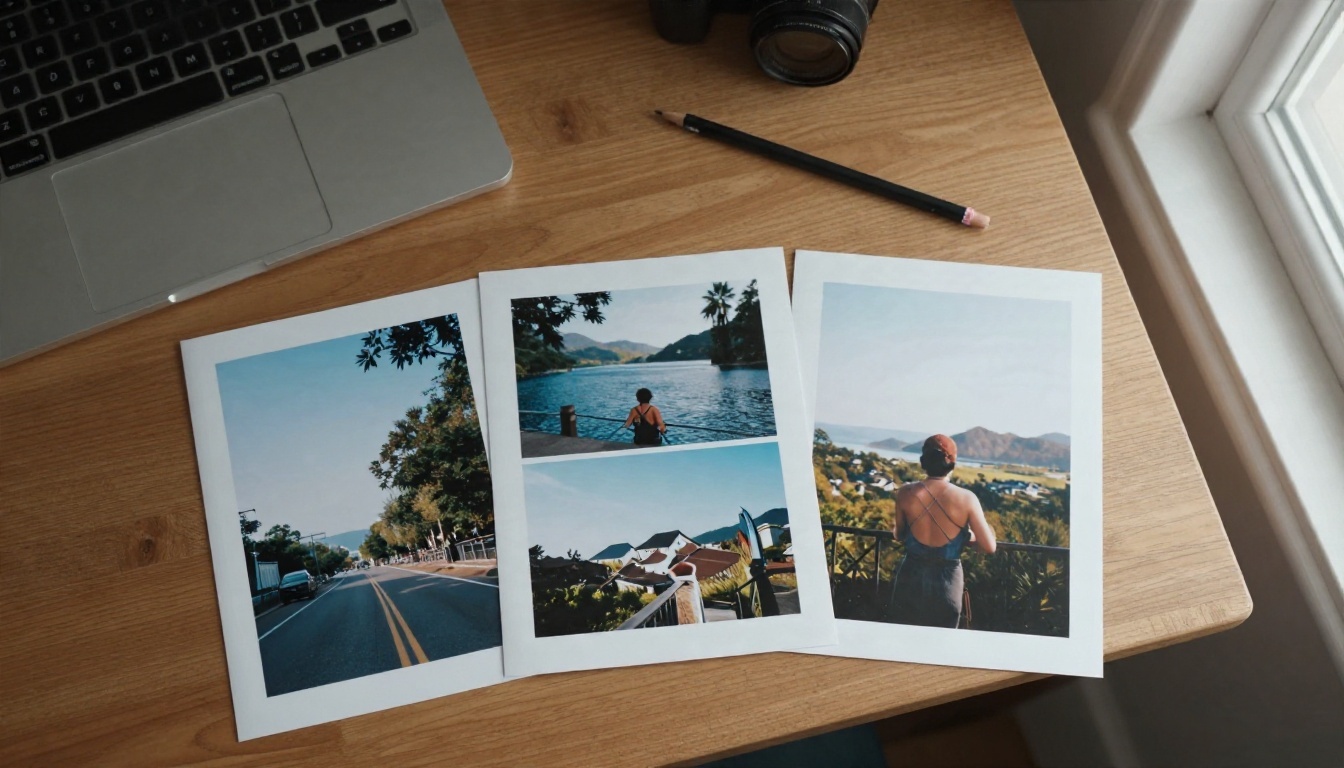
Three Types of Tools
- Online editors: run in your browser, offer drag and drop templates, and save projects to your account. Fastest to learn.
- Desktop apps: installed on your computer, work offline, and give you precise control over margins, color and print output.
- Photo library tools: built into your phone or cloud gallery. They auto-arrange pictures into a simple book, with little room for adjustment.
Print Albums vs Digital Albums
A printed album needs high-resolution files, correct page sizes and safe margins. A digital album needs a clean PDF and a way to share it. Many people now do both: design once, print one copy for the shelf, and share a digital version with relatives who live far away.
💡 Pro tip: Decide the final format before you pick software. If you want a physical book, check the printer's page size first. If you only need a digital album, any tool that exports a PDF will do.
Free Options Worth Your Time
Free does not mean weak. For a family album of 20 to 40 pages, a free tool is usually enough. The catch is almost always one of three things: a watermark, a cap on pages, or a paywall on high-resolution export. Read the export settings before you spend two hours building.
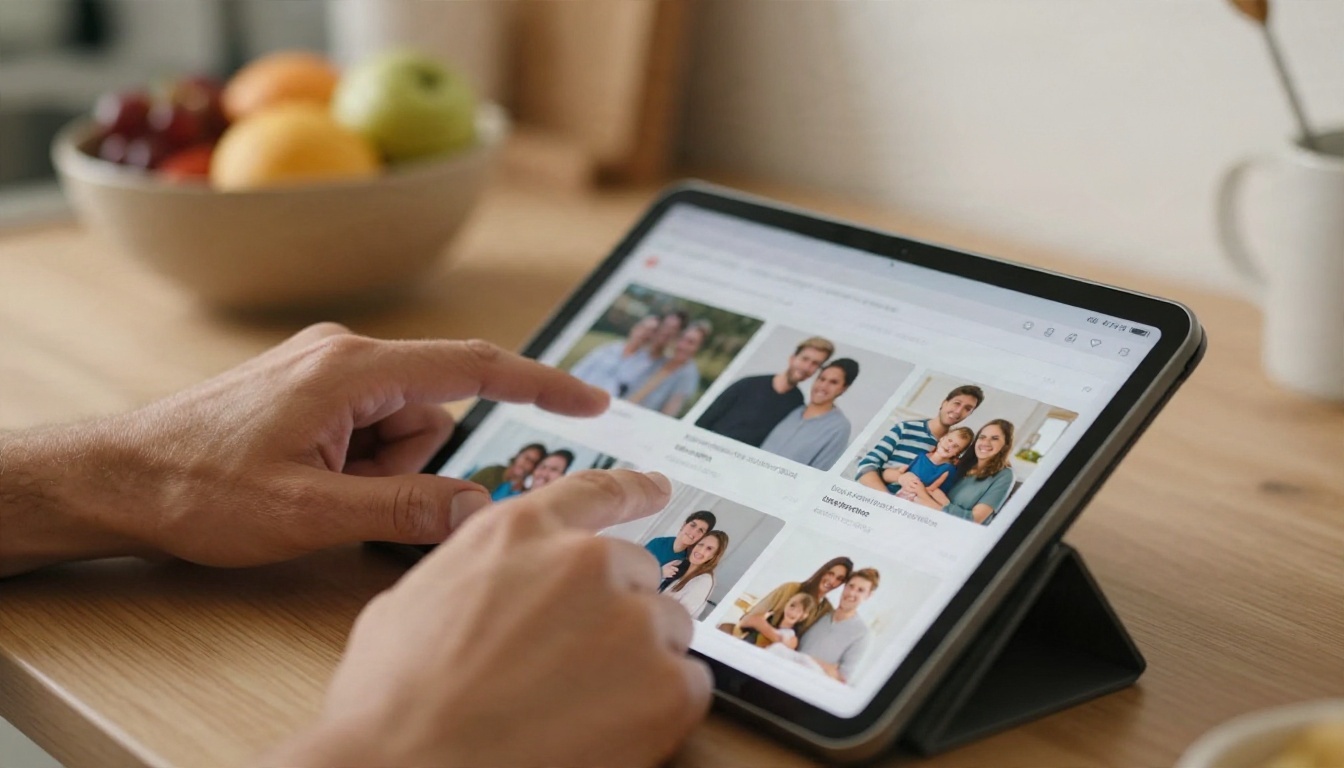
Browser Editors
Online design platforms such as Canva and Adobe Express offer free tiers with photo book and collage templates. You pick a page size, drop in pictures, and swap colors and fonts. Good for beginners and for anyone working from several devices. Expect some premium templates and stock elements to sit behind a paid plan.
Desktop Apps You Install
Scribus is a free, open-source layout program built for print. It handles bleed, color profiles and PDF export properly, but the interface takes patience. GIMP is a free image editor, handy for retouching single photos before they go into the layout. Adobe InDesign sits at the paid end and is the standard for professional book work, though it is overkill for a holiday album.
Tools Already on Your Computer
Do not overlook what you own. Google Slides and PowerPoint both let you set a custom page size, place photos on a grid and export to PDF. Apple Photos and Google Photos can build a simple book from an album in a few taps. These are the quickest route when you want something decent without learning anything new.
Free Tools Compared
| Tool Type | Cost | Best For | Main Limit |
|---|
| Browser editor (free tier) | Free, paid upgrades | Fast, template-driven albums | Premium templates locked |
| Scribus | Free | Print-ready layouts, full control | Steeper interface |
| Slides or PowerPoint | Free or already owned | Simple grid albums, PDF export | Basic typography and effects |
| Phone or cloud photo book | Free to design, pay to print | Auto-arranged quick books | Little layout control |
| InDesign | Paid subscription | Professional books | Cost and complexity |
⚠️ Watch out: Some free exports are 72 dpi screen quality. That looks fine on a phone and soft on paper. Check for a 300 dpi print option before committing.
Templates and Layouts That Work
A template saves you from the blank page. A good layout saves you from a cluttered one. The two work together: pick a template for its grid, then adjust it to suit your photos.
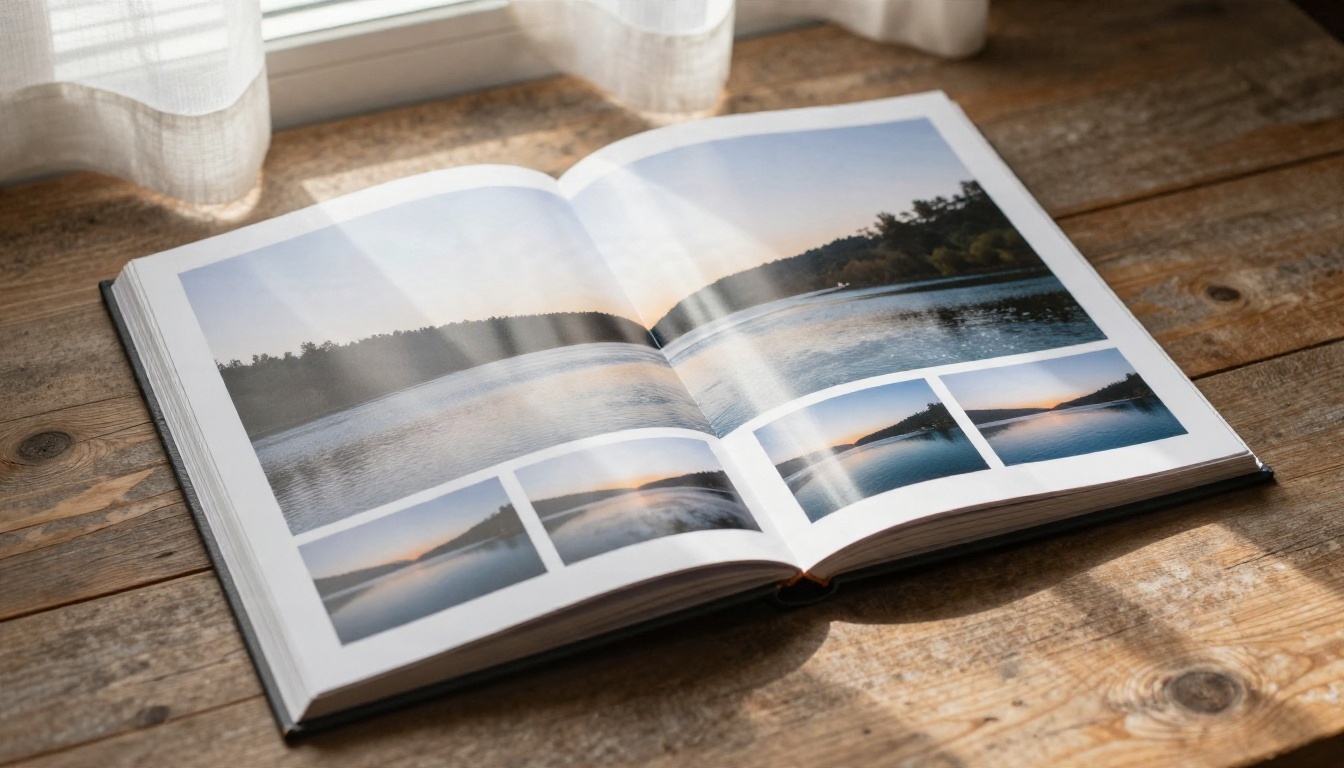
Five Layouts Worth Knowing
- Single hero: one large photo per page. Use it for the best shot of the trip.
- Even grid: four or six equal photos. Clean, calm, good for sequences.
- Hero plus supporting: one large image with two or three small ones beside it. The most flexible spread.
- Full bleed: the photo runs to the page edge. Dramatic, but only for sharp, high-resolution files.
- Collage: overlapping photos at varied sizes. Playful, and easy to overdo.
Templates by Occasion
| Occasion | Suggested Template Style | Photo Count Per Spread |
|---|
| Wedding | Soft neutrals, hero plus supporting | 2 to 4 |
| Baby's first year | Monthly grid with space for captions | 4 to 6 |
| Travel | Full bleed openers, map-style pages | 3 to 5 |
| Family reunion | Collage with group shots as heroes | 4 to 8 |
| Graduation | Bold typography, single hero pages | 1 to 3 |
Margins, Gutters and Bleed
Three terms decide whether a printed album looks professional. Margins are the empty space around the edge, keep at least 10 mm. The gutter is the inner edge near the spine, where photos can vanish into the binding, so keep faces away from it. Bleed is extra image that runs past the trim line so no white edge shows after cutting.
✅ Best practice: Never place a face across the center fold. Shift the photo a few millimeters, or choose a layout that puts the subject on one page.
Build the Album in Six Steps
Whatever tool you choose, the workflow barely changes. Following it saves hours.

Pick Fewer Photos
Cull ruthlessly. Aim for 60 to 70 percent fewer images than you think you need. Keep the sharpest shot of each moment and drop near-duplicates.
Sort by Story, Not Date
Group photos by chapter: arrival, the big day, quiet moments, the goodbye. A story arc keeps readers turning pages far better than a strict timeline.
Set the Grid First
Choose your page size, margins and a consistent grid before you add a single picture. Consistency is what makes an album look designed instead of assembled.
Add Short Captions
One line per page is plenty. Names, a place, a year. Future you will be grateful when the details have faded.
Check Resolution
Zoom in to 100 percent on each photo. If it is blurry on screen, it will be blurry on paper.
Export and Proof
Export a PDF, then read it page by page at full screen. Typos and misaligned photos show up fast when you slow down.
How to Create a Photo Album with Flipbooks AI
Print is lovely, but a PDF sitting in a folder is not. Most relatives will never open it. A flipbook gives your album page-turning motion, opens in any browser, and comes with a link you can send in one message. Flipbooks AI converts the PDF you exported above into exactly that, with no watermarks.

Step 1: Create Your Account
Head to Flipbooks AI and sign up. You will land on a dashboard with an upload area front and center.
Step 2: Upload Your PDF
- Click the upload button and choose the album PDF you exported from your design software.
- Wait a few seconds while the file converts. Each PDF page becomes a flipbook page.
- Preview the result. Pages should turn smoothly, with spreads displayed side by side on desktop and single pages on phones.
The dedicated PDF to Flipbook Converter page explains accepted file sizes and formats in detail.
Step 3: Customize the Look
- Set a background color that suits the album, such as warm cream for a wedding or deep charcoal for a photographer's portfolio.
- Add your custom branding or a simple title bar.
- Choose the page-turn effect and sound, or keep it silent.
- Embed video and audio on a page: a toast from the reception, the baby's first laugh, a voice note from grandma.
Step 4: Share and Protect
- Copy the direct link and send it by message or email.
- Use the embed option to place the album on a family site or blog.
- Turn on password protection if the album includes children or private events.
- Allow offline downloads for guests who want a copy on their phone.
Step 5: Track Who Opens It
The Professional plan adds analytics and lead generation, which matters more for photographers than for families. You can see how many people opened a portfolio and which pages they spent time on. Compare options on the pricing page.
What Each Plan Is For
| Need | Suitable Plan Level | Why |
|---|
| One album for family | Entry level | Quick conversion, direct link, no watermark |
| Many albums, ongoing projects | Standard and above | Unlimited flipbooks |
| Client galleries, portfolio tracking | Professional | Analytics and lead generation |
💡 Pro tip: Want a wedding-specific starting point? The Wedding Album Flipbook tool is built for that format, and the Photography Portfolio tool suits working photographers.
Mistakes That Ruin Good Albums
Too Many Fonts
Two typefaces is the limit. One for headings, one for captions. Mixing five looks like a ransom note.
Inconsistent Edits
If half your photos are warm and half are cool, the album feels uneven. Apply the same filter or color adjustment across a whole chapter.
Ignoring Low-Resolution Files
Photos saved from messaging apps are compressed hard. Pull originals from your camera roll or cloud backup whenever you can.
Cramming Every Page
White space is not wasted space. A page with one strong photo and room around it often does more than a page with eight.
| Mistake | Quick Fix |
|---|
| Faces lost in the gutter | Shift photos or switch layout |
| Blurry print output | Export at 300 dpi |
| Cluttered pages | Cut photos per spread to 4 or fewer |
| Uneven color | Batch-apply one adjustment |
Think about the finished object, not the software.
- You want something fast and pretty: use a browser editor with a template, then convert the PDF to a flipbook.
- You want a printed heirloom: use Scribus or a print service's own editor, and follow its margin rules to the millimeter.
- You are sharing with older relatives: a flipbook link beats an attachment every time. No download, no app, one tap.
- You are a photographer: build the portfolio in your layout tool, then publish it with the Digital Portfolio Creator.
- You are documenting a trip: the Travel Guide Flipbook tool pairs well with map pages and full bleed photos.
A Real Example
A father in Lisbon built a 32-page album of his daughter's first year in a free browser editor. He exported a PDF, converted it to a flipbook, added a short video on the last page, and sent one link to four grandparents on three continents. Total time: one evening. Total cost: nothing.
Ready to Build Your Album?
Pick one free tool, set your grid, choose your best photos and export a clean PDF. Then give those pages a second life: create your first flipbook on Flipbooks AI, browse all flipbook tools and templates, or compare pricing plans when you are ready to share more than one album. If you plan to keep publishing, start from the account page and choose the plan that fits.



