You do not need a design degree or a four-figure software budget to lay out a good magazine. You need a sensible grid, the right page size, a tool that matches your skills, and a way to put the finished issue in front of readers. This article compares the best software to design magazine layouts, from free apps to professional suites, then shows how to publish the result online with Flipbooks AI so it reads like a real magazine on any screen.
Search intent here is mixed. Some readers want a free tool today. Others need exact page sizes for a print run. Most want both, plus a simple way to share the issue. So the sections below follow the order of a real project: pick software, set up the page, apply a template, design with a grid, then publish.
What Layout Software Actually Does
A magazine layout program is a page assembly tool. It lets you place text, photographs and graphics on a fixed page, flow long articles across columns, and export a file a printer or a website can use. A word processor can fake this. A proper layout app does it without fighting you.
Here is what separates a real layout tool from a general design app:
- Multi-page documents with facing pages, so you can see a true two-page spread.
- Text frames that link, so a story continues from page 14 to page 19 automatically.
- Parent pages (also called templates in some apps) that hold folios, running heads and grid lines.
- Paragraph and character styles, so one change updates every headline in the issue.
- Bleed and crop mark support for print-ready PDF export.
- Colour control, including CMYK for print and RGB for screens.
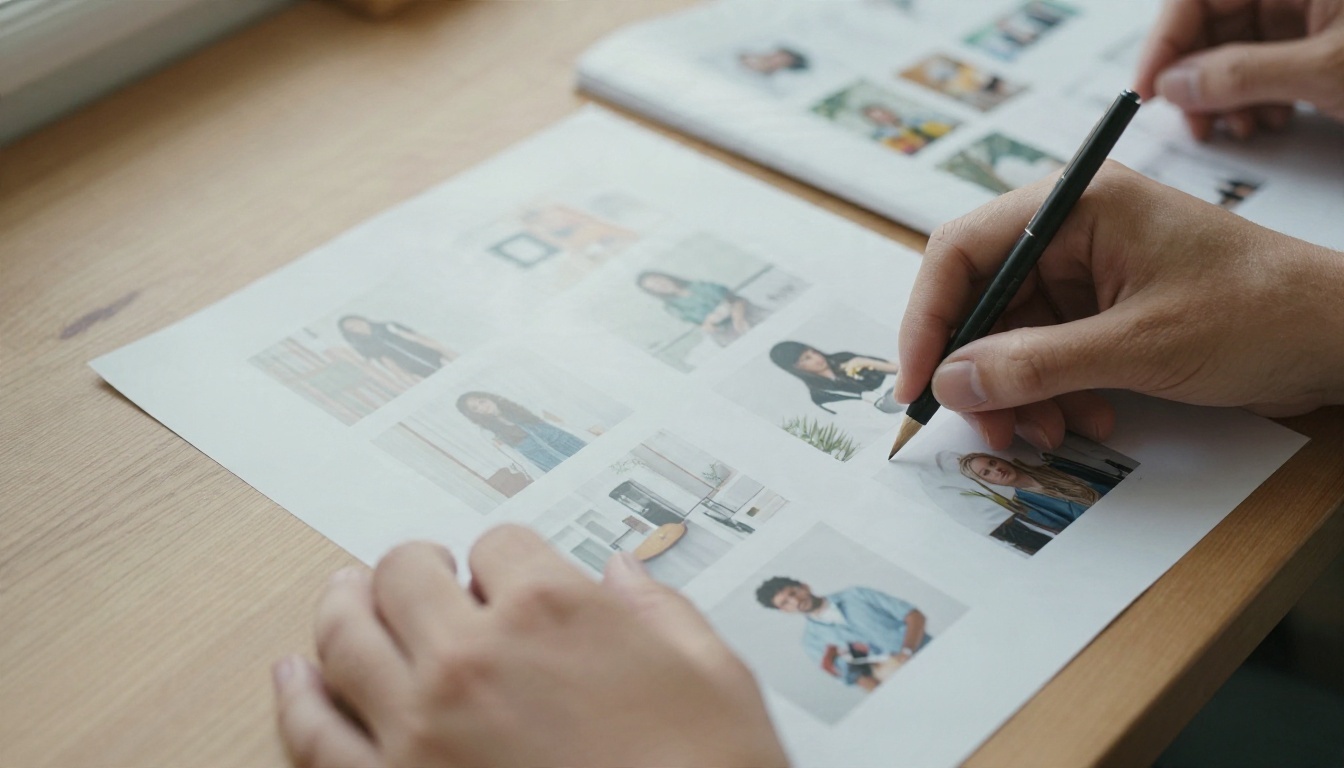
💡 Pro tip: Before you open any software, sketch a flatplan. It is a one-page map of every page in the issue: ads, features, departments, and the front page. Ten minutes with a pencil saves hours of rearranging later.
Free Software to Design Magazine Layouts
Free does not mean weak. Several free tools can produce a clean, professional issue. The trade-off is usually in print controls, not in creative freedom.
Canva and Adobe Express
Canva is the easiest entry point. Its drag-and-drop editor, huge template library and brand kit make it ideal for short lifestyle, school or company magazines. The free plan handles multi-page designs and PDF export. At the time of writing, CMYK export and some premium assets sit behind the paid plan, which matters if you are printing.
Adobe Express works in a similar way, with a free tier, templates and quick resizing. It suits social-first publishers who care more about screens than offset printing.
- Best for: beginners, small teams, fast turnaround.
- Weak spot: limited typographic control across long text.
Affinity and Scribus
Affinity is the standout for people who want professional page layout without a subscription. Its unified app has been free to download since late 2025, and it includes spreads, parent pages, styles and PDF export with bleed. The learning curve is gentler than the industry standard but still real.
Scribus is open-source desktop publishing software that has been around for decades. It supports CMYK, spot colours, PDF/X export and linked text frames. The interface feels dated, yet for a volunteer-run print zine it does everything required, at no cost.

Google Docs and Slides in a Pinch
Not ideal, but possible. Google Slides lets you set a custom page size, drop in photographs and export a PDF. It lacks facing pages, linked text frames and bleed. Use it for a quick digital-only newsletter, a classroom project or a rough prototype, never for a printed magazine.
⚠️ Warning: Microsoft Publisher reached end of support in October 2026. If you still have old Publisher files, export them to PDF now and rebuild new issues in a maintained tool.
Paying makes sense when you publish on a schedule, work with printers, or collaborate with editors and freelancers. The extra cost buys reliability, plug-ins and a workflow that scales to 100 pages.
Adobe InDesign
Adobe InDesign remains the reference tool for magazine design. Printers, agencies and editors all accept its files. It offers precise baseline grids, nested styles, data merge, tagged PDF for accessibility, and tight links to Photoshop and Illustrator. It is sold only as a monthly or annual subscription.
If your magazine carries advertising, goes to a commercial printer, or has more than 40 pages, InDesign is hard to beat. If you publish a six-page company update, it is more tool than you need.
Side by Side Comparison
| Software | Cost | Best for | Skill level | Print-ready PDF |
|---|
| Canva | Free plan, paid Pro | Short, colourful issues | Beginner | Yes, CMYK on paid plan |
| Adobe Express | Free tier, paid plan | Social-first digital magazines | Beginner | Basic |
| Affinity | Free to download | Independent print and digital | Intermediate | Yes, with bleed |
| Scribus | Free, open source | Zines and volunteer projects | Intermediate | Yes, PDF/X |
| Google Slides | Free | Quick digital prototypes | Beginner | No bleed |
| Adobe InDesign | Subscription | Professional print runs | Intermediate to expert | Yes, full control |
Magazine Page Sizes That Work
Choosing a page size before you design is non-negotiable. Changing it later forces you to rework every image and every column. The sizes below are the ones printers quote most often.
Standard Trim Sizes
| Format | Inches | Millimetres | Typical use |
|---|
| US Letter | 8.5 x 11 | 216 x 279 | Office printing, newsletters |
| Standard US magazine | 8.375 x 10.875 | 213 x 276 | Newsstand titles |
| A4 | 8.27 x 11.69 | 210 x 297 | Europe, most of the world |
| A5 | 5.83 x 8.27 | 148 x 210 | Compact lifestyle magazines |
| Digest | 5.5 x 8.5 | 140 x 216 | Short fiction, zines |
| Square | 8.5 x 8.5 | 216 x 216 | Photography and art titles |
| Tabloid | 11 x 17 | 279 x 432 | Newspaper-style publications |
For online-first magazines, A4 or US Letter portrait is the safest pick. It converts cleanly to a flipbook and still prints on an office printer if a reader wants a copy.
Bleed, Margins and Safe Areas
Three zones define every printed page:
- Bleed: extend backgrounds and photographs about 0.125 in (3 mm) beyond the trim edge so no white slivers appear after cutting.
- Trim line: where the page is actually cut.
- Safe area: keep text at least 0.25 to 0.5 in (6 to 12 mm) inside the trim. Inner margins on facing pages need extra room for the binding.
✅ Best practice: Work with images at 300 ppi at final size for print, and 150 ppi is usually enough for screen-only issues. Set your document to CMYK for print, RGB for digital.
Page count matters too. Saddle-stitched (stapled) magazines need pages in multiples of four, so plan 16, 20, 24 or 32 pages rather than 22. Thicker issues are usually perfect bound with a glued spine.
Templates That Save Hours
A good template gives you a tested grid, readable type and sensible spacing. You swap in your content and spend your time on writing and photography instead of pixel pushing.
Template sources fall into three groups: built-in libraries inside Canva, Adobe Express and Affinity; marketplaces with InDesign and Affinity files; and free community downloads for Scribus and Google Slides. Whichever you choose, check the licence before you publish commercially.
| Magazine type | Recommended template style | Typical page count |
|---|
| Fashion lookbook | Full-bleed photos, minimal text | 24 to 48 |
| Company newsletter | Two or three columns, pull quotes | 8 to 16 |
| Travel magazine | Large photo spreads, sidebars | 32 to 64 |
| School or club magazine | Simple grid, bold headings | 12 to 24 |
| Real estate showcase | Property tiles, floor plan pages | 12 to 32 |
How to stop a template looking generic:
- Replace the stock fonts with one serif and one sans serif you choose yourself.
- Change the accent colour to match your brand, and use it sparingly.
- Crop photographs differently from the sample images.
- Delete any page style you will not use rather than forcing content into it.
- Add one signature element, such as a recurring column header or a distinctive folio.

Design Rules That Make Issues Look Professional
Software does not create taste, but a few habits close most of the gap.
Build the Grid First
Set up a column grid (two, three or a flexible twelve-column system) and a baseline grid that matches your body text leading. Every element then snaps to something. Readers rarely notice a good grid, but they instantly feel a bad one.
Pick Two Typefaces
Use one typeface for headlines and one for body copy. Body text works best at 8.5 to 10 pt in print, with leading about 120 percent of the size. Create paragraph styles for headline, subhead, body, caption and pull quote on day one.
Give Images Room
Let one photograph dominate each spread. Avoid placing text over busy areas, and always credit photographers in a consistent caption style. White space is not wasted space; it is what makes a feature feel premium.
💡 Pro tip: Export a low-resolution PDF after every working session and read it on your phone. If a headline looks cramped at that size, it probably is.
How to Publish a Magazine Online with Flipbooks AI
A PDF is easy to produce but dull to read on a phone. Readers pinch, scroll and give up. A flipbook keeps the page-turn feel, loads quickly and works on every device. The Magazine Flipbook Creator and the E-Magazine Publishing Tool on Flipbooks AI are built for exactly this.
Step by Step: From PDF to Flipbook
- Export your layout. From InDesign, Affinity, Scribus or Canva, export a PDF with pages in reading order. Use the screen quality preset to keep file size reasonable.
- Create an account. Create a free account on Flipbooks AI. No credit card details are needed to try it.
- Upload the PDF. Drag the file into the PDF to Flipbook Converter. Conversion takes moments, and each page becomes a crisp, flippable spread.
- Customise the look. Add your logo, pick background colours, choose page-turn effects and set the toolbar options. Flipbooks are mobile-responsive by default, and there are no watermarks, ever.
- Add multimedia. Embed video interviews, audio clips or clickable links over adverts and contents pages.
- Publish and share. Copy the direct link or the embed code and send it to readers.
Share, Embed and Protect
| Sharing option | Best for | Notes |
|---|
| Direct link | Email, social media, QR codes on print copies | Fastest route to readers |
| Embed code | Your own website or blog | See the Embed Flipbook on Website tool |
| Password protection | Subscriber-only or internal issues | Keeps private content private |
| Offline download | Readers with weak connections | Available as a download option |
Pro Features for Growing Publishers
If you sell subscriptions or run sponsored content, the Professional plan adds analytics so you can see which pages get read, plus lead generation forms that collect reader emails inside the flipbook. The Standard plan and above include unlimited flipbooks, handy for monthly issues and back catalogues. Compare options on the pricing page.
Real-world examples:
Ready to Publish Your Issue?
Pick the software that fits your budget and skill: Canva or Adobe Express for speed, Affinity or Scribus for free professional control, InDesign for demanding print work. Fix your page size first, start from a template, build on a grid, and export a clean PDF.
Then give that PDF the reader experience it deserves. Get started for free on Flipbooks AI, browse all flipbook tools, or compare pricing plans to choose what works for your magazine.