You click a link to a invoice, a menu or a product sheet, and instead of landing in your Downloads folder, the file pops open in a new Chrome tab. You wanted a copy. Chrome gave you a preview. If that happens to you daily, there is a two minute fix, and this article walks through it step by step. It also shows what to do when the real problem is not your browser but the PDF itself, because sometimes the better move is to turn the file into a flipbook with Flipbooks AI and stop sending attachments altogether.
Here is the plan: first the exact Chrome settings that force downloads, then the equivalent switches in Edge, Firefox and Safari, then a clear look at when downloading is the wrong tool and a flipbook link is the smarter choice.
Why Chrome Opens PDFs Instead of Saving Them
Chrome ships with its own PDF reader. When a link points to a file ending in .pdf, the browser checks its default behavior, sees "open in Chrome," and renders the document in a tab. No extra software, no prompt, no file saved. For a quick read that is convenient. For anyone who needs the file on disk, it is a daily irritation.
What the Chrome Viewer Does
The built in viewer handles zoom, page thumbnails, rotation, print and a save icon in the top right corner. It is fast because it skips the download step. The trade off is that the file lives only in the tab until you press save yourself, and many people never notice that icon.
When Opening Is Actually Useful
Do not rush to switch it off. The viewer is genuinely handy in a few situations:
- Checking a document before deciding whether it is worth keeping
- Reading on a shared computer where you do not want files left behind
- Filling a form that Chrome can handle without extra software
- Opening a link from chat when you only need one number from page three
If most of your PDF traffic fits that list, leave things alone. If you collect receipts, contracts or reports, read on.

Make Chrome Download PDFs Instead
The setting is buried three menus deep, which is why so many people never find it. Here is the shortest path.
Desktop Steps for Windows, Mac and Linux
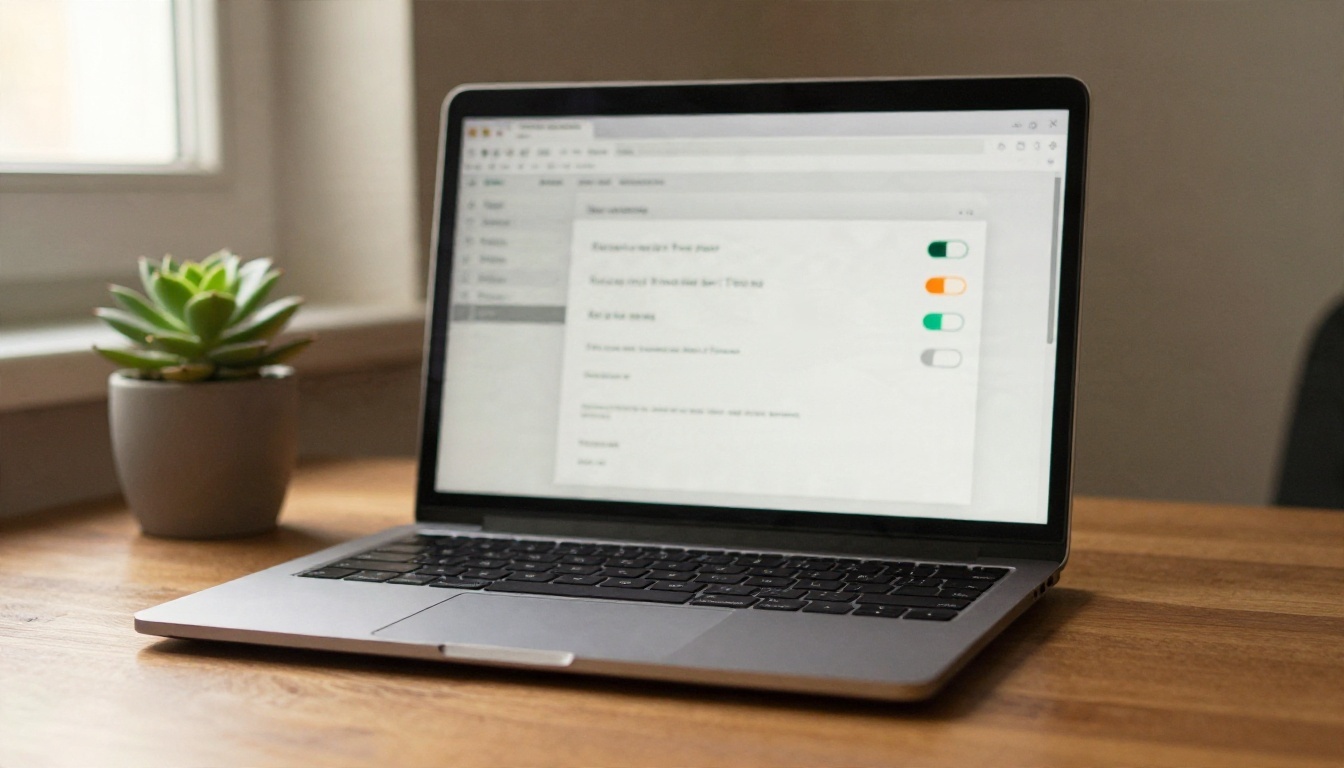
- Click the three dot menu in the top right of Chrome and choose Settings.
- Select Privacy and security in the left sidebar.
- Open Site settings.
- Scroll to the bottom and expand Additional content settings.
- Click PDF documents.
- Choose Download PDFs instead of "Open PDFs in Chrome."
From now on, every PDF link saves the file to your Downloads folder and shows it in the download bubble at the top of the window.
💡 Shortcut: Paste chrome://settings/content/pdfDocuments into the address bar and press Enter. It jumps straight to the right screen.
Ask Where to Save Each File
Downloading is only half the job. If your Downloads folder is a graveyard of "document (47).pdf," tell Chrome to ask each time:
- Go to
chrome://settings/downloads.
- Turn on Ask where to save each file before downloading.
- Optionally change the default Location to a project folder or a synced cloud directory.
This adds one click per file, and in exchange you stop hunting for things. People who file invoices into client folders usually prefer this setup.
Single Files Without Changing Settings
Sometimes you want a download once, without touching any preferences. Three quick options:
- Right click the link and choose Save link as
- Alt+click on Windows and Linux, or Option+click on Mac, to download the linked file directly
- Press Ctrl+S (or Cmd+S on Mac) while the PDF is open in a tab
Phones and Tablets
On Android, Chrome normally downloads the file and offers to open it in a separate app, so the problem is rare there. On iPhone and iPad, both Chrome and Safari show a preview first. Tap the share icon, then Save to Files, and pick a folder. There is no global switch, so this tap sequence is the habit to build.
Other Browsers Compared
Not everyone lives in Chrome. If your team mixes browsers, here is where each one hides the same switch.
| Browser | Where to Find It | Setting to Choose |
|---|
| Chrome | Settings > Privacy and security > Site settings > Additional content settings > PDF documents | Download PDFs |
| Edge | Settings > Cookies and site permissions > PDF documents | Always download PDF files |
| Firefox | Settings > General > Applications > Portable Document Format | Save File |
| Safari | No global switch | Option+click a link, or use Download Linked File |
Edge and Firefox in Detail
Microsoft Edge is built on the same engine as Chrome, so the logic is identical. Open Settings, search for "PDF," and switch on Always download PDF files.
Firefox uses a different approach. In the Applications list, find the PDF row and change its action from "Open in Firefox" to Save File. You can also pick a specific program, such as a desktop reader, if you prefer annotations and signing tools.
Why Safari Is the Odd One Out
Safari has no permanent toggle for this. Its preview is tightly tied to macOS, so the realistic workaround is the Option+click habit or the right click menu. If you manage a team on Macs, write that into your onboarding notes.

When Downloads Still Fall Short
Once the setting is fixed, your files land where you expect. But downloading creates its own pile of headaches, especially if you are the one sending PDFs rather than receiving them.
The Hidden Cost of Attachments
Think about the life of a typical brochure PDF:
- It is emailed, then saved, then renamed, then emailed again with "final_v3" in the name
- Large files bounce off inbox size limits
- Mobile readers pinch and zoom across tiny pages
- You never learn whether anyone opened it
- Old versions keep circulating after you update the original
A download is a copy. Copies drift. That is fine for a receipt and painful for a price list.

Download, Browser View or Flipbook?
| Factor | Forced Download | Browser Preview | Flipbook Link |
|---|
| Saved to disk | Yes | Only if you press save | Optional, if you enable offline downloads |
| Works well on phones | Needs a PDF app | Basic, pinch and zoom | Responsive layout |
| Always shows latest version | No | No | Yes, one link to update |
| Reader tracking | None | None | Analytics on the Professional plan |
| Page turn feel | None | Scrolling only | Realistic page effects |
| Password protection | Depends on the file | Depends on the file | Built in |
| Best for | Receipts, contracts | Quick checks | Catalogs, menus, reports, portfolios |
⚠️ Heads up: Changing the Chrome setting only changes your browser. Your customers, clients and colleagues will still see whatever their own settings dictate. If the experience matters, control it at the source.
A Flipbook Alternative to Sending PDFs
Here is the angle most settings articles skip. If your complaint is "PDFs behave unpredictably," the issue is the format delivery, not just your browser. A flipbook takes the same PDF and turns it into a web page that opens the same way for everyone: no download prompt, no plugin, no guessing.
What a Flipbook Does Differently
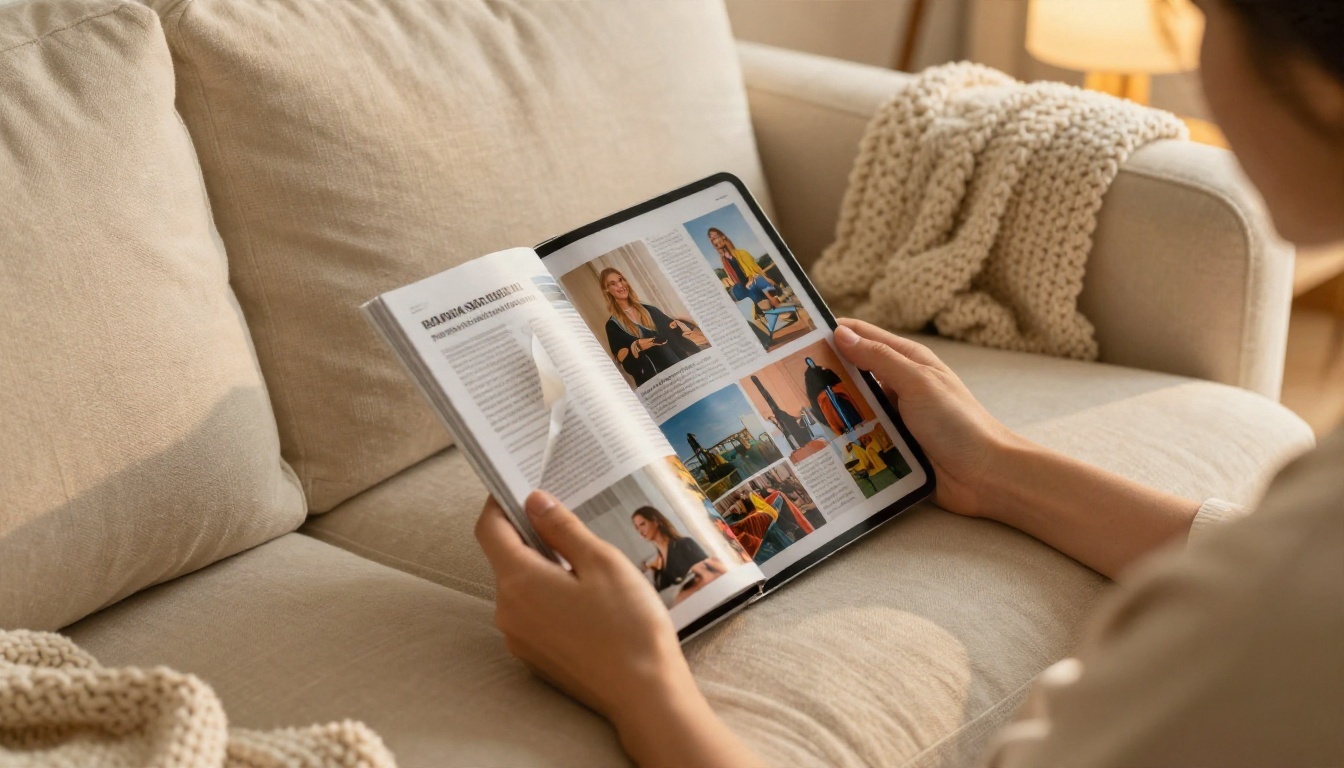
A flipbook is an interactive, page turning version of a document that runs in the browser. Readers click or swipe through pages the way they would flip a magazine. Because it is a link, it never triggers the "open or download" dilemma. The page simply loads.
Key differences you will notice right away:
- No watermarks, ever on Flipbooks AI
- Mobile responsive pages that adapt to any screen
- Embedded video and audio inside pages
- Custom branding with your logo and colors
- One link that always shows the newest version
Real World Examples
A boutique owner keeps a spring lookbook as a flipbook and texts the link to customers. Nobody downloads anything, and the owner updates one file when stock changes. The Product Catalog Generator and the Digital Catalog Maker suit exactly this case.
A restaurant replaces a PDF menu that opens awkwardly on guests' phones with a Restaurant Menu Creator flipbook behind a table QR code.
A finance team publishes the yearly numbers with the Annual Report Creator, then checks which sections investors actually read.
A photographer shares a Photography Portfolio with a password for private client galleries.

How to Create a Flipbook with Flipbooks AI
Turning a PDF into a flipbook takes a few minutes. The steps below use the PDF to Flipbook Converter.
Step by Step Instructions
- Open your account. Go to Flipbooks AI and sign up. You land in a dashboard with an upload button front and center.
- Upload the PDF. Drag the file into the upload area. The converter reads each page, keeps your images sharp and builds the page turning layout automatically. Screenshot idea: the dashboard with a progress bar at 80 percent.
- Customize the look. Add your logo, pick brand colors, choose a background and select page effects such as a soft curl or a slide. Drop in video or audio on any page.
- Check the preview. Flip through on desktop and phone view to confirm that fonts, links and images land where you want them.
- Publish and share. Copy the link, grab the embed code or turn on password protection. More on that below.
✅ Best practice: Export your PDF at a normal web resolution before uploading. Huge print files slow the conversion without improving what readers see on a screen.
Sharing Options at a Glance
| Sharing Method | How It Works | Ideal For |
|---|
| Direct link | Paste into email, chat or social posts | Quick sends |
| Embed code | Place the flipbook inside a web page, see the Embed Flipbook on Website tool | Product pages, blogs |
| Password protection | Readers enter a password to open | Private proposals, client files |
| QR code | Print on menus, flyers or packaging | Restaurants, events |
| Offline download | Readers save a copy for later | Field teams, travel |

Pro Features Worth Knowing
If you share documents to win business, the Professional plan adds the tools that PDFs simply cannot offer:
- Analytics: see views, time on page and which spreads hold attention
- Lead generation: ask for an email address before the flipbook opens
- Offline downloads: let readers keep a copy when they need one
- Unlimited flipbooks: available from the Standard plan and above
Picture a sales rep who sends a proposal flipbook and sees that the client spent four minutes on the pricing page. That is a follow up call worth making, and no PDF attachment can tell you that.

When the Setting Does Not Stick
You flipped the switch and Chrome still opens PDFs? A few usual suspects follow.
Extensions, Policies and Other Readers
- A PDF extension may take over the file type. Check
chrome://extensions and disable any reader add on you do not use.
- Work or school policies can lock the option. If the setting looks greyed out, your administrator controls it.
- A desktop reader such as Adobe may be set to open PDFs inside the browser. Open its preferences and look for an "Display PDF in browser" option, then turn it off.
- A server header on the website can force inline display for a specific file. In that case, use Save link as.
A Quick Checklist
- Restart Chrome after changing the setting
- Test with a fresh PDF link, not a tab that is already open
- Clear the site's cached data if one specific website misbehaves
- Update Chrome from the About page
- Try a clean profile to rule out extension conflicts
💡 Pro tip: If you find yourself fighting PDF behavior on a site you control, the cleanest fix is to publish the document as a flipbook and link to that instead.
Ready to Skip the Download Prompt?
Fix Chrome for your own sake: three clicks to Download PDFs, a toggle for "ask where to save," and you are done. Then ask a bigger question about every PDF you send: should this really be an attachment?
For receipts and contracts, a plain file is fine. For catalogs, menus, reports, portfolios and anything you want people to actually read, a flipbook gives a better experience on every device.
Your browser settings only help you. A flipbook helps everyone who opens your link.



