Most training manuals fail before anyone reads page one. The file is 80 MB, the layout breaks on a phone, and nobody can find the safety procedure they need at 7 a.m. on a Monday. The fix is not a fancier tool. It is a solid structure, a clean Word file, and a smart way to deliver it. This article gives you a free training manual template outline you can build in Word in about ten minutes, real examples by industry, exact PDF export settings, and a way to turn the finished file into an interactive flipbook with Flipbooks AI.
Why Word Still Works for Training Manuals
Microsoft Word is boring, and that is exactly why it works. Everyone on your team already knows how to open it, comment on it, and track changes in it. You do not need a design degree to produce a clear manual, and you do not need a new software license.

The case for a Word template
A template saves you from reinventing the same page twelve times. Once your styles are set, every new manual inherits the same fonts, spacing, headers, and table of contents.
- Familiar tool: subject matter experts can edit without training.
- Style control: one change to "Heading 2" updates every section at once.
- Version history: track changes and comments make review rounds painless.
- Offline friendly: you can write on a plane or in a warehouse office with weak Wi-Fi.
- Easy export: Word saves straight to PDF, which is the starting point for any digital version.
When Word falls short
Word is a writing tool, not a delivery tool. A .docx file sent by email gets forwarded, edited by accident, and lost in inboxes. Videos cannot play inside it, you cannot see who read what, and a 60-page document is painful to scroll on a phone.
💡 Pro tip: Treat Word as your authoring space and PDF as your master copy. Then publish a flipbook for daily use, so the document stays easy to find, easy to read, and impossible to edit by mistake.
What Every Training Manual Template Needs
A good manual answers three questions fast: what am I supposed to do, how do I do it, and what happens if I get it wrong. Everything in the template should serve one of those three.
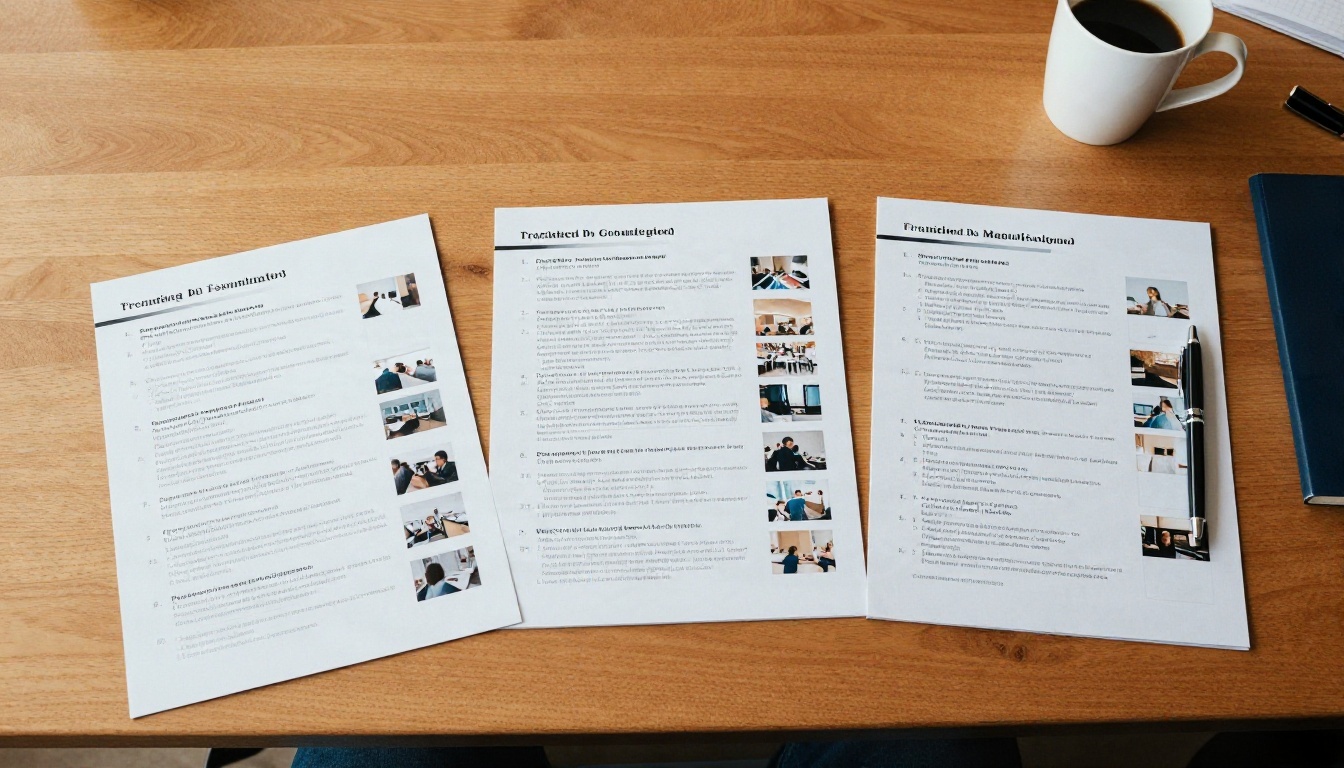
The 10 sections to include
| # | Section | Purpose | Typical length |
|---|
| 1 | Title page | Name, version, date, owner | 1 page |
| 2 | Table of contents | Fast navigation to any task | 1 page |
| 3 | Purpose and audience | Who the manual is for and why it exists | Half a page |
| 4 | Objectives | What a trainee can do after finishing | Half a page |
| 5 | Roles and responsibilities | Who owns each process | 1 page |
| 6 | Core procedures | Numbered steps with visuals | 60 to 70% of the manual |
| 7 | Quick reference tables | Checklists, contacts, shortcuts | 2 to 4 pages |
| 8 | Quiz or practice tasks | Check that the training worked | 1 to 2 pages |
| 9 | Glossary | Plain definitions of internal terms | 1 page |
| 10 | Revision log | Dates and changes | Half a page |
Page setup settings in Word
Set these once and save the file as a .dotx template:
- Margins: 2.5 cm (1 inch) on all sides, with extra space on the left if you plan to print and bind.
- Fonts: one sans-serif body font at 11 pt (Calibri or Arial), and the same family in bold for headings.
- Heading styles: use Heading 1 for chapters, Heading 2 for tasks, Heading 3 for sub-steps. Never fake a heading with bold text, because the table of contents will not see it.
- Spacing: 1.15 line spacing and 8 pt after paragraphs.
- Header and footer: manual name on the left, page number on the right, version in the footer.
- Table of contents: insert an automatic one from the References tab so it updates in one click.
Free Training Manual Template Outline
Here is the free part. Instead of a file that may be outdated by the time you open it, copy this outline straight into a blank Word document and apply your own styles. You get a template that matches your brand from the first page.

Copy-ready skeleton
Paste each line as a heading, then fill in the body text beneath it:
- Title: [Company] [Role or Process] Training Manual, Version 1.0
- Heading 1: About This Manual (purpose, audience, how to use it)
- Heading 1: Learning Objectives, written as "After this training, you will be able to..." with 3 to 5 bullet points
- Heading 1: Roles and Contacts (a table with name, role, phone, email)
- Heading 1: Procedure 1, Procedure 2, Procedure 3 (each with Heading 2 steps)
- Heading 2 inside each procedure: Before You Start, Steps, Common Errors, Who to Ask
- Heading 1: Quick Reference (one-page checklists)
- Heading 1: Knowledge Check (5 to 10 questions with an answer sheet)
- Heading 1: Glossary
- Heading 1: Revision History
✅ Best practice: Write every step as a verb. "Open the valve" beats "The valve should be opened by the operator." Short, active steps cut errors more than any design choice.
Build it in 10 minutes
- Open a blank document and set margins, fonts, and spacing from the list above.
- Modify the built-in Heading 1, 2, and 3 styles to match your brand colors.
- Paste the skeleton and apply the heading styles to each line.
- Insert a table of contents, then add a header and footer.
- Create one sample procedure page with a numbered list, a screenshot, and a warning box.
- Save it as a Word Template (.dotx) so every new manual starts from the same base.
Training Manual Examples by Industry
The same skeleton flexes to fit very different jobs. What changes is the tone, the ratio of images to text, and how strict the steps are.
Onboarding and HR manuals
A new hire needs to know where things are, who to ask, and what the first 30 days look like. Keep it warm and scannable. Use a checklist per week, a team directory, and short policy summaries that link to the full documents.

Safety and compliance manuals
Here accuracy beats style. Each procedure should name the hazard first, list required equipment, then give numbered steps with a clear stop point. Add a sign-off page where the trainee confirms they read and understood each section.
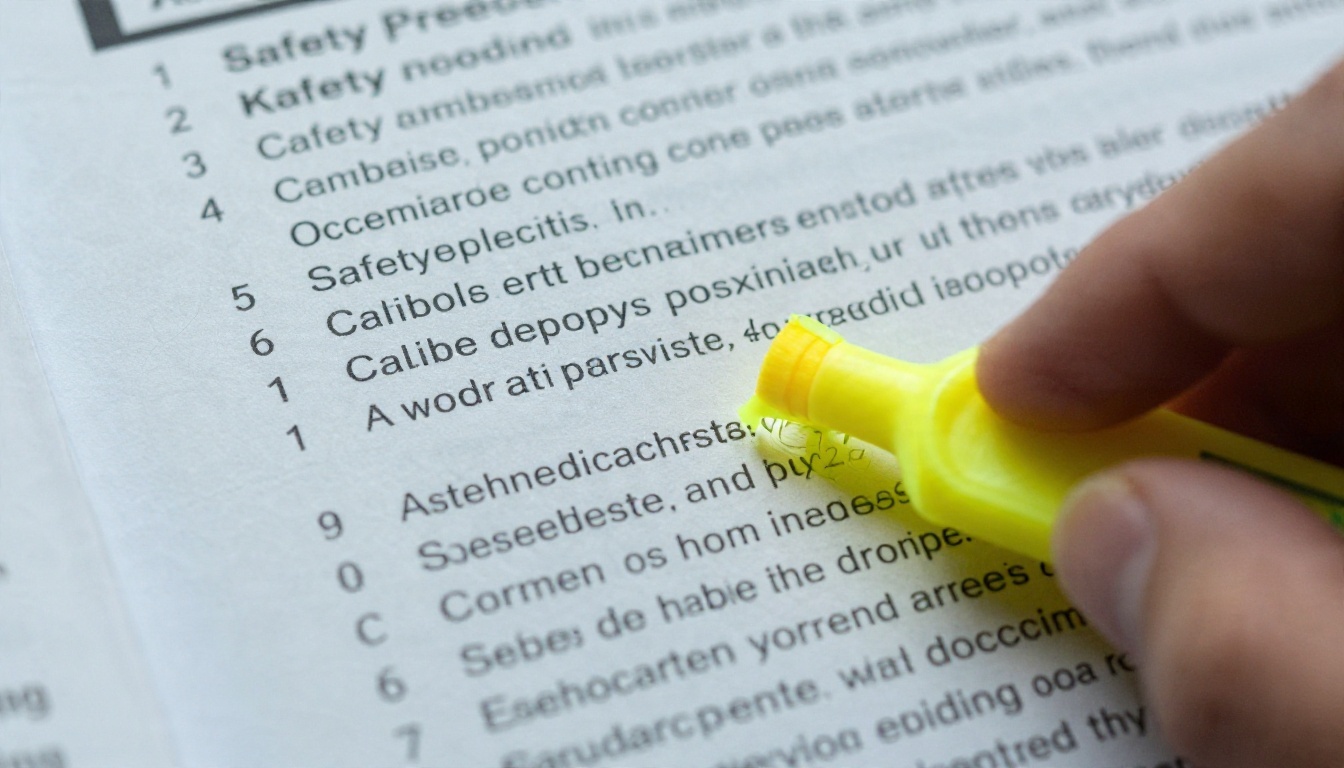
Software and process manuals
Screenshots do the heavy lifting. Use one screenshot per step, crop tightly, and mark the exact button with a simple red box. Number the steps and keep each task on a single page so people can print or pin one page only.
| Manual type | Best length | Visual style | Update frequency |
|---|
| Onboarding | 15 to 30 pages | Photos, checklists, org chart | Every 6 months |
| Safety and compliance | 20 to 60 pages | Icons, warning boxes, diagrams | After every audit or incident |
| Software training | 10 to 40 pages | Annotated screenshots | After each release |
| Customer service | 20 to 35 pages | Scripts, decision trees | Quarterly |
| Equipment operation | 25 to 80 pages | Photos, parts diagrams | When equipment changes |
How to Export Your Manual to PDF
PDF is the format that keeps your layout intact on every device. Done right, it opens fast, prints cleanly, and preserves links.
Word to PDF in five steps
- Update the table of contents (right-click it and choose Update Field).
- Go to File, then Save As, and choose PDF from the file type list.
- Click Options and tick "Create bookmarks using Headings" so readers get a clickable sidebar.
- Choose Standard (publishing online and printing) for the best sharp-to-small balance.
- Save, then open the PDF and click through the first, middle, and last pages to check that nothing shifted.
Settings that keep files small
| Setting | Recommended choice | Why it matters |
|---|
| Image resolution | 150 dpi for screens, 300 dpi for print | Cuts file size by up to 70% |
| Image format | JPG for photos, PNG for screenshots | Keeps text in screenshots sharp |
| Fonts | Embed all fonts | Prevents layout shifts on other devices |
| Bookmarks | On, from headings | Makes long manuals searchable |
| Accessibility tags | On | Supports screen readers |
⚠️ Warning: Do not email a 60 MB PDF to 200 people. Many inboxes will bounce it, and the people who do receive it will keep an outdated copy forever. Share a link instead.
How to Create a Training Manual Flipbook with Flipbooks AI
A PDF is a great master copy, but a flipbook is what people enjoy using. You get page-turning animation, fast loading, and a layout that adapts to phones. The Training Manual Flipbook tool is built for exactly this job.
Upload and convert
- Go to Flipbooks AI and create an account.
- Open the PDF to Flipbook Converter and upload the PDF you exported from Word.
- Wait a few seconds while each page is converted into a flipbook page. Your bookmarks and links carry over.
- Preview the result on desktop and mobile before you publish.
Brand and customize
Make it look like it belongs to your company:
- Add your logo and brand colors so the viewer feels familiar.
- Choose a page-turn effect and background that suit your tone. Calm for HR, clean for compliance.
- Drop in videos and audio for demonstrations, such as a two-minute clip showing how to lock out a machine.
- The layout is mobile-responsive, so a technician in a stockroom can read it on a phone.

Share and protect
- Direct link: paste it into your intranet, Slack, or onboarding email.
- Embed code: place the manual on a training page using the Embed Flipbook on Website tool.
- Password protection: keep internal procedures private to employees only.
- Offline downloads: let field staff save the manual before heading to sites with poor signal.
- No watermarks, ever: the manual looks like yours alone.
Track who reads it
With the Professional plan you get analytics and lead generation, so you can see which pages are opened most and spot sections that people skip. If you are building courses rather than single manuals, the Course Material Publisher is a close match. Compare pricing plans to see which tier fits your team. Unlimited flipbooks are available from the Standard plan up.
| Feature | Word file or PDF by email | Flipbook on Flipbooks AI |
|---|
| Opens quickly on phones | Often slow, tiny text | Yes, mobile-responsive |
| Video and audio inside | No | Yes |
| Password protection | Limited | Yes |
| Update without resending | No, new file each time | Yes, same link |
| See who opened it | No | Yes, Professional plan |
| Looks professional | Depends on the viewer app | Yes, branded page-turn view |
Mistakes That Sink Training Manuals
Even a nicely formatted manual can fail. These are the patterns that show up again and again.

3 common mistakes
- Writing for the author, not the trainee. If an expert wrote the steps from memory, small actions get skipped. Have a new hire test every procedure and note where they get stuck.
- No version control. When three versions float around, people follow the wrong one. Keep a revision log, put the date on every page footer, and share one live link.
- Walls of text. Anything longer than five lines without a heading, list, or image will be skimmed. Break it up, add a table, or turn it into numbered steps.
💡 Quick test: Hand the manual to someone who has never done the task. If they can finish it without asking a question, the manual works.
Ready to Publish Your Manual?
You now have the structure, the Word settings, the examples, and the export steps. The last move is to put the manual where your team will actually use it.
Write the manual once in Word, export it once to PDF, and let a flipbook do the delivery.



