Video to Flipbook: Converter Options, Free Tools, and How to Embed Clips
This article compares the main ways to turn a video into a flipbook: exporting frames into a PDF, using free tools like FFmpeg and VLC, and embedding clips inside a page-turning publication. It brings comparison tables, step-by-step instructions, and real examples for marketers, teachers, and agents.
Video is great on a screen and awkward almost everywhere else. You can't skim it, you can't print it, and you can't drop it into a document without a pile of links. A flipbook fixes most of that. It gives motion a page-turning home that people already know how to use. If you want to see how that looks in practice, Flipbooks AI lets you publish page-turning documents with embedded video and audio, no watermarks, on any device.
Here is the catch: "video to flipbook" means two different things depending on who is searching. Some people want to turn the frames of a clip into a classic flip book, where each page is one still and flipping creates the illusion of movement. Others want to take a finished flipbook, such as a catalog or brochure, and place video clips inside its pages. This article handles both, with converter options, free tools, and a clear path to embed clips.
What Video to Flipbook Means
Before picking a tool, decide which result you want. The workflow, the file formats, and the tools are different for each.
Frames as Pages
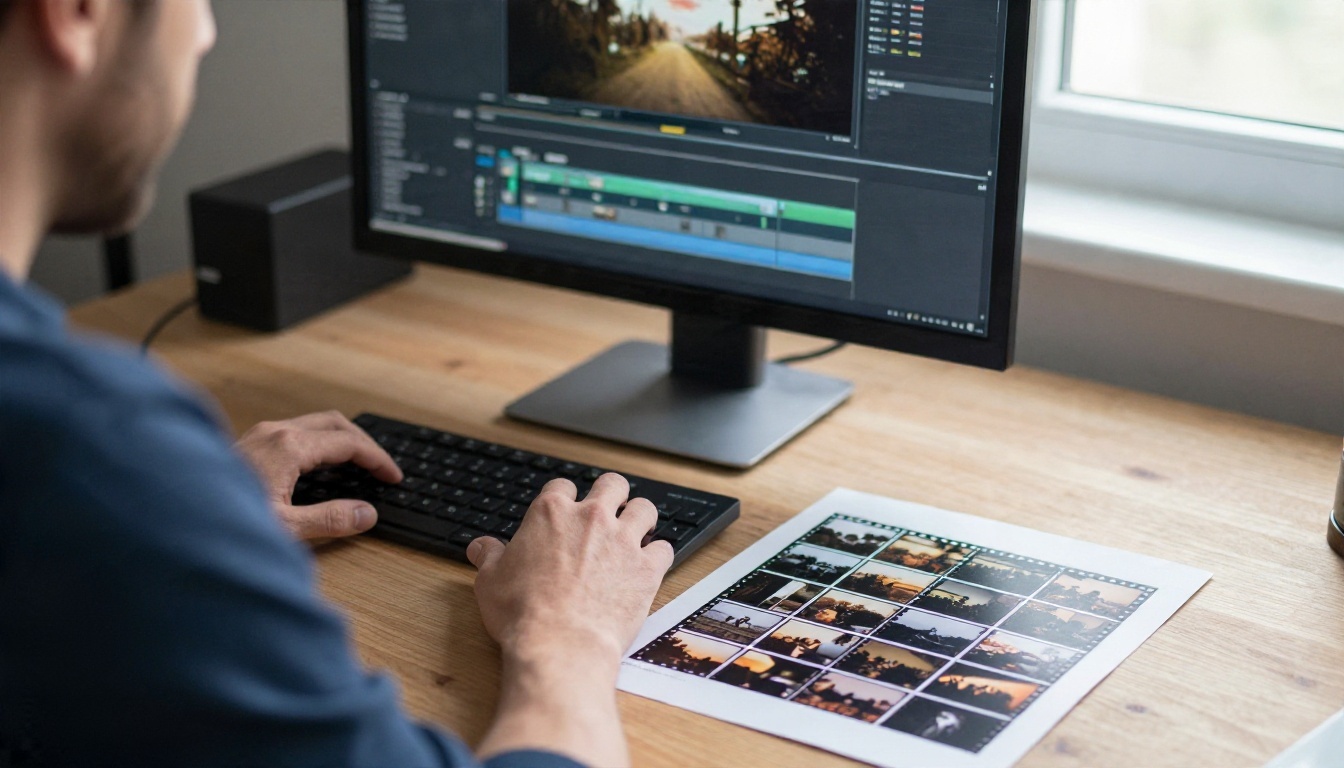
In this version, a short clip is cut into individual still images. Each still becomes one page. Flip through them quickly and the motion returns, the same way a thumb-flicked notepad animation works. It is a lovely format for a wedding moment, a product spin, a sports highlight, or a keepsake gift.
The output is usually a PDF with one frame per page. That PDF can then be converted into an online page-turning publication.
Clips Inside Pages
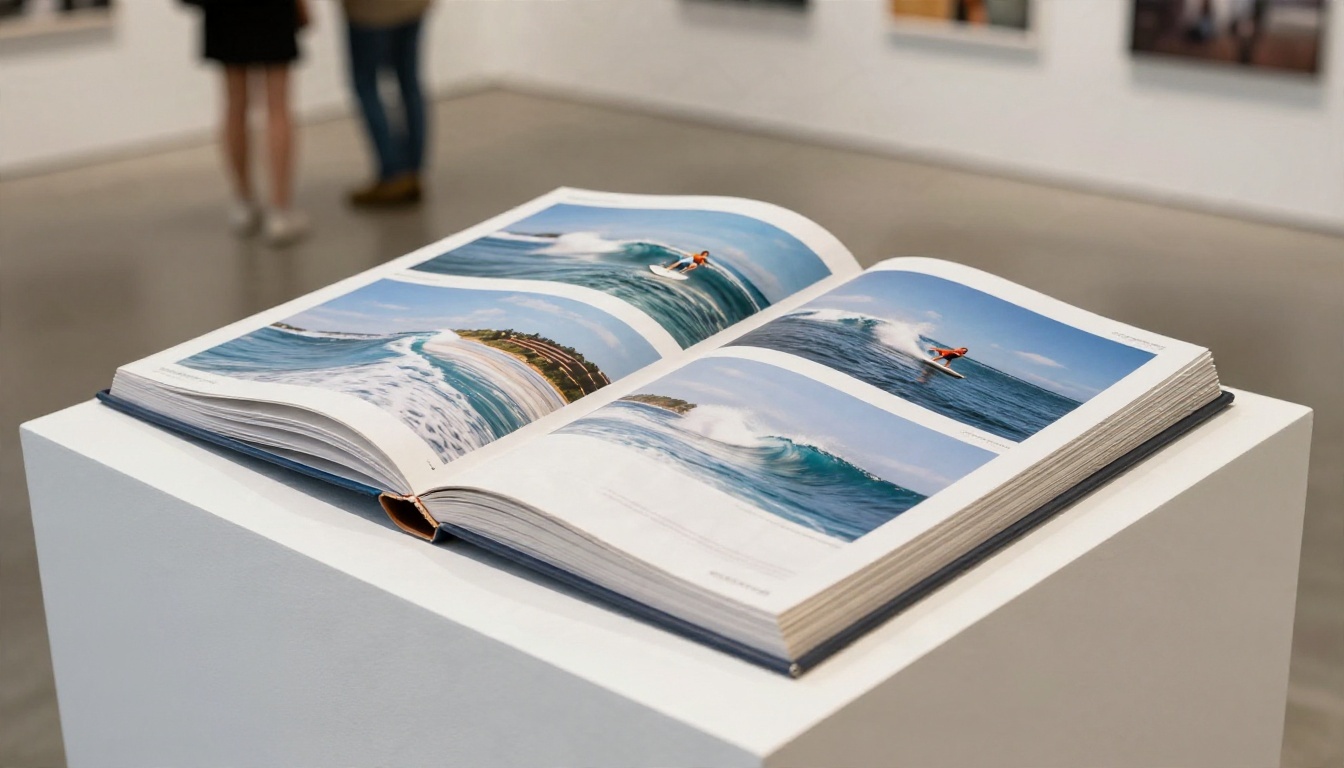
In the second version, the flipbook is the container and the video is the content. A product catalog might show a still photo of a jacket with a play button over it. A training manual might place a thirty-second demo next to the written steps. The pages stay readable and printable, while the clip adds motion only when the reader wants it.
Approach
Output
Best for
Reader experience
Frames as pages
PDF of stills, then flipbook
Keepsakes, animations, social content
Flip fast to see motion
Clips inside pages
Flipbook with embedded video
Catalogs, manuals, brochures, courses
Read, then press play
Hybrid
Stills for key moments plus a full clip
Event recaps, portfolios
Skim stills, watch the full video
💡 Pro tip: Most real projects end up as the hybrid. Stills carry the story on the page, and one embedded clip delivers the moment that stills can't.
Converter Options Compared
No single button turns a video into a finished flipbook. In practice you chain two steps: extract frames or prepare clips, then publish. Here are the realistic options for step one.
Desktop Frame Exporters
Desktop software gives you the most control over frame rate, size, and image format. FFmpeg is a free, open-source command-line tool that exports frames in seconds. VLC is free and can capture snapshots, and with its scene filter it can save a numbered image sequence. DaVinci Resolve has a free edition that can render an image sequence from any timeline, which helps if you also want to trim or color-correct first.
Online Frame Extractors
Browser tools such as EZGIF accept a short upload and return a ZIP of images. They need no installation, which is perfect for a one-off clip. The trade-off is that free online tools usually cap file size and length, and you are uploading your footage to someone else's server. For private or client material, stay on the desktop.
Editors With PDF Export
Once you have images, you need a PDF. LibreOffice Impress, Google Slides, and PowerPoint can all place one image per slide and export to PDF. Your operating system's "print to PDF" can also combine images in a folder. This is the bridge between a pile of frames and a flipbook.
Tool
Cost
Skill level
Best at
Watch out for
FFmpeg
Free
Medium (command line)
Fast, precise frame export
No visual interface
VLC
Free
Easy
Quick snapshots and sequences
Settings are buried in menus
EZGIF
Free
Easy
One-off short clips
Upload size limits, privacy
DaVinci Resolve (free)
Free
Medium
Trim, grade, then export
Heavy install
LibreOffice Impress
Free
Easy
Images to PDF layout
Manual page setup
PDF to Flipbook Converter
See plans
Easy
Publishing the final PDF
Needs a prepared PDF
Free Tools That Actually Work
You don't need a paid suite for the frames step. These three methods cost nothing and produce clean results.
FFmpeg Frame Export Command
If you are comfortable with a terminal, this is the fastest route. The command below reads a clip and saves four frames per second as numbered PNG files:
ffmpeg -i clip.mp4 -vf fps=4 frame_%03d.png
Change fps=4 to a higher number for smoother motion, or a lower one for fewer pages. A ten-second clip at 4 fps produces 40 pages, which is a sensible size. At 24 fps the same clip produces 240 pages, which is a very long flipbook.
VLC Snapshot Method
VLC works well when you only need a handful of stills. Pause at the exact moment you want, take a snapshot, and repeat. It is slower than FFmpeg, but you choose every frame by eye, which suits a product tour or event recap where only certain moments matter.
Assembling Frames Into a PDF
Open your presentation tool, set the slide size to match your frames, and insert one image per slide. Export as PDF. Keep page order in mind: numbered file names such as frame_001.png sort correctly, which saves a lot of dragging.
⚠️ Warning: Check the aspect ratio before you build the PDF. Frames from a 16:9 video placed on a portrait page leave huge empty bands, and the flip effect looks cheap.
Build Your Flipbook on Flipbooks AI
With a PDF ready, publishing takes a few minutes. This is how to create a video flipbook with Flipbooks AI.
Wait for the conversion. Each PDF page becomes a flippable page with a realistic turn animation.
Preview it on desktop and phone before you change anything else.
Customize the Look
After conversion, adjust the presentation so it matches your brand or project:
Custom branding: add your logo and choose colors that match your site.
Page effects: pick the turning style and background that suit the mood.
Multimedia: place video and audio in the pages where they belong.
Mobile-responsive design: the flipbook adapts to phone and tablet screens, so test both.
Share, Protect, and Track
Sharing is where a flipbook beats a PDF attachment:
Direct link: paste it into an email, chat, or social bio.
Embed code: place the flipbook on any page of your site. The Embed Flipbook on Website tool covers this.
Password protection: keep private material limited to the people you choose.
Offline downloads: let readers keep a copy when they have no connection.
On the Professional plan you also get analytics and lead generation, so you can see how people read your pages and collect contact details. Compare the options on the pricing page. Unlimited flipbooks arrive with the Standard plan and above.
How to Embed Video Clips
Embedding is the second meaning of video to flipbook, and it is where most business use lives. The goal is simple: the page stays readable, and the clip plays when the reader chooses.
Hosted Link or Uploaded File
You usually have two ways to bring a clip into a page. You can reference a video that already lives on a hosting service, or you can use a file you own. Each has trade-offs.
Method
Pros
Cons
Pick it when
Hosted video link
Light flipbook, fast loading, easy to update the source
Depends on the host staying online
The clip is long or already public
Uploaded video file
Everything stays in one place, you control it
Larger files slow the load
The clip is short and private
Audio only
Tiny file, great for narration
No visual
Tours, podcasts, voice notes
Check which source types your plan accepts in the editor, then match the method to your content.
Placing Clips on the Page
Place the clip near the text it supports. Put a clean still image or a clear label next to it so readers know what they will see before they press play. Keep clips short. Thirty to sixty seconds is plenty for a demo. Anything longer belongs on a hosted video page that the flipbook links to.
✅ Best practice: Never autoplay with sound. Let the reader press play. It respects their context, and it keeps the page from startling someone on a train.
Embedding the Flipbook on Your Site
Once the clips are in, copy the embed code and paste it into your website editor. Set a sensible width, and keep the container responsive so the book scales on phones. If your page has its own video player, do not stack it directly above the flipbook. One focus per screen works better.
Real Examples by Industry
Concrete scenarios show how both approaches earn their place.
Product Catalogs With Demos
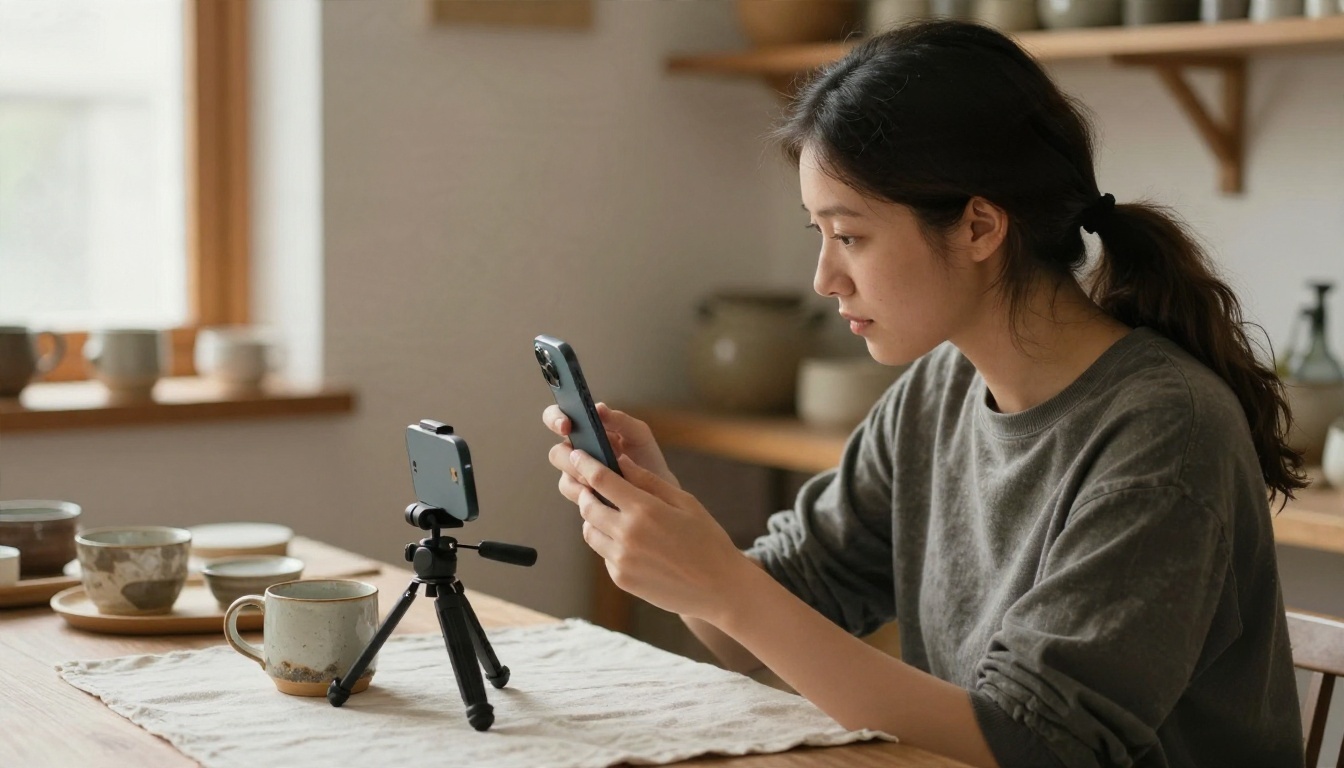
A ceramics shop photographs each mug, then films a ten-second clip showing the glaze catching light. The photos sit on the page, and the clip plays on demand. Tools like the Product Catalog Generator or the Digital Catalog Maker fit this style, and a shopper sees the product move without leaving the catalog.
Training and Lessons
A teacher records a short experiment and embeds it beside the written steps. Students read, watch, and repeat as often as they like. A Training Manual Flipbook or the Course Material Publisher suits this setup, and the flipbook is easy to share with a whole class by link.
Property Brochures
A real estate agent places a walkthrough clip next to the floor plan. Buyers read the specifications and then press play for the feel of the rooms. The Real Estate Brochure Creator is built for exactly this kind of layout.
Most failed video flipbooks share the same three problems.
Too Many Frames
Exporting at the source frame rate is the classic error. A one-minute clip at 30 fps yields 1,800 pages. Nobody flips through that. Aim for 20 to 60 pages, which means a low fps value or a short excerpt.
Heavy Files
Large PNG frames and uncompressed clips make a flipbook slow to open. Compress images to a reasonable size, export as JPG when you don't need transparency, and keep embedded clips short. A fast flipbook gets read. A slow one gets closed.
Missing Mobile Check
More than half of readers will open the link on a phone. Preview every page on a small screen. Look for tiny captions, clipped play buttons, and landscape clips that squeeze into narrow columns.
⚠️ Warning: Only use footage you own or have permission to use. Music inside a clip is the most common source of takedown notices.
A quick checklist before you publish:
Frames exported at a sensible fps, in the right aspect ratio
PDF pages in the correct order
Clips shorter than one minute, each with a clear label
Branding and colors set
Password protection on if the content is private
Phone and tablet previews checked
Pick Your Workflow Today
If you want a keepsake animation, export frames with FFmpeg or VLC, build a PDF, and convert it. If you want a catalog, manual, or brochure with moving content, start with the document and place short clips where they matter. Most people end up combining both.
Ready to try it? Create your free account on Flipbooks AI and convert your first PDF in minutes. Browse the full set of flipbook tools to find a layout for your use case, or compare pricing plans if you need analytics, lead generation, and unlimited flipbooks. When you are ready to publish at scale, choose a plan and start sharing.