You export a 12-page brochure and the PDF weighs 48 MB. Your email client refuses it, the recipient's inbox bounces it, and website visitors stare at a loading bar for ten seconds before giving up. A bloated PDF is rarely a mystery once you know where to look. Nine times out of ten the weight comes from images, fonts or hidden leftovers from the design process. This article breaks down each cause with real numbers and gives you free fixes you can apply in minutes. And if you would rather stop fighting file size altogether, you can turn the PDF into a shareable link with Flipbooks AI and skip the attachment problem entirely.
What Makes a PDF So Heavy
A PDF is a container. Inside it sit page descriptions, images, fonts, color profiles, metadata and sometimes entire older versions of the document. Any one of those can balloon. The trick is knowing which one is guilty in your file.
The Usual Suspects
Here are the most common causes, ranked by how often they turn up in oversized files. The size ranges are rough, since every document is different.
| Cause | Typical size impact | How hard to fix |
|---|
| Uncompressed or barely compressed photos | 5 to 40 MB per file | Easy |
| 300 PPI images in a document read only on screen | 2x to 5x larger than needed | Easy |
| Scanned pages saved as full color images | 1 to 3 MB per page | Medium |
| Full font sets embedded instead of subsets | 0.5 to 6 MB | Medium |
| Layers, metadata, thumbnails, attachments | 0.1 to 10 MB | Medium |
| Heavy transparency, shadows, vector maps | 1 to 20 MB | Hard |
Notice that the top three are all about pictures. If you only have ten minutes, start there.
Check What Is Inside Your File
Before you compress anything blindly, look at what you are dealing with. Open the PDF in a viewer that offers a document properties or audit panel. Many desktop PDF editors have a tool that lists the space used by images, fonts, content streams and "other" data. If your editor has no such panel, a quick test works nearly as well: export the same document twice, once with images removed or replaced by placeholders, and compare sizes.

💡 Pro tip: Write down the original size before you touch anything. A good compression pass should drop a photo-heavy PDF by 60 to 90 percent. If you only saved 5 percent, you attacked the wrong culprit.
Image Sizes Are the Biggest Culprit
Photos are the reason a short document can outweigh a 300-page novel. A modern phone shoots 12 to 50 megapixels. Drop that straight into a layout and the PDF may carry far more pixels than any screen or printer will ever use.
Resolution and DPI Made Simple
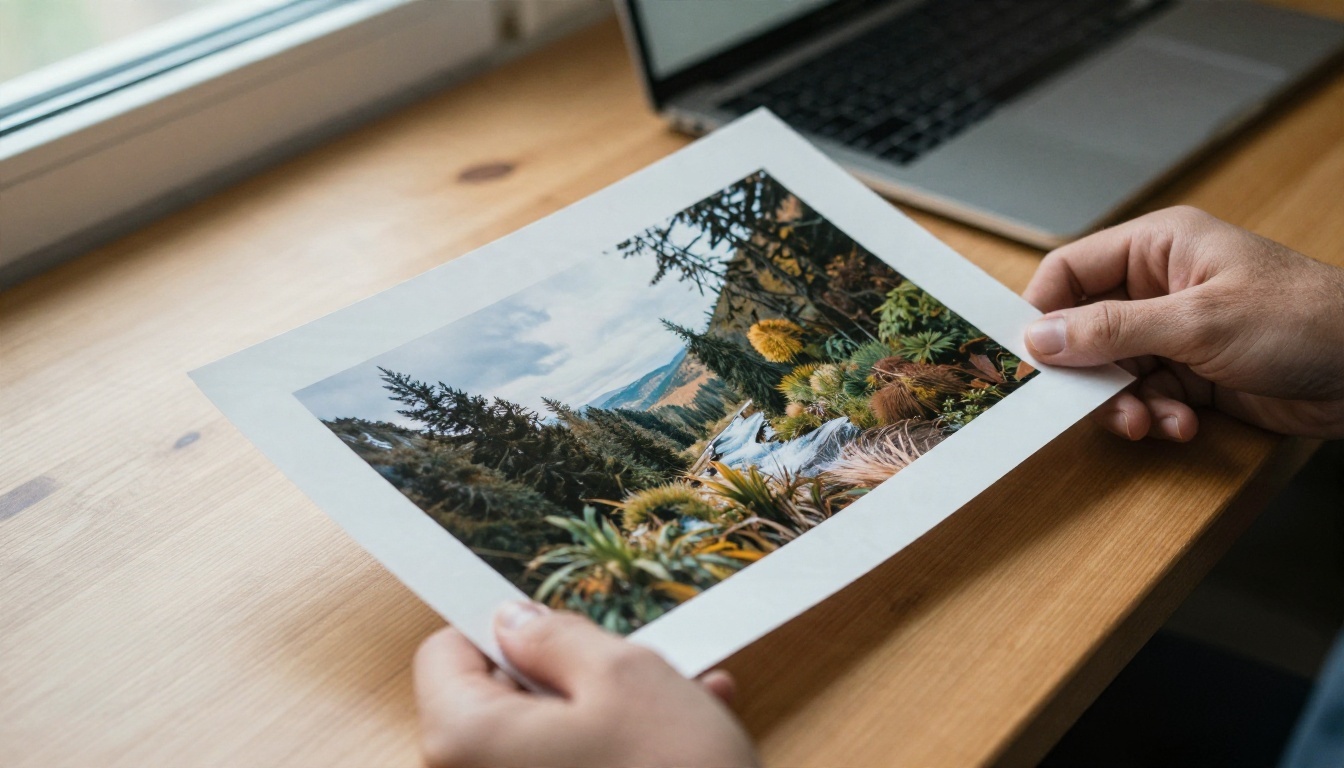
Here is the math that surprises people. A 4000 x 3000 pixel photo holds 12 million pixels. Stored raw at 24-bit color, that is about 36 MB. A decent JPEG of the same image lands around 3 to 5 MB. Now suppose that photo sits in your brochure at 6 x 4 inches and you want print quality of 300 PPI. You only need 1800 x 1200 pixels, around 2 million pixels, which is roughly 0.5 MB as a JPEG.
So ten full-size photos can mean 40 MB where 5 MB would look identical on paper. And for a document read on screen, you can go lower still.
Pick the Right Format and Target
Use this table as a starting point when you export or downsample images.
| Use case | Target resolution | Best format | Notes |
|---|
| Email and screen reading | 100 to 150 PPI | JPEG, medium quality | Smallest files, fine on laptops and phones |
| Office or home printing | 200 PPI | JPEG, high quality | Good balance for handouts |
| Professional print | 300 PPI | JPEG maximum or ZIP | Only if the printer asks for it |
| Logos and line art | Vector, or 600+ PPI | Vector PDF or PNG | Vectors stay sharp and tiny |
| Scanned text pages | 200 to 300 PPI | Grayscale or black and white | Avoid color scans for plain text |
⚠️ Watch out: Never downsample an image twice. Each lossy pass adds artifacts. Keep your original photos in a separate folder and always export from those.
A Quick Real-World Example
A small furniture store built a 24-page lookbook with 40 product photos straight from a DSLR. The PDF came out at 112 MB. After resizing every image to 1600 pixels on the long edge and exporting at medium JPEG quality, the same lookbook dropped to 9 MB. Nobody noticed a difference on screen. The store could finally email the file to buyers and link it from their site.
Fonts Can Quietly Add Weight
Fonts rarely cause a 50 MB disaster, but they can add several megabytes, and they are the most overlooked cause of a swollen file.
Embedded vs Subset Fonts
When you embed a font, the PDF carries the glyph data so the text looks right on any device. A full embed includes every character in the typeface. A subset embed includes only the characters you actually used. For a Latin font that difference might be 300 KB against 30 KB. For fonts with thousands of glyphs, such as many Asian typefaces or decorative families with extensive symbol sets, the gap can reach several megabytes per weight.
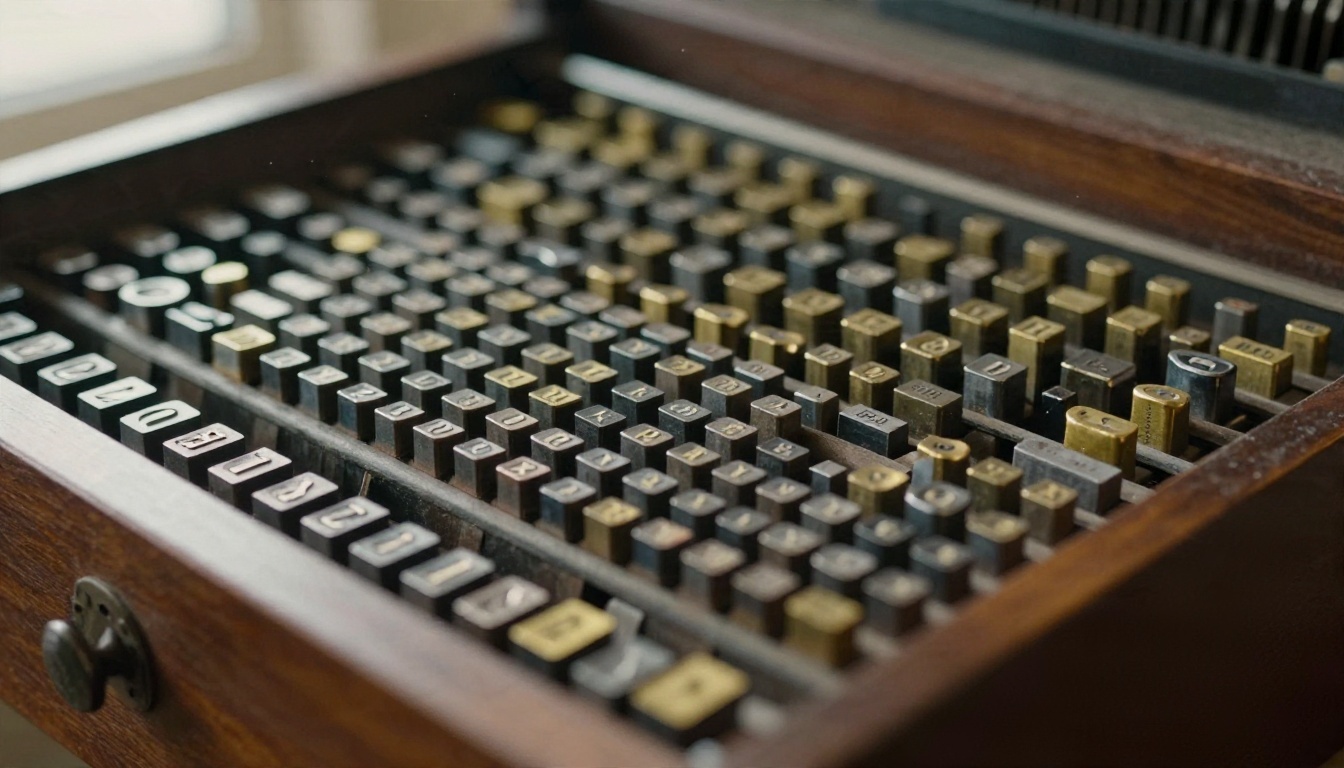
Most export dialogs include a setting like "Subset fonts when the percentage of characters used is less than 100%". Leave it at the default, or set it so subsetting always applies.
Cut the Font Count
Designers love variety. Every extra family, and every extra weight, adds another font file to the PDF. A document with six families and three weights each can carry 18 embedded fonts.
Try this quick cleanup:
- Limit the layout to two families: one for headings, one for body text.
- Use no more than three weights per family (regular, bold, italic).
- Replace any stray system fonts that sneaked in from pasted text.
- Convert one-off decorative headings to outlines only if the text will never need editing.
✅ Best practice: Fewer fonts also make a layout look more professional. A smaller file is a side effect of better design.
Sometimes the images are fine and the fonts are lean, yet the file still weighs too much. Welcome to the hidden stuff.
Layers, Metadata and Old Versions
PDFs can store a surprising amount of baggage:
- Incremental saves: Hitting Save repeatedly in some editors appends changes instead of rewriting the file, so deleted images may still sit inside it.
- Layers and hidden objects: Content that is switched off still counts toward the size.
- Thumbnails and bookmarks: Page previews embedded for navigation add up on long documents.
- Attachments and form data: Embedded spreadsheets or XML can quietly add megabytes.
- Metadata and print marks: Usually small, but they stack with everything else.
The cheapest fix is Save As under a new name. It forces the editor to rewrite the file cleanly and drops the leftover data from old edits.
Transparency and Vector Overload
Drop shadows, blurs and soft gradients often get rasterized at high resolution when exporting. A single page with a dozen layered shadows can weigh more than a full-page photo. Maps and technical drawings with hundreds of thousands of vector points are another trap. If a page looks simple but is huge, simplify the effects or flatten that one page to a moderate-resolution image.
Free Fixes That Actually Work
You do not need a paid suite to shrink a PDF. Here are the options, from easiest to most hands-on.
Built-In Export Settings
The best compression happens before the PDF exists. Most tools include presets:
- Word, PowerPoint, Google Docs: Choose "Minimum size" or "Standard" in the export or save dialog, and use the picture compression option before exporting.
- Canva: Pick the PDF Standard download option instead of PDF Print unless you truly need print resolution.
- InDesign and Affinity Publisher: Use a "Smallest File Size" or screen preset, then check the image downsampling values.
- Mac Preview: Use the Reduce File Size filter in the export dialog. It is free but aggressive, so inspect the result.
Free Online and Desktop Compressors
If the PDF already exists and you no longer have the source, a compressor can still help. Here is how the common free routes compare.
| Method | Cost | Control over quality | Best for | Watch out for |
|---|
| Export preset in your design tool | Free | High | New documents | Needs the original file |
| Mac Preview Reduce File Size | Free, built in | Low | Quick one-off jobs | Can blur images heavily |
| Ghostscript (command line) | Free, open source | High | Batches and repeat work | Needs a terminal |
| Browser-based compressors | Free tiers | Low to medium | Fast fixes on non-sensitive files | Privacy and size limits |
| Paid PDF editors | Paid | High | Frequent heavy use | Cost |
For the power route, Ghostscript offers presets that map neatly to use cases. This command compresses for general e-reading:
gs -sDEVICE=pdfwrite -dPDFSETTINGS=/ebook -o smaller.pdf original.pdf
Swap /ebook for /screen when you need the smallest result (about 72 DPI), or /printer for a safer print-quality balance.
⚠️ Privacy note: Do not upload contracts, financial statements or client data to a random online compressor. Use a local tool for anything sensitive.
Fix It at the Source
If you produce PDFs regularly, build a routine:
- Resize photos to the maximum size they will appear at, plus a little margin, before placing them.
- Export JPEGs at 75 to 85 percent quality.
- Limit fonts to two families and subset them.
- Delete hidden layers and unused swatches or styles.
- Export with the right preset, then use Save As for any later edit.
- Compare the final size against the original and check pages at 100 percent zoom.
Do that once and you will rarely see a 48 MB brochure again.
Send Big PDFs Without Shrinking Them
Sometimes compression costs more quality than you can afford. A photographer's portfolio, a luxury catalog or a printed-quality annual report should stay sharp. In those cases, the smarter move is to stop sending the file and send a link instead.

Most email providers cap attachments at roughly 20 to 25 MB, and the encoding overhead of attachments makes the effective limit even lower. A link has no such cap, and the reader gets a smooth page-turning experience instead of a slow download.
How to Share a Large PDF with Flipbooks AI
The PDF to Flipbook Converter turns your PDF into an interactive, page-turning flipbook that opens in any browser. Here is the process step by step:
- Create your account. Go to Flipbooks AI and sign up. You can start free and check the pricing plans when you need more.
- Upload your PDF. Drag the file into the converter. The pages are processed and converted into flipbook pages, so readers browse the content online instead of downloading a heavy attachment.
- Customize the look. Add your logo and brand colors, choose a page-turn effect and pick a background that suits the document. You can also embed videos and audio to bring pages to life.
- Set access. Add password protection for private content such as client proposals or internal reports.
- Publish and share. Copy the direct link for email and chat, or grab the embed code to place the flipbook on your site. See the Embed Flipbook on Website tool for details.
- Check the results. On the Professional plan you get analytics and lead generation, so you can see how readers interact and capture contacts.

What You Get That Attachments Cannot Offer
| Feature | PDF email attachment | Flipbooks AI flipbook |
|---|
| File size limit | Around 20 to 25 MB | Share by link |
| Mobile reading | Pinch and zoom | Responsive, page-turn view |
| Password protection | Needs extra software | Built in |
| Branding | Fixed in the file | Custom logo and colors |
| Reader tracking | None | Analytics on Professional plan |
| Watermarks | Depends on the tool | No watermarks, ever |
| Offline copy | Already a file | Offline downloads available |
💡 Smart combo: Compress lightly to trim the obvious waste, then publish the flipbook. You get a faster upload and a link that works everywhere.
Real Situations, Quick Answers
Theory is nice. Here is how it plays out for common documents.
Catalogs, Magazines and Reports
A boutique owner with a seasonal range needs product photos to stay crisp, because shoppers zoom in to judge fabric. She compresses images to a sensible 150 to 200 PPI, then shares the catalog as a flipbook with the Digital Catalog Maker. Customers open it from a link in a newsletter, so nothing lands in a spam filter over file size.

A small publisher with a monthly issue can use the Magazine Flipbook Creator to keep full-quality spreads online while subscribers read on phones or tablets. A finance team with a 90-page report can convert it with the Annual Report Creator and protect it with a password until board approval.
Here is a quick decision table:
| Your situation | Best move |
|---|
| One-off email, plain document | Use a smaller export preset or Preview |
| Photo-heavy file you can still edit | Resize images, subset fonts, export again |
| Source file lost, privacy matters | Use a local tool like Ghostscript |
| Print quality must stay intact | Share as a flipbook link |
| Need to track readers or collect leads | Flipbook on the Professional plan |
Ready to Skip the Size Limit?
A PDF that is too large is almost always a fixable problem. Check your image resolution first, trim fonts second, and clear out hidden data third. Use Save As after every round of edits and compare the file size against your original so you know what worked.
When quality matters more than megabytes, send a link instead. Create your account on Flipbooks AI and publish your first flipbook without watermarks. Browse all flipbook tools to find the right format for your catalog, brochure or report, and compare pricing plans when you are ready for analytics, lead generation and unlimited flipbooks. You can also start here and go straight to pricing after signing up.



