You press play on a self-running deck, walk away to greet a client, and come back to find slide one still sitting there like nothing happened. It is one of the most common PowerPoint frustrations, and it almost always comes down to a handful of settings that are easy to miss. This article walks through each cause in order of likelihood, shows the exact menu paths, and explains what happens to your timings when you export to PDF. If you end up needing a format that works on any device without PowerPoint installed, a PDF to flipbook converter from Flipbooks AI is the cleanest way to share the finished deck.
The Quick Answer First
PowerPoint only advances on its own when three things line up: the slide has an automatic advance time, the slide show is set to use those timings, and nothing on the slide is waiting for a click. Break any one of them and the deck stalls.
Here is the fast diagnosis table. Find your symptom, then jump to the matching section.
| Symptom | Most likely cause | Where to fix it |
|---|
| Slide never moves, no matter how long you wait | "After" box unchecked on Transitions tab | Transitions > Advance Slide |
| Some slides advance, others freeze | Timings only set on part of the deck | Slide Sorter view |
| Deck advances once, then stops at the end | Loop option is off | Set Up Slide Show |
| Slide advances too early and cuts off video | Timing shorter than media length | Playback settings |
| Works on your laptop, not on the kiosk PC | Different show type or older version | Set Up Slide Show |
| Exported PDF will not move by itself | PDF files do not store timings | Use video, PPSX or flipbook |
💡 Pro tip: Before changing anything, press F5 and watch the very first slide for the full length of its timer. Half of "broken" decks are simply waiting on a 40 second timer someone set last month.
Check Your Slide Timings
Timings are the first place to look. PowerPoint stores them per slide, so a deck that was edited by several people often has a patchwork of settings.
Turn On Use Timings
Open the Slide Show tab and look at the Set Up group. There is a checkbox called Use Timings. If it is unchecked, PowerPoint ignores every timer you have set and waits for a click on every slide. This single box is behind a huge share of "my slides will not advance" complaints, especially after someone has switched a deck to manual presenting and forgotten to switch it back.
Set Advance After on Each Slide
Go to the Transitions tab. In the Timing group you will see an Advance Slide section with two checkboxes:
- On Mouse Click: the slide advances when someone clicks or presses an arrow.
- After: the slide advances automatically once the number of seconds you typed has passed.
For automatic playback, tick After and enter a time such as 00:08. You can leave On Mouse Click ticked as well. Doing so lets a presenter jump ahead manually while the timer still handles everything else. To apply the same time to the whole deck, set it on one slide and click Apply To All.
⚠️ Warning: Apply To All also copies the transition style. If your slides use different transitions, set the timing slide by slide in Slide Sorter view instead.
Use Rehearse Timings the Fast Way
Typing a number on forty slides is tedious. Instead, open Slide Show > Rehearse Timings. PowerPoint starts the show with a small timer toolbar. Click through the deck at the pace you want, and PowerPoint records how long you spent on each slide. When you finish, it offers to save the timings. Accept, then open View > Slide Sorter and check the small numbers under each thumbnail.
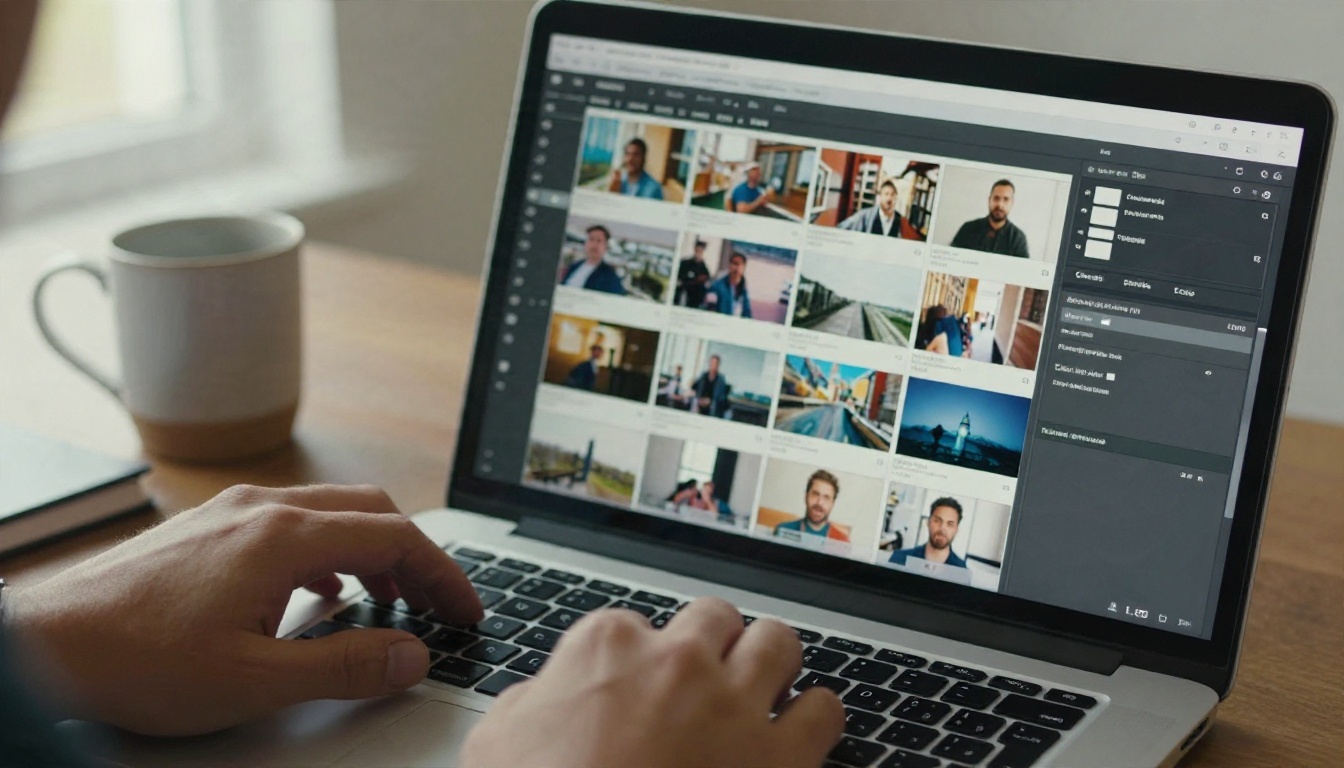
A slide with no number under its thumbnail has no timer. That is your culprit.
Kiosk Mode Settings That Matter
A kiosk is any screen that plays without a person at the controls: a lobby display, a trade show monitor, a waiting room TV. PowerPoint has a dedicated show type for this, and picking the wrong one is the second most common cause of stalled decks.
Pick the Right Show Type
Open Slide Show > Set Up Slide Show. The dialog lists three show types:
| Show type | Who controls it | Auto advance | Best for |
|---|
| Presented by a speaker (full screen) | Presenter | Uses timings if enabled | Live talks |
| Browsed by an individual (window) | Viewer | Not designed for it | Self-paced reading on a PC |
| Browsed at a kiosk (full screen) | Nobody | Always uses timings | Unattended displays |
Choose Browsed at a kiosk (full screen) for an unattended screen. Kiosk mode has a few traits that surprise people. Mouse clicks do not advance slides, so the deck can only move by timers or by hyperlinks and action buttons you have placed. If a slide has no timing in kiosk mode, it simply sits there forever, because the viewer cannot click it forward.
Turn On Loop Continuously
In the same dialog, tick Loop continuously until 'Esc'. Without it, the deck plays through once and parks on the final slide or a black end screen. Kiosk mode ticks this box for you, but a deck switched back and forth between modes can end up with the setting cleared.
Check Hidden Slides and Narration
Two smaller settings catch people out:
- Hidden slides are skipped during playback. If your deck seems to jump from slide 4 to slide 7, look for the crossed-out slide numbers in the thumbnail pane.
- Play Narrations and Use Timings are separate options. If you recorded narration, PowerPoint can use the narration length as the timer, which may be far longer than you expect.
Hidden Causes of Stuck Slides
If timings and show type look right but the deck still freezes, the problem is usually inside the slide itself.
Animations Waiting for a Click
Animations set to Start: On Click pause the slide until someone clicks. In kiosk mode nobody can, so the slide sits on its first animation. Open the Animations tab, click Animation Pane, and change every entry to After Previous or With Previous. Also check that the slide timer is longer than the total animation time. A 5 second timer on a slide with 8 seconds of animation will cut the effect short.
Triggers deserve a special mention. An animation set to start when you click a particular shape needs that click to happen. Remove the trigger or replace it with a timed start.
Embedded Video and Audio
Media is a quiet troublemaker. Common problems include:
- A video set to On Click that never starts, so the slide waits on the timer with a blank frame.
- A slide timer shorter than the clip, which cuts the video off mid-sentence.
- Audio set to play across slides that stops when the next slide loads.
- Linked files that moved, so the media shows a broken icon on the kiosk PC.
Select the video, open the Playback tab, and set Start to Automatically. Then set the slide's Advance After time to slightly longer than the clip. For linked media, use File > Info > Optimize Media Compatibility and keep the files embedded.
Different Versions and Devices
A deck that behaves on your Windows desktop can act differently on a Mac, in PowerPoint for the web, on a phone, or on an older installation. Timings, kiosk playback and some animations are not identical everywhere. The practical fix is to test on the exact device that will run the show, and to run it for at least two full loops before you leave.
✅ Best practice: Save a copy as a PowerPoint Show (.ppsx). Double clicking that file opens straight into the slide show, which removes the risk of someone opening the editor and leaving it on the wrong view.
Why PDF Export Breaks Auto Advance
Here is the part that trips up many people: they fix the timings, export the deck to PDF to send it around, and then wonder why it never moves on its own.
What a PDF Actually Keeps
A PDF is a fixed document. It keeps text, images, layout and links. It does not keep slide timings, animations, transitions or embedded media playback. Even if the PDF viewer has a full screen mode, there is no stored timer for it to follow. That is expected behavior rather than a bug.
| Feature | PowerPoint (.pptx) | PowerPoint Show (.ppsx) | Video (.mp4) | PDF | Flipbook |
|---|
| Slide timings | Yes | Yes | Baked in | No | No |
| Animations | Yes | Yes | Baked in | No | No |
| Plays without PowerPoint | No | No | Yes | Yes | Yes |
| Works in a browser | Limited | No | Yes | Yes | Yes |
| Easy to embed on a website | No | No | Yes | Limited | Yes |
| Page turning on mobile | No | No | No | Basic | Yes |
| Password protection | No | No | Depends | Basic | Yes |
Better Options for Unattended Screens
If the goal is a screen that loops by itself, pick a format that stores the timing:
- Video export: Go to File > Export > Create a Video, choose a resolution, tick Use Recorded Timings and Narrations, and set a default of seconds per slide for slides without a timer. Any media player can loop the resulting MP4, which makes it ideal for TVs and digital signs.
- PPSX file: Best when the kiosk PC already has PowerPoint.
- Original PPTX in kiosk mode: Best when you may need to edit often.
If the goal is for people to read the deck at their own pace, on their own device, a PDF is a decent start and a flipbook is a better finish. Note the honest difference: a flipbook is self-paced. Visitors turn pages by clicking or swiping, so it suits sales decks, manuals and proposals rather than a lobby screen that must loop with nobody nearby.

Turn Your Deck Into a Flipbook
A real-world scenario: a sales manager builds a 24 slide product deck, sends the PDF to prospects, and gets replies saying the file is heavy, awkward on phones, and impossible to track. The same deck as a flipbook loads in a browser, turns pages smoothly on a phone, and can show who opened it. For this use case the Sales Presentation and Presentation Flipbook Designer tools are built for exactly this.
Step by Step Conversion
Here is how to create a flipbook from your PowerPoint with Flipbooks AI:
- Export your deck to PDF. In PowerPoint choose File > Save As > PDF (or Export > Create PDF). Pick standard quality so text stays sharp.
- Create your account. Create a free account on Flipbooks AI. You can sign up without any setup beyond your login.
- Upload the PDF. Drag the file into the uploader. The platform converts each page into a flipbook page automatically.
- Check the preview. Flip through and confirm that fonts, images and links look right. Fix anything in PowerPoint and re-export if needed.
- Customize the look. Add your logo, pick brand colors, choose the page effect and set the background.
- Add multimedia. Embed videos and audio where a slide used to have them. This replaces media that a PDF could not play.
- Publish and share. Copy the direct link or the embed code, and add a password if the deck is private.
💡 Pro tip: Keep slide text large and avoid tiny footnotes. Phone readers see one page at a time, and dense slides lose detail quickly.
Branding and Sharing Options
Once published, you decide how people reach the deck:
| Sharing method | Best for | Notes |
|---|
| Direct link | Email and chat | Fastest, works on any device |
| Embed code | Websites and landing pages | See embed a flipbook on your website |
| Password protection | Private proposals and internal decks | Share the password separately |
| Offline download | Travel, poor Wi-Fi events | Handy for stands with unreliable internet |
Every flipbook is mobile responsive and published without watermarks, so the result looks like your brand rather than a tool's. Custom branding keeps colors and logo consistent across your decks.
Analytics and Lead Capture
On the Professional plan you can see how people use each flipbook and collect contact details through lead capture before the deck opens. That is useful when you send a pitch to twenty companies and want to know which ones actually read it. Check the pricing plans to see which features come with each tier. Standard and above also include unlimited flipbooks, which matters if you convert a new deck every week.
Other decks follow the same path. A training manual built in PowerPoint, an event schedule for the Event Program Maker, or a client proposal all convert in minutes.
Pre-Show Checklist
Run through this list before you leave any deck unattended. It takes three minutes and prevents most failures.
| Check | Where | Done when |
|---|
| Use Timings is ticked | Slide Show tab | Box is checked |
| Every slide has an After time | Slide Sorter view | A number sits under each thumbnail |
| Show type matches the use case | Set Up Slide Show | Kiosk for unattended, speaker for live |
| Loop continuously is on | Set Up Slide Show | Box is checked |
| No On Click animations | Animation Pane | All set to After or With Previous |
| Media plays automatically | Playback tab | Start is Automatically |
| Sleep and screen saver off | Windows power settings | Display never turns off |
| Tested for two full loops | The actual device | No stalls, no black screens |
Also confirm the laptop is plugged in. Power saving modes can pause playback or dim the screen, which looks like a software fault when it is really a battery setting.
A few extra habits help:
- Use a wireless clicker only as a backup. Never rely on one for an unattended display.
- Keep a video copy of the deck on a USB drive. If PowerPoint misbehaves, the MP4 plays in seconds.
- Label each version clearly: "live", "kiosk", "PDF". Mixing them up is how timings get lost.
Fix It and Share It
To recap the fixes in order: tick Use Timings, set Advance After on every slide, switch to Browsed at a kiosk if no one will be there, turn on Loop continuously, remove click-based animations, and check your media settings. If you must send a PDF, remember that it will never advance itself, and choose a video or PPSX for any screen that has to run alone.
When the audience is a person on a phone or laptop rather than a lobby screen, give them something better than a flat file. Get started for free on Flipbooks AI, upload your PDF, and send a link that turns pages like a real publication. You can also browse all flipbook tools to find a layout that suits your deck, or compare plans when you are ready for analytics, lead capture and unlimited flipbooks.


