You spent an afternoon polishing a report. Every source is linked, the table of contents is tidy, and the contact email sits neatly on the last page. Then you export it, open the PDF, click a link and nothing happens. It is one of the most common document frustrations, and it almost always comes down to a single menu choice. If you want the short version: use File > Save As or File > Export, pick PDF, and leave the right boxes ticked. If you want the reasons, the settings and the fixes for when it still goes wrong, keep reading. At the end, we will also look at how to publish that PDF as an interactive page-turning document with Flipbooks AI.
Why Links Break on Export
Word stores hyperlinks as fields. A PDF stores them as link annotations. When Word converts one to the other, it has to be told to do it. Most of the time it does. When it does not, the cause is usually the export route you picked, not a bug in your document.
The Print to PDF Trap
The biggest culprit is the virtual printer. If you press print and choose Microsoft Print to PDF (or any generic "save as PDF" printer), Word sends the page as a flat picture of ink. The text looks identical, but the link layer is gone. Bookmarks and the document structure are gone too.
⚠️ If your PDF looks perfect but nothing is clickable, you almost certainly printed it instead of exporting it. Go back to the document and use Save As or Export.
What Word Preserves
When you use the built-in PDF export, Word can carry across a lot more than people expect:
- External web links and mailto links
- Table of contents entries that jump to a page
- Cross-references inserted as hyperlinks
- Heading-based PDF bookmarks in the side panel
- Document properties such as title and author
- Accessibility tags for screen readers
| Export route | Links kept | Bookmarks | Accessibility tags | Best for |
|---|
| File > Save As > PDF | Yes | Yes (option) | Yes (option) | Everyday sharing |
| File > Export > Create PDF | Yes | Yes (option) | Yes (option) | Same result, different menu |
| Print to PDF printer | No | No | No | Flat copies only |
| Word for the web download | Usually | Limited | Limited | Quick drafts |
| Third party converter | Varies | Varies | Varies | Batch work |
Save as PDF the Right Way
The steps differ slightly between Windows and Mac, but the principle is the same: use the export command, then open the options before you save.
Windows Steps
- Open your finished document and update every field first (select all, then press F9).
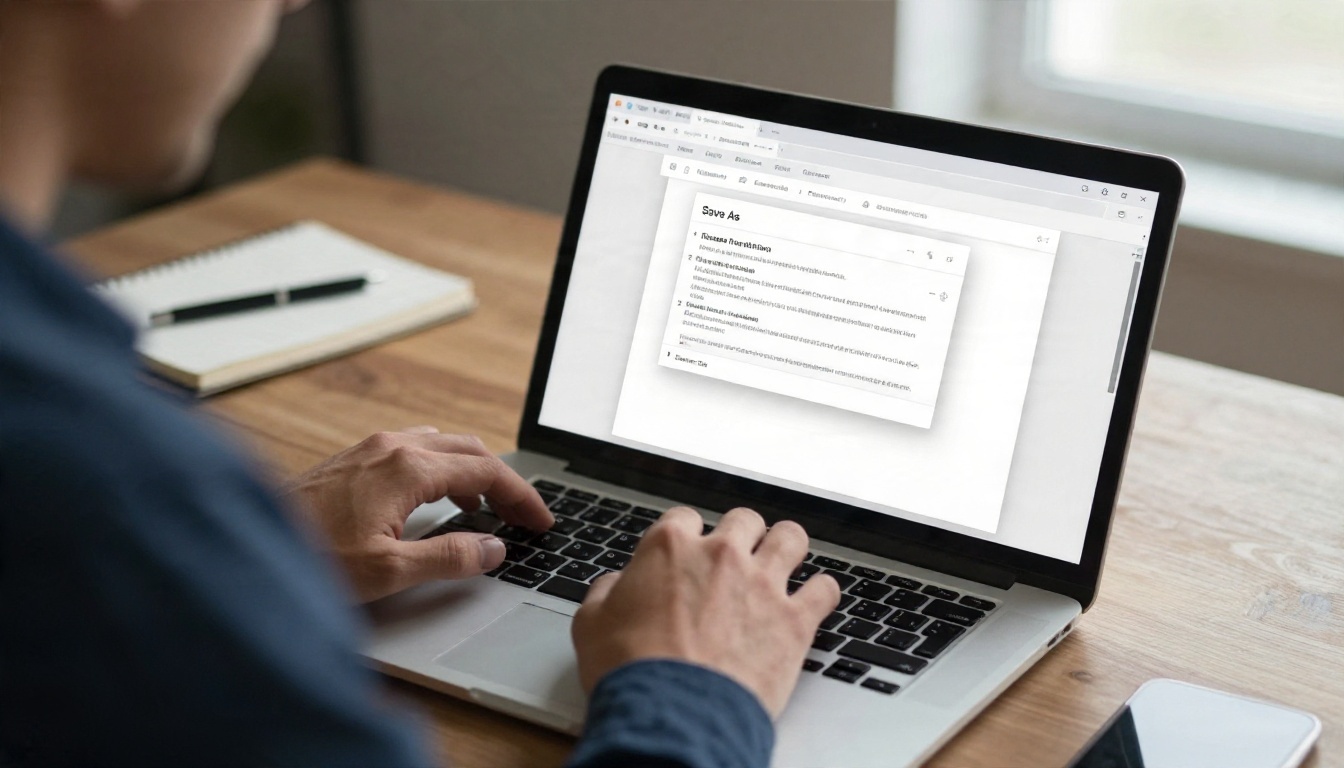
- Choose File > Save As and pick a folder with Browse.
- In the Save as type menu, select PDF (*.pdf).
- Click Options before you click Save.
- Tick Create bookmarks using Headings, Document properties and Document structure tags for accessibility.
- Click OK, then Save.
You can also go through File > Export > Create PDF/XPS Document, which opens the same dialog.
Mac Steps
On a Mac, choose File > Save As, then change File Format to PDF. Word offers two quality choices:
- Best for electronic distribution and accessibility keeps links, bookmarks and tags.
- Best for printing is aimed at paper output and may be less friendly to screen readers.
💡 Avoid the system print dialog on a Mac too. The PDF button at the bottom left of the print window can produce a PDF with weaker link support than Word's own export.
Export Options That Matter
The Options dialog is where most mistakes happen. Here is what each setting does and when to touch it.
| Option | What it does | Recommended |
|---|
| Page range | Exports all pages, a selection or specific pages | All, unless sharing an excerpt |
| Publish what | Document, or Document showing markup | Document (hides tracked changes) |
| Create bookmarks using Headings | Builds the PDF side panel outline | On for long documents |
| Create bookmarks using Word bookmarks | Uses bookmarks you placed manually | On if you built custom anchors |
| Document properties | Carries title and author into the PDF | On |
| Document structure tags | Improves screen reader navigation | On |
| ISO 19005-1 compliant (PDF/A) | Archival format | Only when an archive requires it |
| Bitmap text when fonts may not be embedded | Converts text to images | Off, it can hurt link behavior |
| Encrypt with a password | Requires a password to open | On for confidential files |
The Optimize for choice matters too. Standard keeps higher image quality for print and screens. Minimum size shrinks the file for email, which is fine for text-heavy documents but can soften photos.
Build a Clickable Table of Contents
A table of contents is the most useful set of links in a long document. It only works in the PDF if Word built it as a real field, not as typed text with dotted lines.
Apply Heading Styles
Word builds the table from heading styles. Typing a bigger bold title will not count.
- Select a chapter title.
- On the Home tab, choose Heading 1 from the Styles gallery.
- Use Heading 2 and Heading 3 for sections and subsections.
- Repeat until every title that belongs in the table has a style.
Consistent structure also gives you free PDF bookmarks later.
Insert and Update the TOC
- Place the cursor where the table should appear, usually after the title page.
- Go to References > Table of Contents.
- Pick Automatic Table 1 for the default look, or choose Custom Table of Contents to adjust levels and formatting.
- In the custom dialog, make sure Use hyperlinks instead of page numbers is ticked for web style jumps. For print and PDF both, keep Show page numbers on as well.
- Before every export, right click the table and choose Update Field, then Update entire table.
✅ Best practice: update the table twice. Once after your last edit, and once right before you save as PDF. A stale table sends readers to the wrong page.
Turn Headings Into PDF Bookmarks
Bookmarks are the outline readers see in the left panel of a PDF viewer. They are separate from the table of contents, and they are a lifesaver in documents longer than ten pages. They appear only if you tick Create bookmarks using Headings in the export options.
| Navigation aid | Where readers see it | Created from | Updates automatically |
|---|
| Table of contents | Inside the page | References > Table of Contents | After field update |
| PDF bookmarks | Viewer side panel | Heading styles on export | Yes, on each export |
| Cross-references | Inline in text | Insert > Cross-reference | After field update |
| Manual hyperlinks | Inline in text | Insert > Link | No |
If you want to jump to a specific paragraph rather than a heading, place a Word bookmark (Insert > Bookmark), then link to it with Insert > Link > Place in This Document.
Email Addresses That Open Mail Apps
A contact page full of email addresses is only useful if a click opens a new message. In a PDF, that behavior comes from a mailto link.
Create mailto Links
Word usually converts addresses automatically. Type the address followed by a space or Enter, and it turns blue and underlined. Behind the scenes, Word has created a link in the form mailto:name@example.com.
To do it by hand:
- Select the address or the words you want to turn into a link, such as "Email our team".
- Press Ctrl + K (Windows) or Command + K (Mac).
- Choose E-mail Address on the left.
- Enter the address, and optionally a Subject line.
- Click OK.
A subject line is a small touch that saves time. A support address with the subject "Order question" gets sorted faster than a blank message.

Fix Plain Text Emails
If an address stays black and unclickable, check these causes:
- AutoFormat is off. Go to File > Options > Proofing > AutoCorrect Options > AutoFormat As You Type and tick Internet and network paths with hyperlinks.
- The text was pasted as plain text. Click at the end of the address and press Space or Enter to trigger the conversion.
- The address sits inside a text box or shape. Links in some shapes can behave differently. Test them, or move the text into the page body.
- The style hides the link. If someone has restyled the Hyperlink character style so it matches body text, the link may work but look dead. Keep a visible color.
💡 Write the address in full on the page as well as linking it. Printed copies and some phone viewers will not show a clickable link, but readers can still type the address.
Fixing Links That Still Fail
Sometimes you do everything right and a few links still misbehave. These are the usual suspects.
Common Problems and Fixes
| Problem | Likely cause | Fix |
|---|
| No links work anywhere | Printed to PDF instead of exporting | Use Save As or Export |
| TOC entries do nothing | TOC typed manually | Rebuild with References > Table of Contents |
| TOC points to wrong page | Field not updated | Select all and press F9 before export |
| No bookmark panel | Option unticked | Tick Create bookmarks using Headings |
| Long URL breaks across lines | Link text is a raw address | Use short descriptive link text |
| Link opens a blank page | Typo or missing https:// | Right click, Edit Hyperlink, retest |
| Links dead in a text box | Shape layering issue | Move the text to the page body |
| Email link opens wrong app | Default mail program setting | Change the default mail app in system settings |
Descriptive link text is both a design choice and an accessibility one. "Read the 2026 pricing sheet" is far better than a forty character web address spilling over two lines. Screen reader users also often navigate by listing links, and "click here" means nothing out of context.
Test Before You Send
Open the exported file in at least two places before you attach it to an email:
- A desktop PDF reader such as Adobe Acrobat or a browser.
- A phone, since mobile viewers handle links differently.
- Click the first, middle and last link in the document.
- Open the bookmark panel and jump to three sections.
- Check one email link to make sure a new message opens with the correct address.
⚠️ Mailto links need a mail app configured on the device. If a reader has none set up, nothing will open, and that is not a fault in your PDF.
Turn Your PDF Into a Flipbook
A PDF is dependable, but it is a flat download. Readers get a file, not an experience. If you share brochures, catalogs, reports, lookbooks or manuals, an interactive flipbook can be a better fit: a link opens a page-turning reader in the browser, with nothing to download and no viewer to install.
This is where a clean export pays off. The tidier your PDF (consistent headings, working links, sensible file size), the better the flipbook turns out. Flipbooks AI converts a PDF into a flipbook that works on phones, tablets and desktops, with no watermarks.

Create a Flipbook in Six Steps
Here is how to create a flipbook from your exported Word PDF with the PDF to Flipbook Converter:
- Start your account. Go to Flipbooks AI and create an account. The process takes a minute.
- Upload the PDF. Drag the file you exported from Word into the upload area. Conversion starts automatically and each page becomes a flipbook page.
- Check your links. Open the preview and click through your table of contents, web links and email addresses. Fix anything in Word and re-upload if needed.
- Customize the look. Add your logo, pick background colors that match your brand, and choose the page-turn effect. You can also add embedded video and audio where it helps.
- Set privacy. Share a public link, or use password protection for confidential material such as client proposals or internal reports.
- Publish and share. Copy the direct link, or use the embed option to place the flipbook inside your own website. Readers can also download it for offline viewing.
💡 The Professional plan adds analytics and lead generation, so you can see which pages people read and collect contact details. Compare options on the pricing page.
PDF Versus Flipbook
| Feature | Plain PDF | Flipbook on Flipbooks AI |
|---|
| Clickable links | Yes | Yes |
| Opens in browser, no download | Depends on device | Yes |
| Page-turn reading experience | No | Yes |
| Embedded video and audio | Limited | Yes |
| Custom branding | Limited | Yes |
| Password protection | In the file | In the link |
| Reader analytics | No | Professional plan |
| Easy website embed | Awkward | Built in |
| Watermarks | None | None |
Which Documents Suit This Best
Different documents benefit in different ways:
- Product catalogs. A retailer can turn a Word price list into a browsable Product Catalog with links straight to each product page.
- Business reports. Finance teams can publish a Corporate Report where the table of contents jumps to each chapter.
- Training material. HR can convert a handbook into a Training Manual with contact links for each department.
- Ebooks and guides for customers. Authors can publish through the E-Book Flipbook Generator and keep every chapter link alive.
Browse the full set of flipbook tools to find one for your document type.
A Quick Pre-Export Checklist
Print this list or keep it near your desk. It prevents nearly every link problem in this article.
- Every heading uses a real Heading style
- The table of contents is an automatic table
- All fields are updated (select all, press F9)
- External links are tested in a browser
- Email addresses are blue, underlined and linked
- You chose Save As or Export, never the print dialog
- Bookmarks, document properties and structure tags are ticked
- The exported PDF was tested on desktop and phone
Ready to Share Your Document?
Getting Word to produce a PDF with working links takes about two extra minutes: structure the headings, build an automatic table of contents, link your email addresses, and tick the right boxes in the export options. Do it once and the habit sticks.
When you want that PDF to look and feel like a published piece, get started for free with Flipbooks AI and turn it into a flipbook your readers can open in any browser. See the tools directory for templates that match your document, or compare pricing plans when you are ready for analytics, lead generation and unlimited flipbooks.



